Upload a short recording or pick any audio already on your canvas. Fish Audio clones the voice into your Custom Voice list, ready to read any script in text to speech.
Podcast Narrator
Podcast & YouTubeBefore
Original recording
0:00
After
Cloned voice, new script
0:00
AI Voice Cloning from a Short Audio Clip
Upload a clip, clone it in TTS, and give any script that voice.
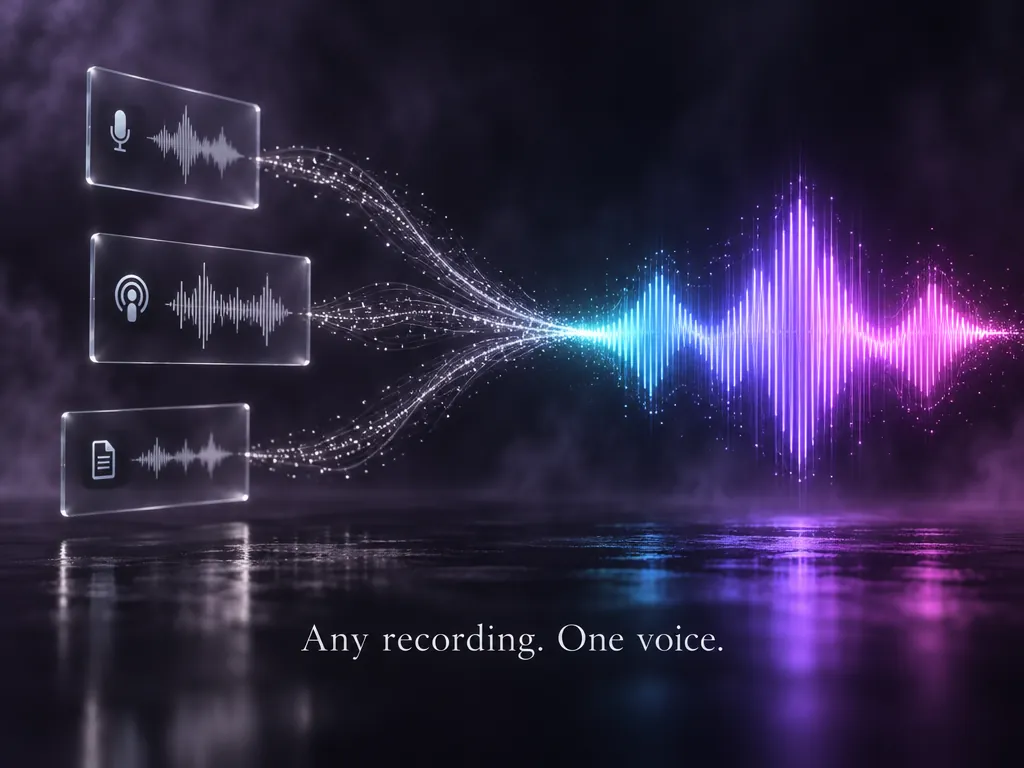
Clone from Any Audio on Your Canvas
Upload a recording from your computer, or reuse any audio node already on the canvas, including voices made with Voice Design. A past voiceover, a podcast intro, or a quick voice memo can all become the source.
Your recording in, your voice out.
Clone Your VoiceSaved as a Custom Voice
Every cloned voice appears in your Custom Voice list and stays there when you open a new project. Clone a narrator once, then reuse that same voice for every episode, ad, or tutorial you make.
Clone once. Reuse it in every project.
Open Your Voices
AI Voice Clone Text to Speech
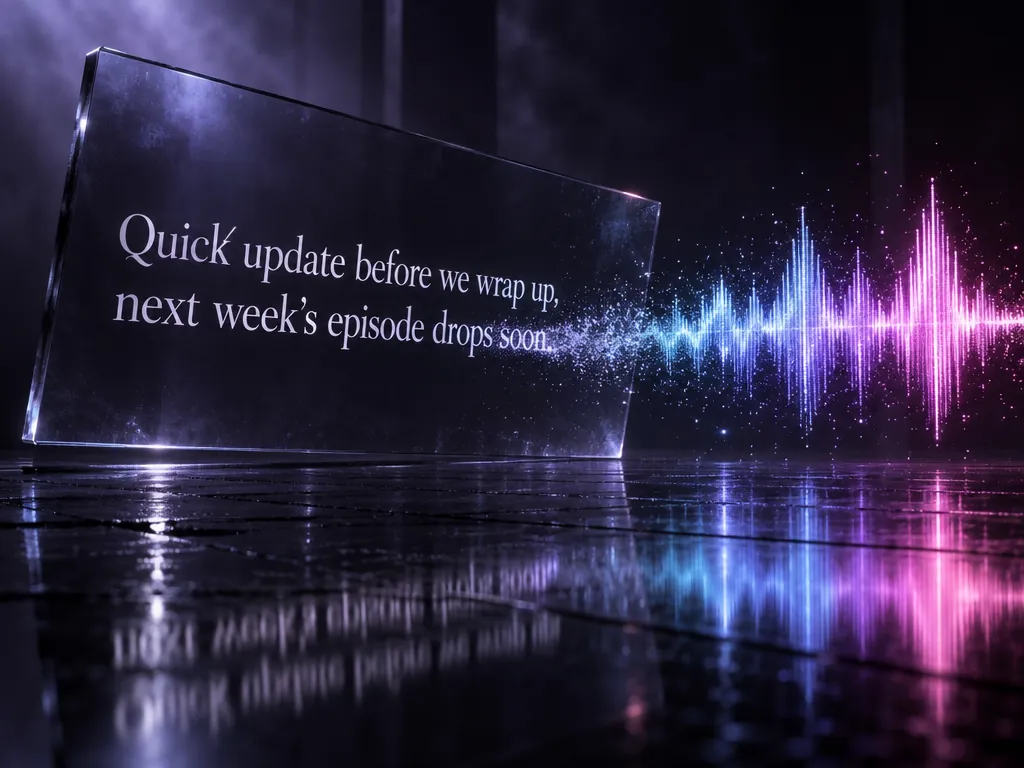
Pick your cloned voice in the Fish Audio model inside TTS, type a script, and generate speech in that voice. Edit a line and regenerate it without recording again. Cloned voices work with Fish Audio only.
Type the script. Hear it in your voice.
Try Voice Clone TTSFrom Cloned Voice to Finished Video
Connect the speech you generate to a video node and describe in the prompt how to use it: voiceover, dialogue, or narration. Your cloned voice, music, and sound effects stay on one canvas.
One voice across every clip you make.
Add a Voiceover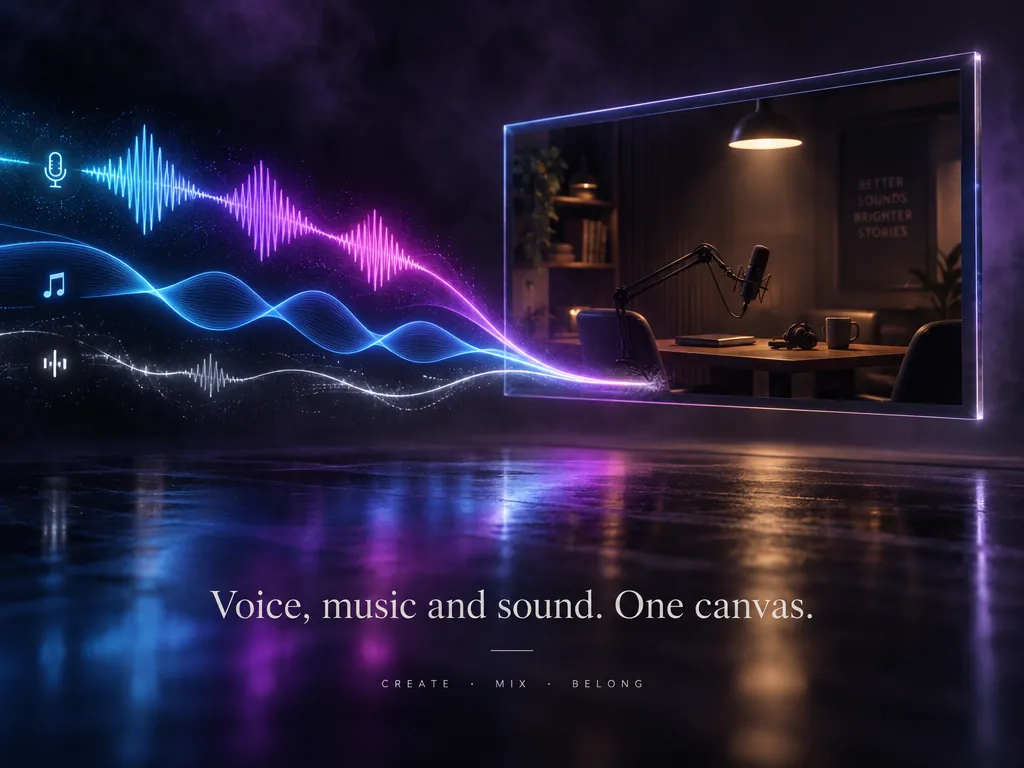
How to Clone a Voice with AI on Zeemo
Add Your Audio
Upload a clear recording to the canvas or pick an existing audio node. Fish Audio says about 10 seconds of speech is enough to clone.
Clone in TTS
Open a TTS node, choose Fish Audio, click Add Voice, and select your audio node. The new voice appears under Custom Voice.
Generate Speech
Choose the cloned voice, type your script, and generate. Connect the result to a video node or download it as audio.
Explore More AI Tools on Zeemo
Every tool runs on the same visual canvas. Same workflow, switch anytime.
Frequently Asked
Questions
AI voice cloning analyzes a short recording of a voice and builds a model that can speak new text in that voice. On Zeemo, cloning runs on Fish Audio and the result becomes a Custom Voice you use in text to speech.
Upload a recording of your voice to the canvas. Open a TTS node, choose Fish Audio, click Add Voice, and select that audio node. When processing finishes, your voice appears under Custom Voice, ready for any script.
Fish Audio states that its model can clone a voice from about 10 seconds of audio. A clear recording with one speaker and little background noise gives the cloning model the cleanest reference to work from.
Cloned voices work with the Fish Audio model in Zeemo's text to speech. Select Fish Audio in the TTS node to see your Custom Voice list.
Yes. A cloned voice stays in your Custom Voice list after you close the project. Open any new project, add a TTS node, choose Fish Audio, and the voice is there to use again.
Voice cloning copies a voice from an audio recording. Voice Design creates a new voice from a text description. You can combine them: design a voice, then clone that audio with Add Voice to use it in TTS.
Your voice, ready for every script.
Clone a voice from a short clip on the Zeemo canvas, keep it in Custom Voice, and narrate every video in it.