AI Text to Speech
Most TTS tools lock you into one engine and make you download a file before you can use it. Zeemo gives you two engines, 20 voices, and drops every word straight into your video timeline.
Hear the difference dual AI engines make
From video voiceover to audiobook narration. Hear what dual-engine TTS sounds like in real projects.


AI Text to Speech Generator with Dual Engines
Two AI engines, twenty premium voices, and inline emotion control. All inside your video workspace.
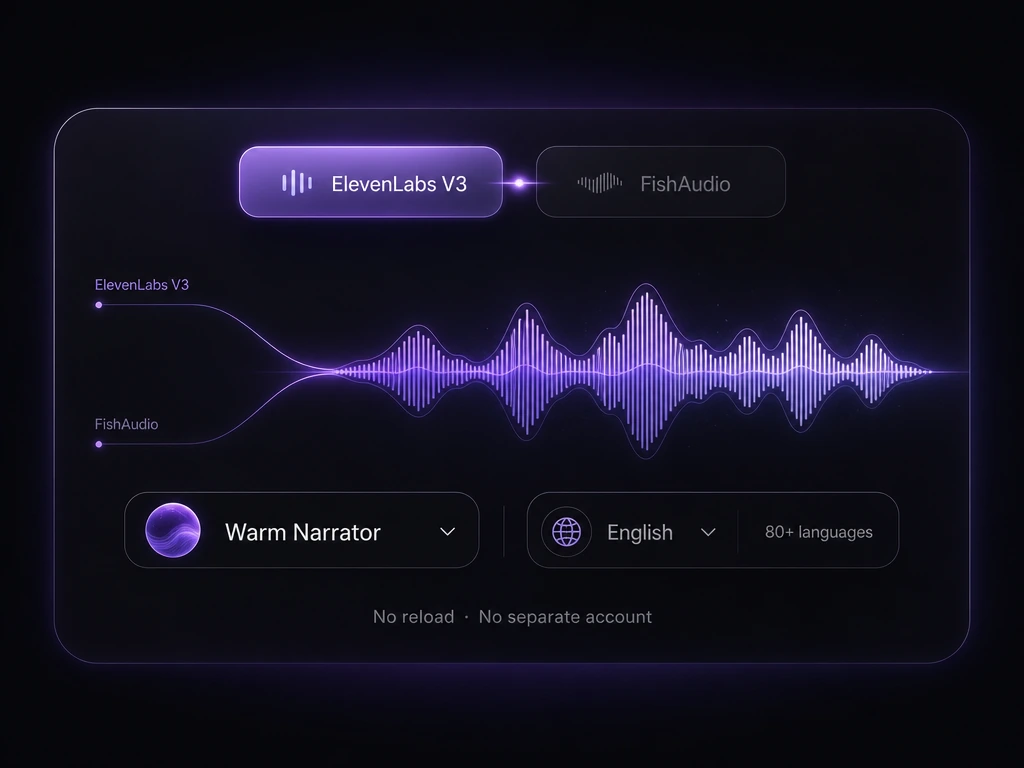
Dual AI Engines, One Click
Two AI engines behind one interface. Switch with a single click. No page reload, no separate account. Every voice and every language available from one panel.
Two engines, one click. Pick the voice that fits.
Switch Engines Now80+ Languages, One Engine Switch
Switch to FishAudio and unlock 80+ languages. Each of the 20 voices renders across every supported language with the same tone and character. Pair with Voice Design for unlimited custom voices.
80+ languages. 20 voices. One engine switch.
Preview All Voices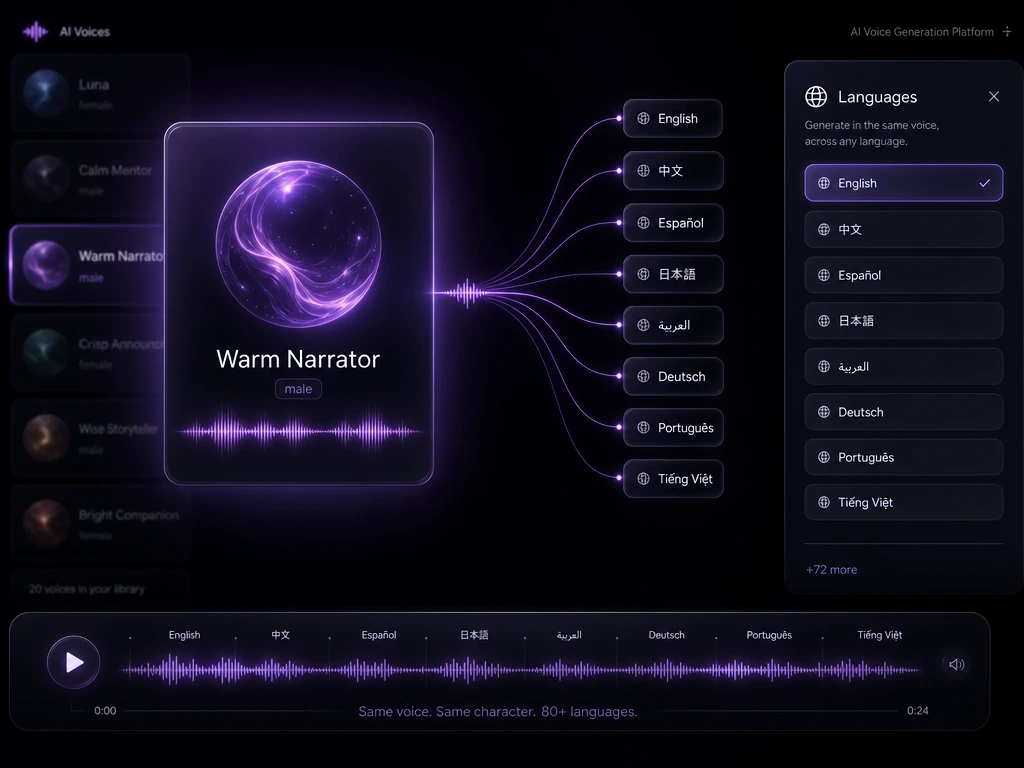
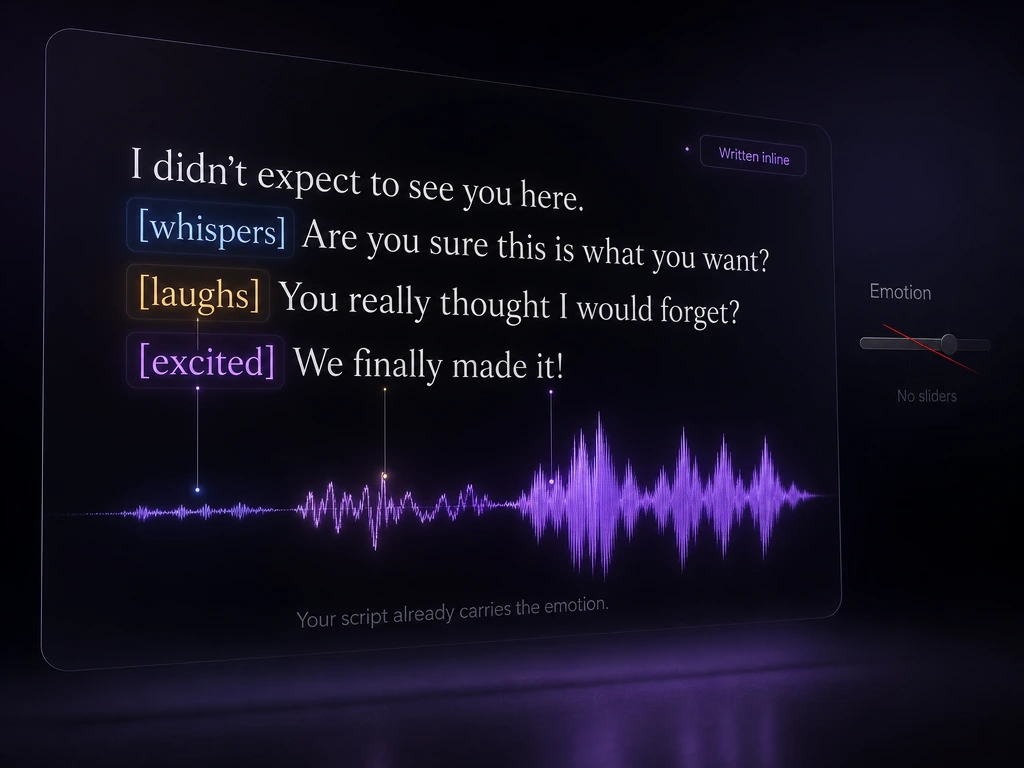
Emotion Tags, Written Inline
Type [whispers], [laughs], or [excited] directly into your script. The engine reads the tag and renders the emotion in the voice. No sliders, no parameter tuning. Your script already carries the emotion: just mark it inline.
Write it. Hear it. No sliders.
Write with Emotion TagsHow to Generate AI Speech with Zeemo
Choose Your Engine & Voice
Pick ElevenLabs V3 for broadcast narration or FishAudio for 80+ languages with emotion tags. Then choose from 20 voices in the dropdown.
Write Your Script
Type or paste your script. Add [whispers] or [laughs] directly in the text to control delivery. No sliders needed.
Generate & Layer
Click Generate. The voiceover lands on your audio layer. Trim, mix with music and effects, preview against video, and export from one workspace. Try AI voice design for custom voices.
Explore More AI Tools on Zeemo
Every tool runs on the same visual canvas. Same workflow, switch anytime.
Frequently Asked
Questions
AI text to speech converts written text into spoken audio using deep learning voice models. Zeemo runs two engines: ElevenLabs V3 for broadcast-grade narration and FishAudio for 80+ languages with inline emotion control. The result is a natural, human-like voiceover that drops straight into your video timeline.
Twenty official male and female voices covering warm narrators, energetic presenters, calm explainers, and authoritative brand voices. Voice Design lets you create unlimited custom voices from a text prompt. Dual-engine coverage spans 80+ languages, from English and Mandarin to Arabic and Vietnamese.
Yes. FishAudio supports inline emotion tags: type [laughs], [whispers], [excited], or [sad] directly into your script and the engine renders the emotion in the generated speech. ElevenLabs V3 handles subtler tonal shifts without markup. No sliders, no manual parameter tuning.
Standalone tools make you download, import, then sync. Zeemo drops the voiceover straight onto your video layer. Trim, layer with music and sound effects from the AI music generator, preview against footage, and export together.
Yes. Use the Download button in the top toolbar to export your voiceover as a standalone audio file. Trim the audio first with the built-in Trim tool. The export uses the same format pipeline as all Zeemo audio modules.
Voice Design creates original character voices from a text prompt describing age, tone, accent, and personality. No real person's voice is used. The generated voice is saved to your library and appears in the TTS voice dropdown immediately. Use it alongside the 20 official presets for any project.
Ready to give your words a voice?
Turn any script into natural speech with 20 premium voices, 80+ languages, and inline emotion control. All inside your video workspace.