AI Cartoon Video Generator
Describe a scene or drop in a character drawing, and Zeemo turns it into an animated cartoon clip. Set the look with your prompt and reference images, add voices, and keep one character across every shot.
Create a Cartoon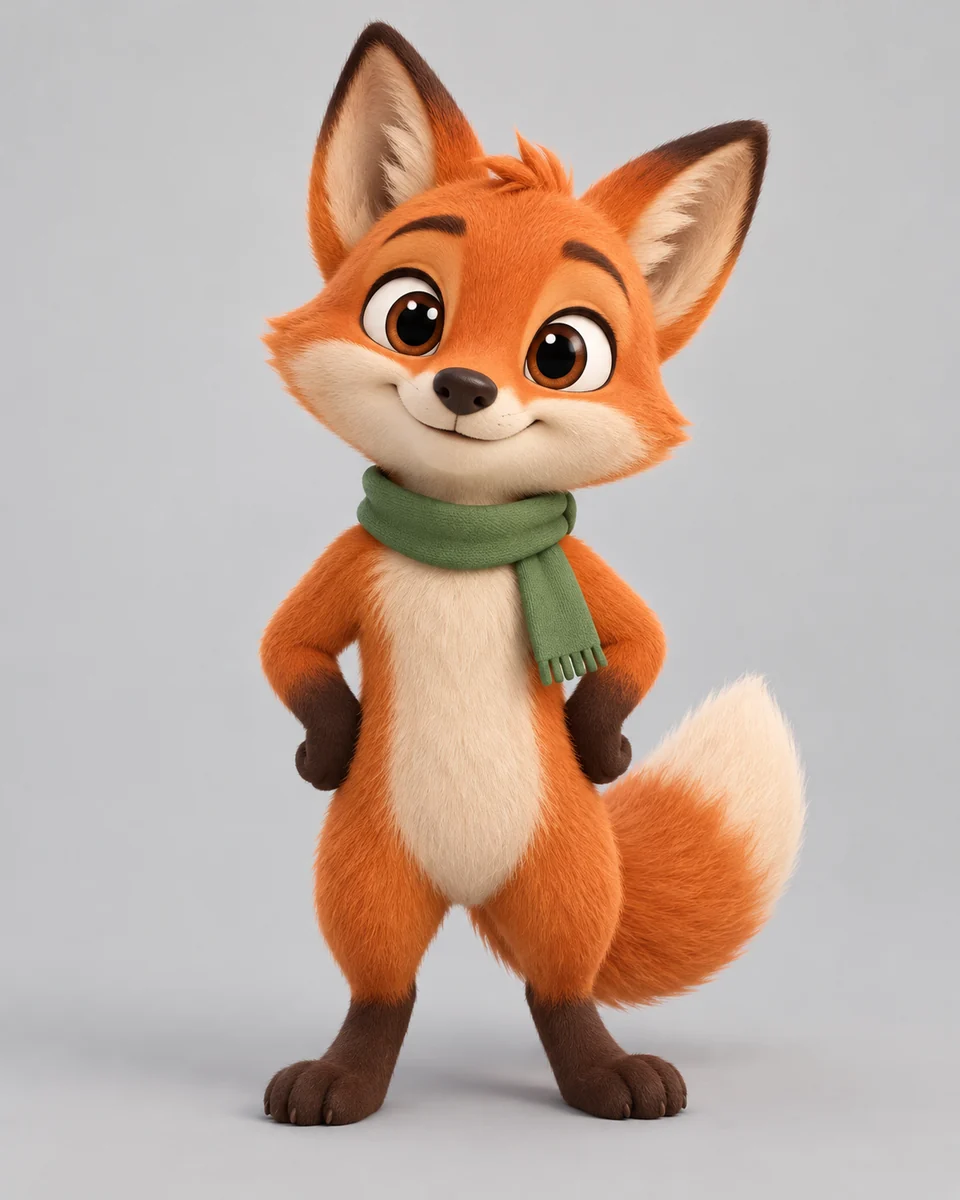
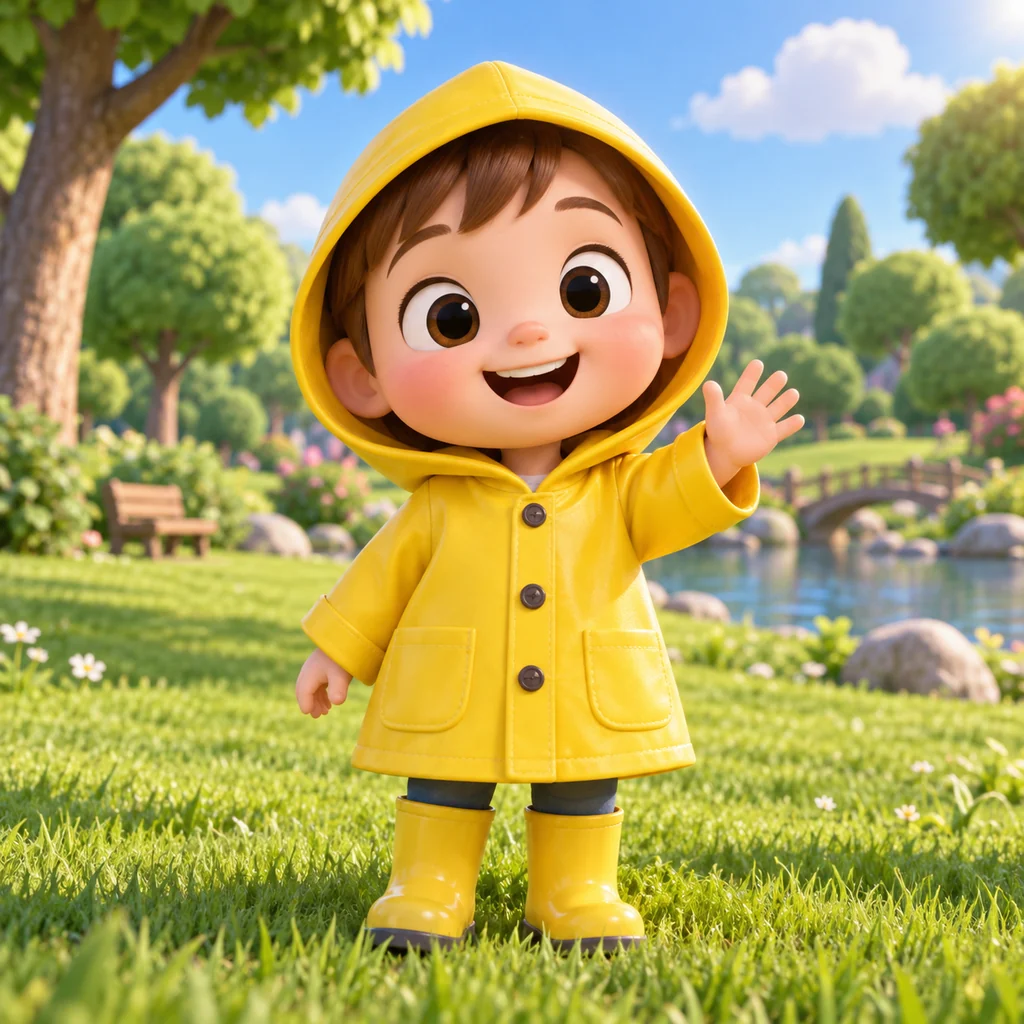
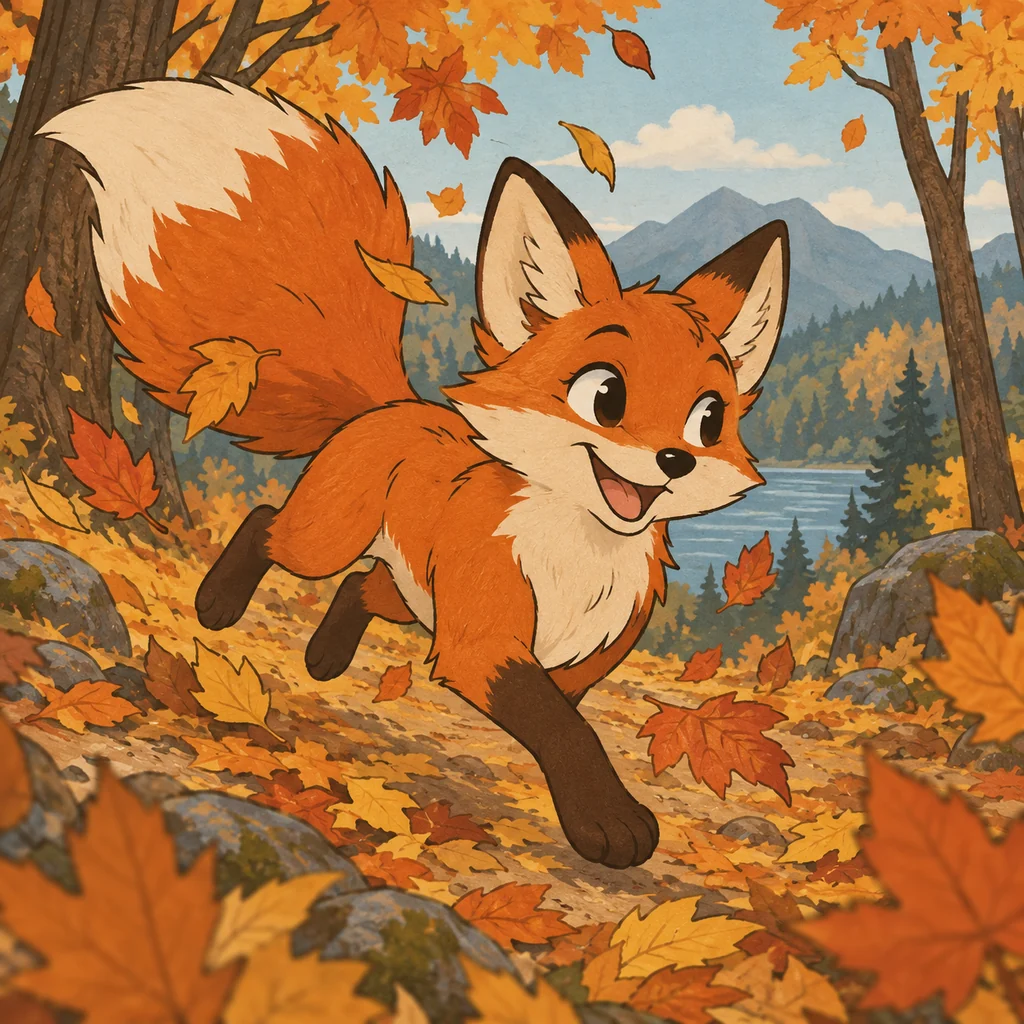
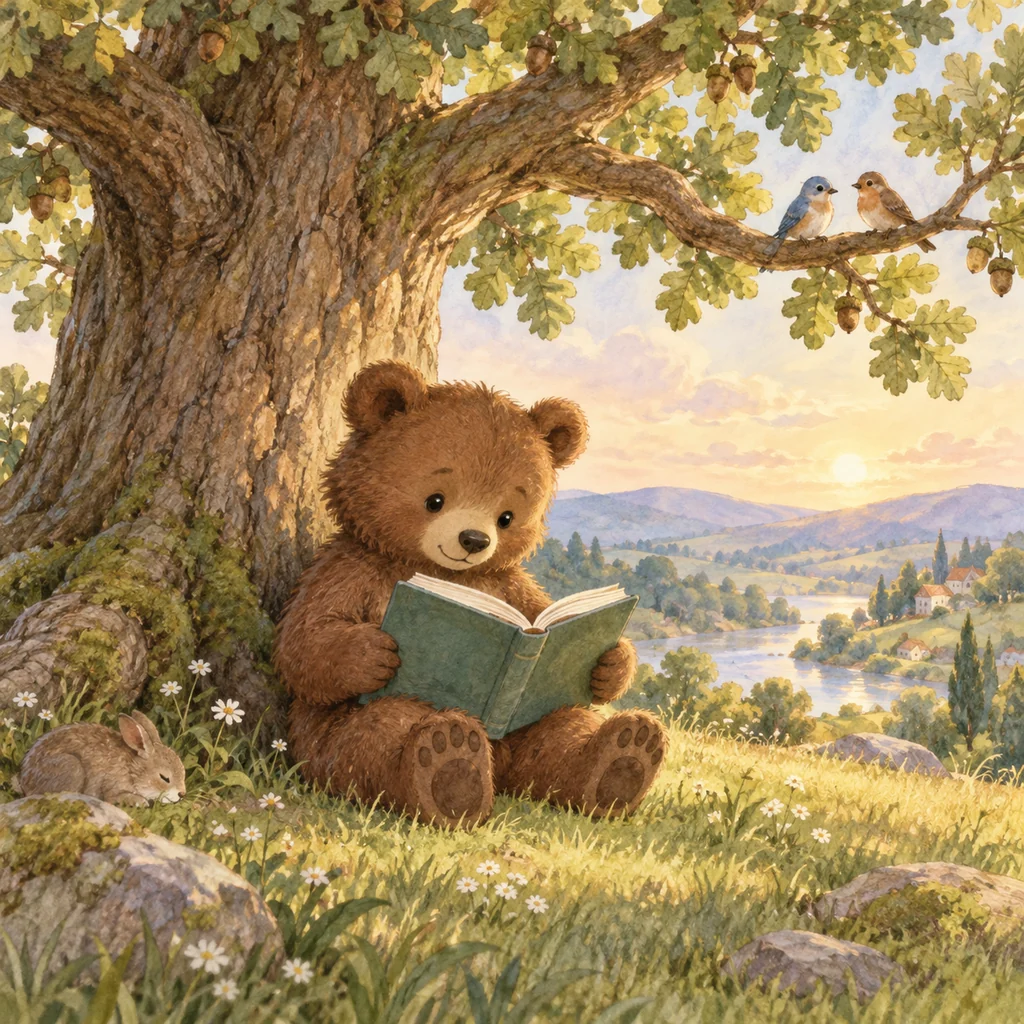
See what an AI cartoon video generator makes
3D, 2D, storybook, or mascot. Each clip starts from a prompt or a character image.

Text to Cartoon Video, Shot by Shot
Start from words or a drawing. Zeemo gives each shot its own video node, so you can direct style, character, and sound separately.
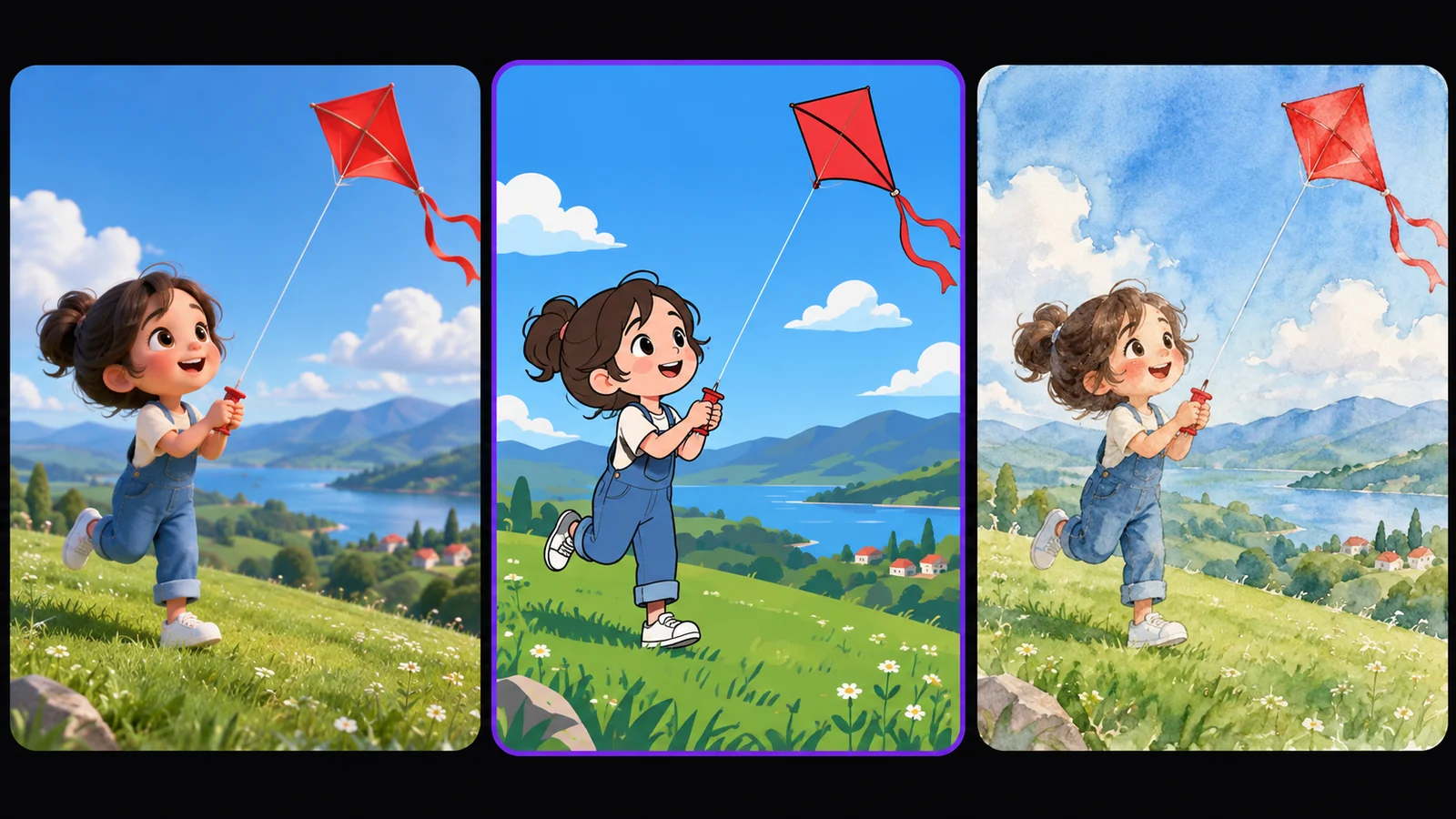
Any Cartoon Style, Described in Words
Name the look in your prompt, such as 3D, flat 2D, or storybook, then describe the action and the camera. To match an exact art style, connect a style reference image and point to it with @.
Describe the look. Get the cartoon.
Describe Your StyleKeep Your Character Consistent
Start from one character drawing. Turn it into a turnaround sheet or a 3×3 multi-angle grid, and reference the split panels in every shot. Use one shot's last frame as the next shot's first frame.
One character. Every shot. Same face.
Build Your Character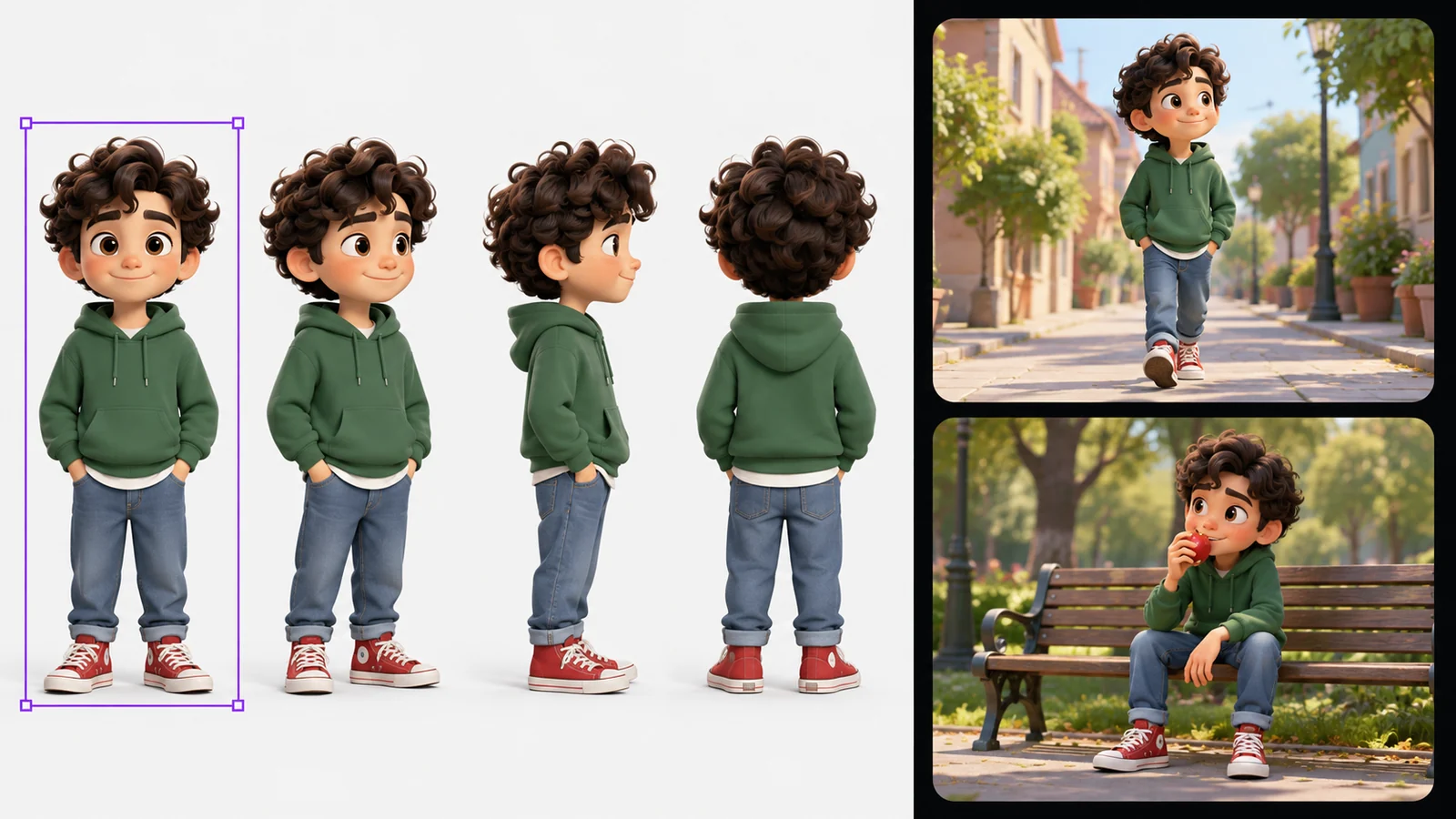
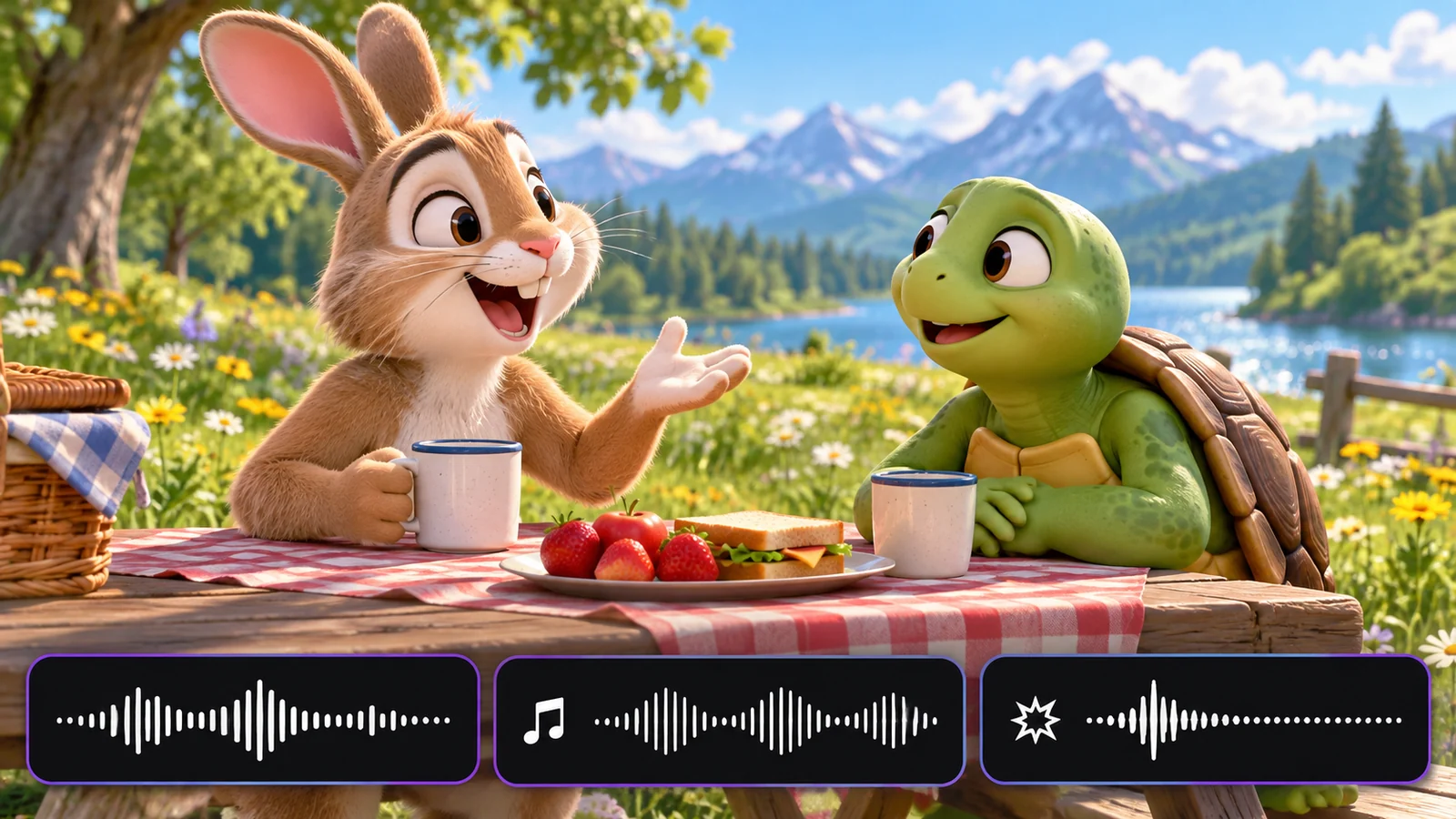
Cartoon Videos with Voice
Generate voices with text to speech, design a new voice from a description, or clone one from an audio clip. Connect voice, music, and sound effects to the video node, or switch on audio for models that generate sound.
Give every character a voice of its own.
Add a VoiceFix One Shot Without Starting Over
Not happy with one shot? Regenerate just that node, compare versions in History, and set the best as main. To change a character, the background, or the colors in a finished clip, use AI video editing.
Fix one shot. Keep the rest.
Refine a Shot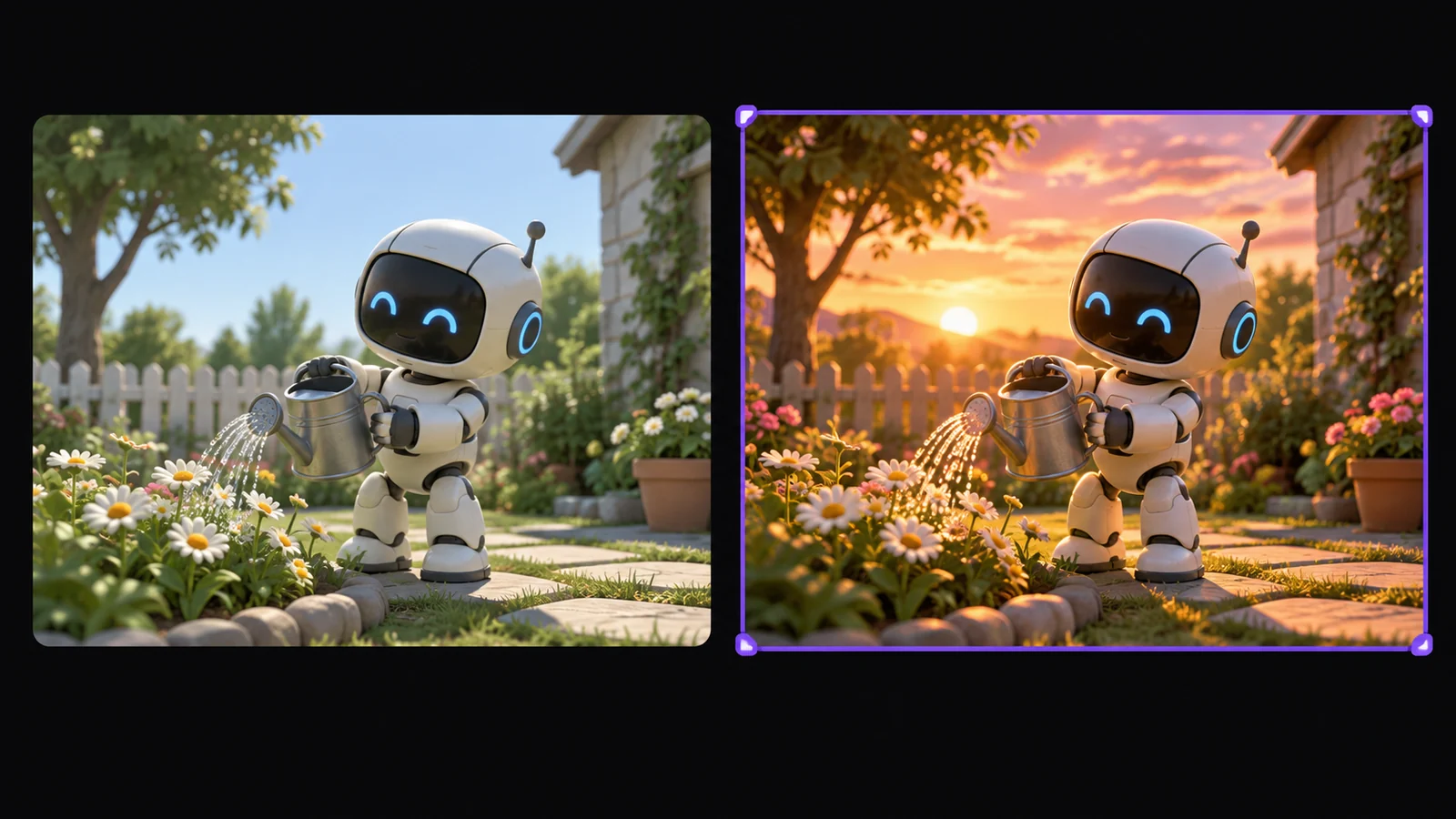
How to Make a Cartoon Video with AI
Write or Upload
Add a text node with your story or prompt, or drop a cartoon character image onto Zeemo AI Canvas. One text node can feed several shots.
Generate Each Shot
Connect a video node and describe the cartoon style and motion. Choose the model, aspect ratio, duration, and audio. Use 16:9 for YouTube, 9:16 for Shorts.
Add Voice and Refine
Connect voiceover, music, or sound effects. Regenerate any shot that misses, then download each clip. Compare models in our AI video generator.
Explore More AI Tools on Zeemo
Every tool runs on the same visual canvas. Same workflow, switch anytime.
Frequently Asked
Questions
An AI cartoon video generator turns a text prompt or a character image into an animated cartoon clip. On Zeemo, you describe the style and motion, pick a video model, and generate each shot on one visual canvas.
Yes. Write your scene in a prompt or a text node and connect it to a video node. Describe the cartoon style in words. To match a specific look, add reference images and mention them with @.
Yes. Create voiceover with text to speech, design a voice from a description, or add a custom voice from any audio clip on your canvas. Connect the audio to the video node and say in the prompt whether it is dialogue, music, or sound effects.
Start from one character image. Create a turnaround sheet or multi-angle grid, split it into panels, and reference those panels in every shot. For smooth cuts, use the last frame of one shot as the first frame of the next.
Yes. Choose 16:9 for YouTube videos or 9:16 for Shorts. Zeemo generates each shot as its own clip, so you download the clips and put them together in the video editor you already use.
Zeemo uses credits. Generating videos, images, and voices on the canvas uses credits from your account. Open the pricing page to see current plans and how credits work for each type of generation.
Ready to Make Your First Cartoon?
Write a scene or upload a character. Describe a style, add a voice, and watch your cartoon move. All on one canvas.