AI Music Video Generator
Make visuals for your song with an AI music video generator. Write each shot as a prompt, or several shots in one on supported models, and generate scenes on Zeemo Canvas. Start from an image and retake any shot.
Generate Music VideoSee What an AI Music Video Maker Can Create
From stage performances to animated stories, see the kinds of music video shots you can generate scene by scene.
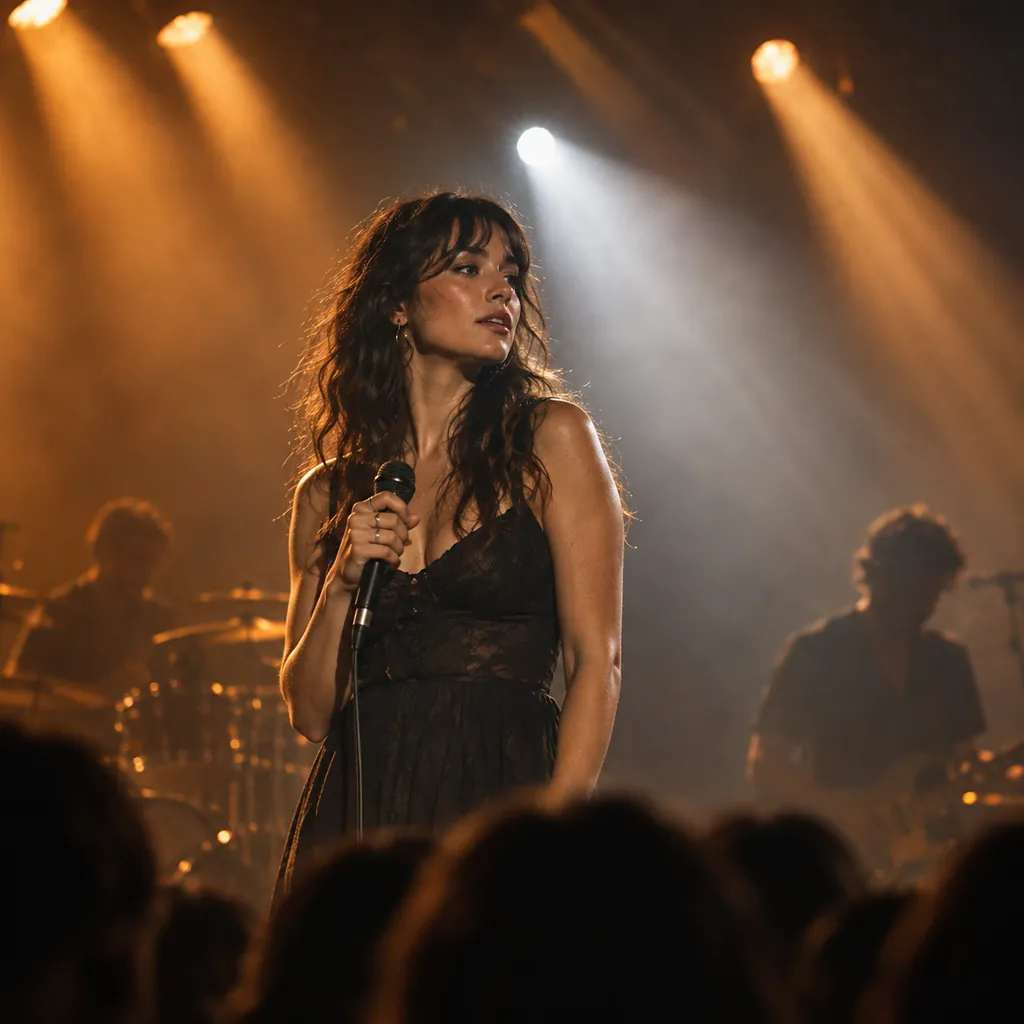
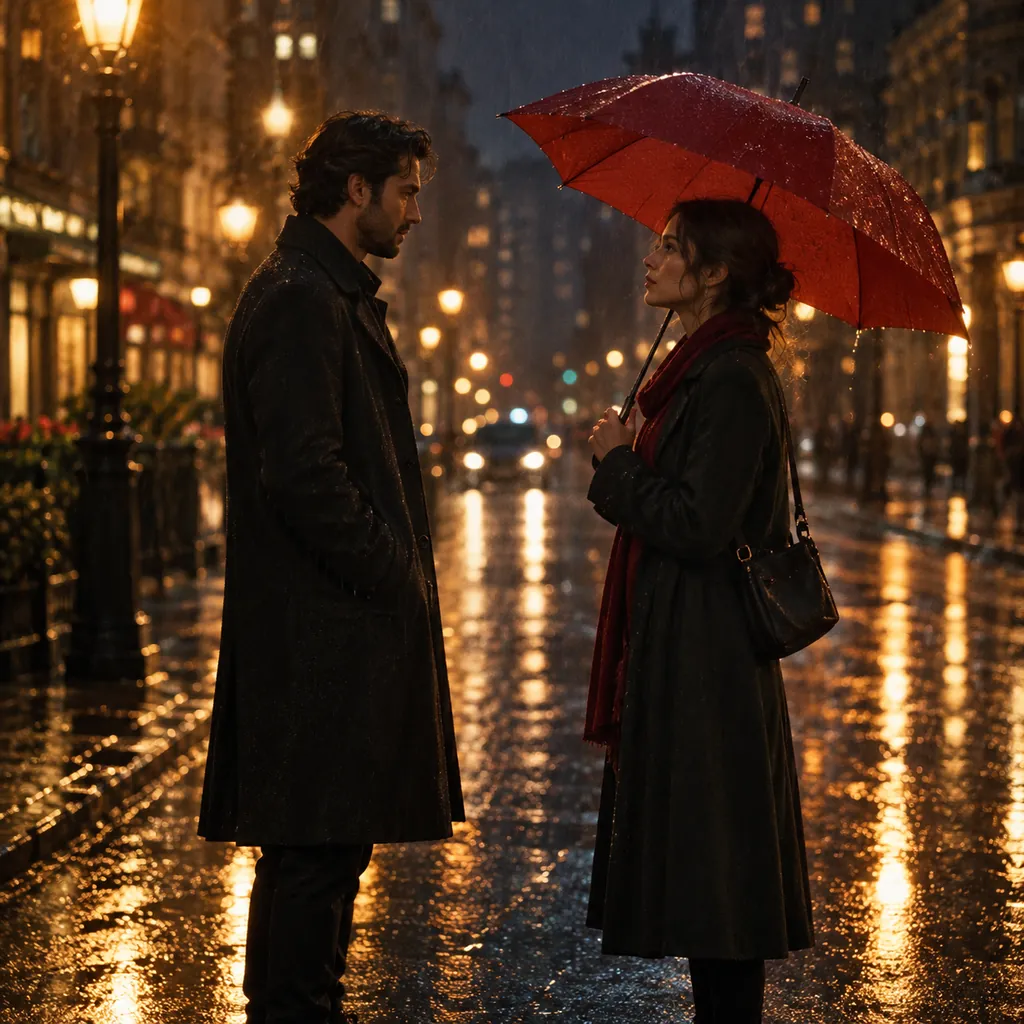
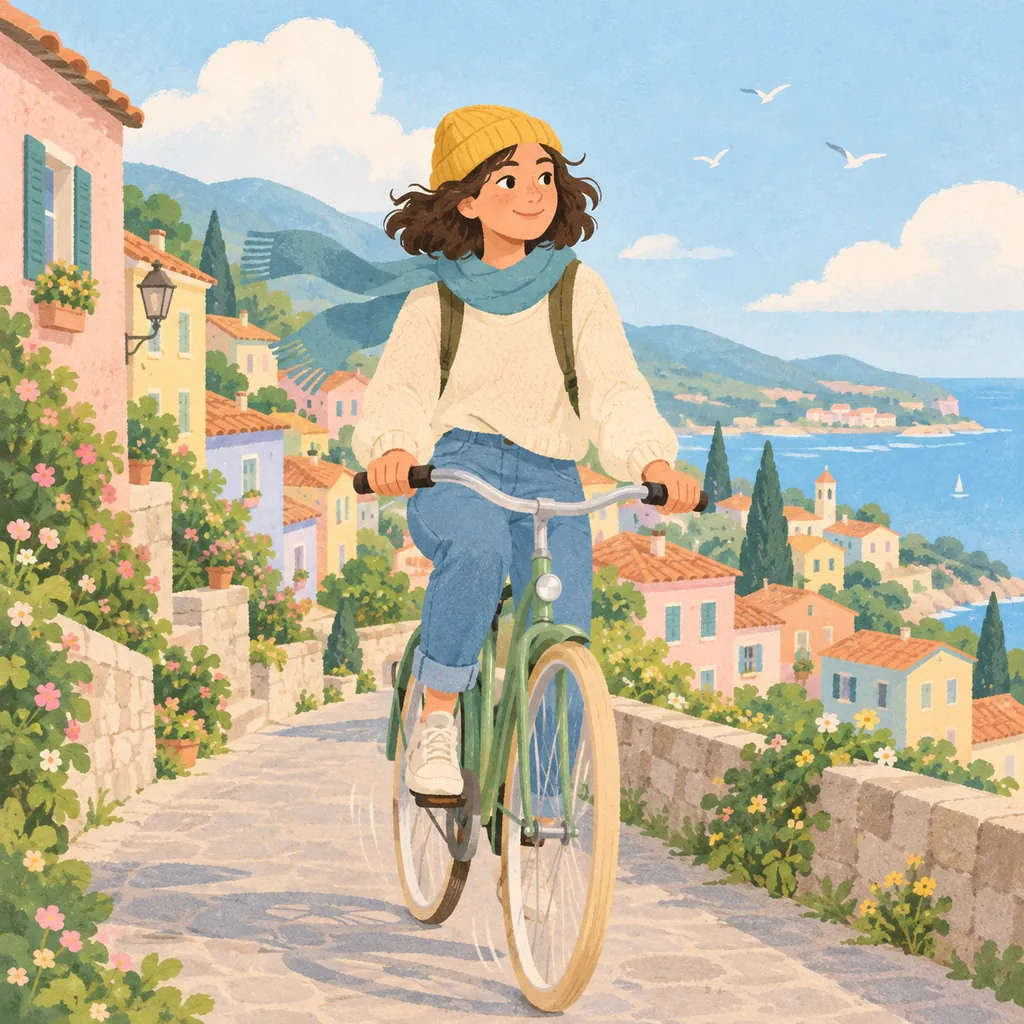
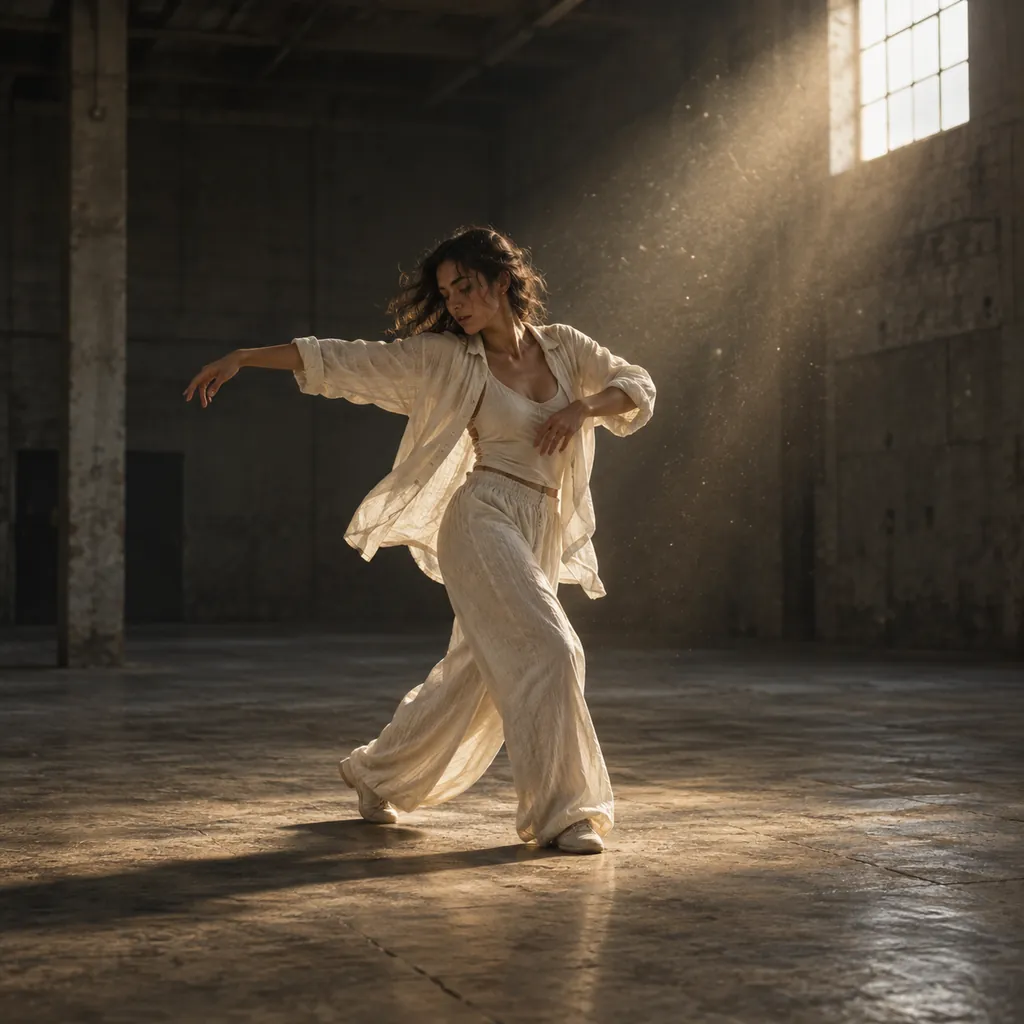
Your Music Video Storyboard, Written in Prompts
Plan the shots, set the look, and generate each scene of your music video on one canvas.
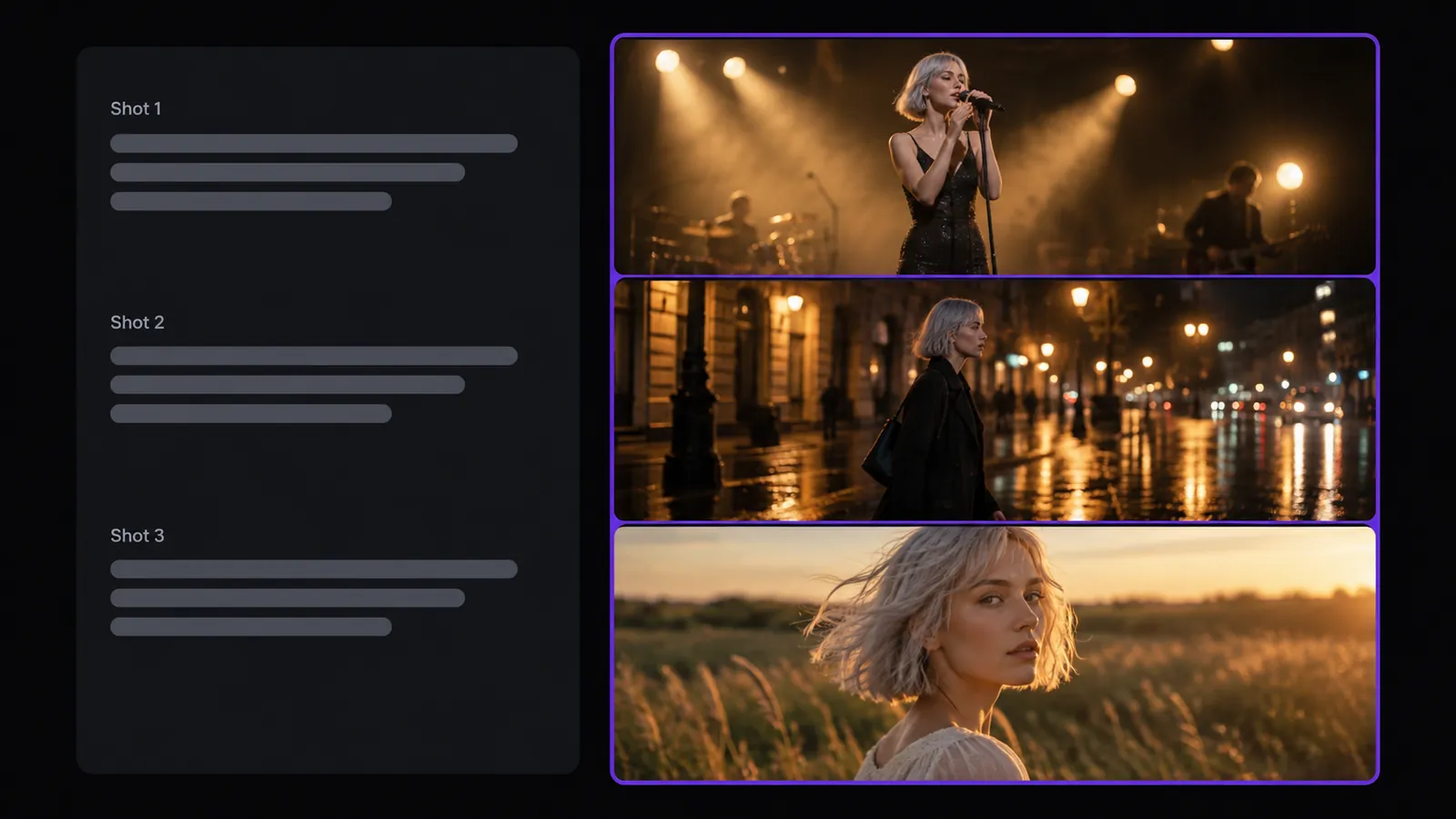
Write Your Storyboard as Prompts
Describe each shot in its own prompt: scene, action, framing, and camera move. With models that support multi-shot, write Shot 1, Shot 2, and Shot 3 in one prompt to get several cuts in one clip.
One prompt per shot, or several shots in one.
Write Your StoryboardMake a Music Video from an Image
Use album art, an artist photo, or concept art as the first frame or a reference. Describe what should move, from drifting light to a slow push-in. Need a starting image? Create one with our AI image generator.
Bring your cover art into motion.
Animate an Image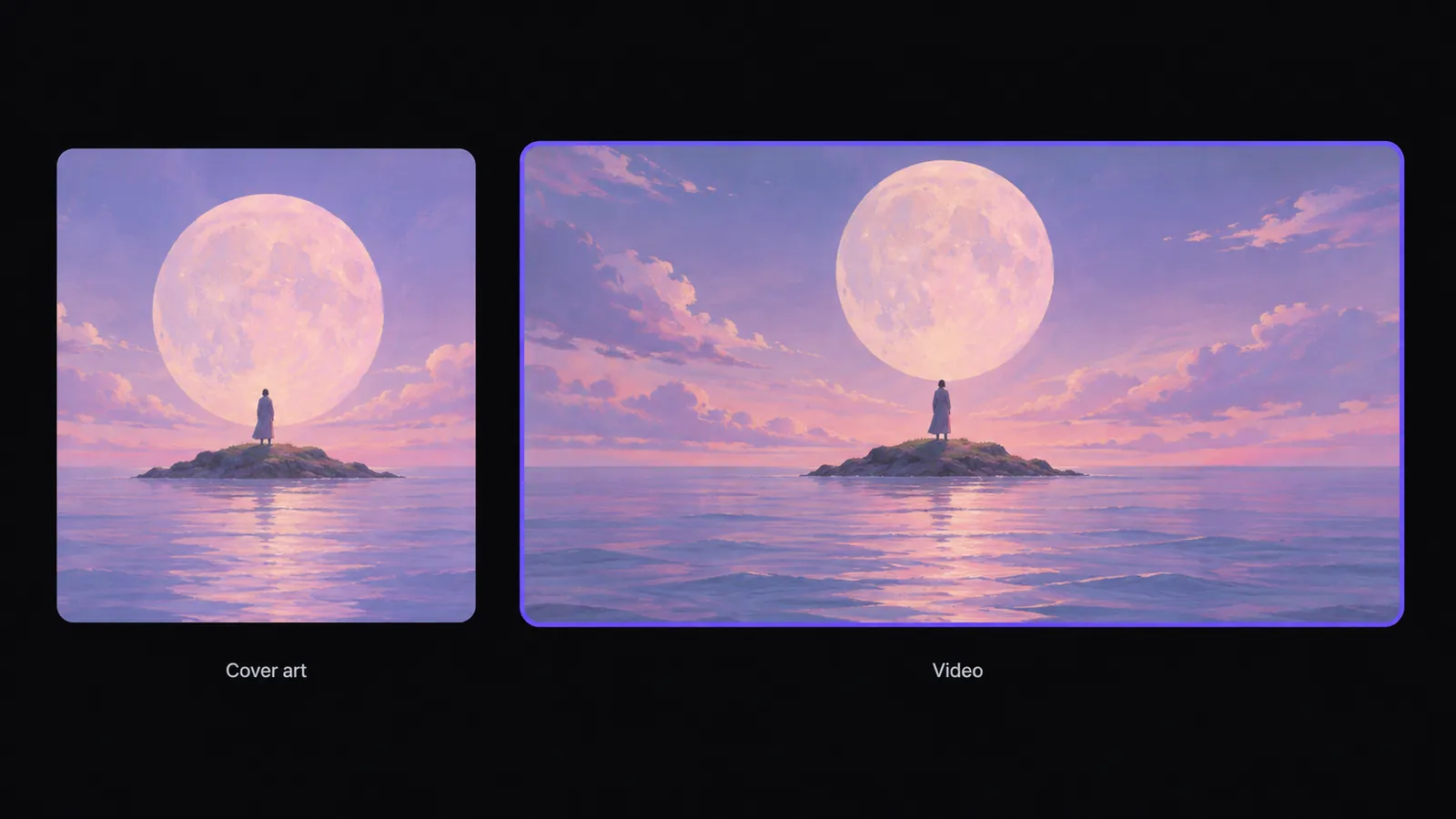
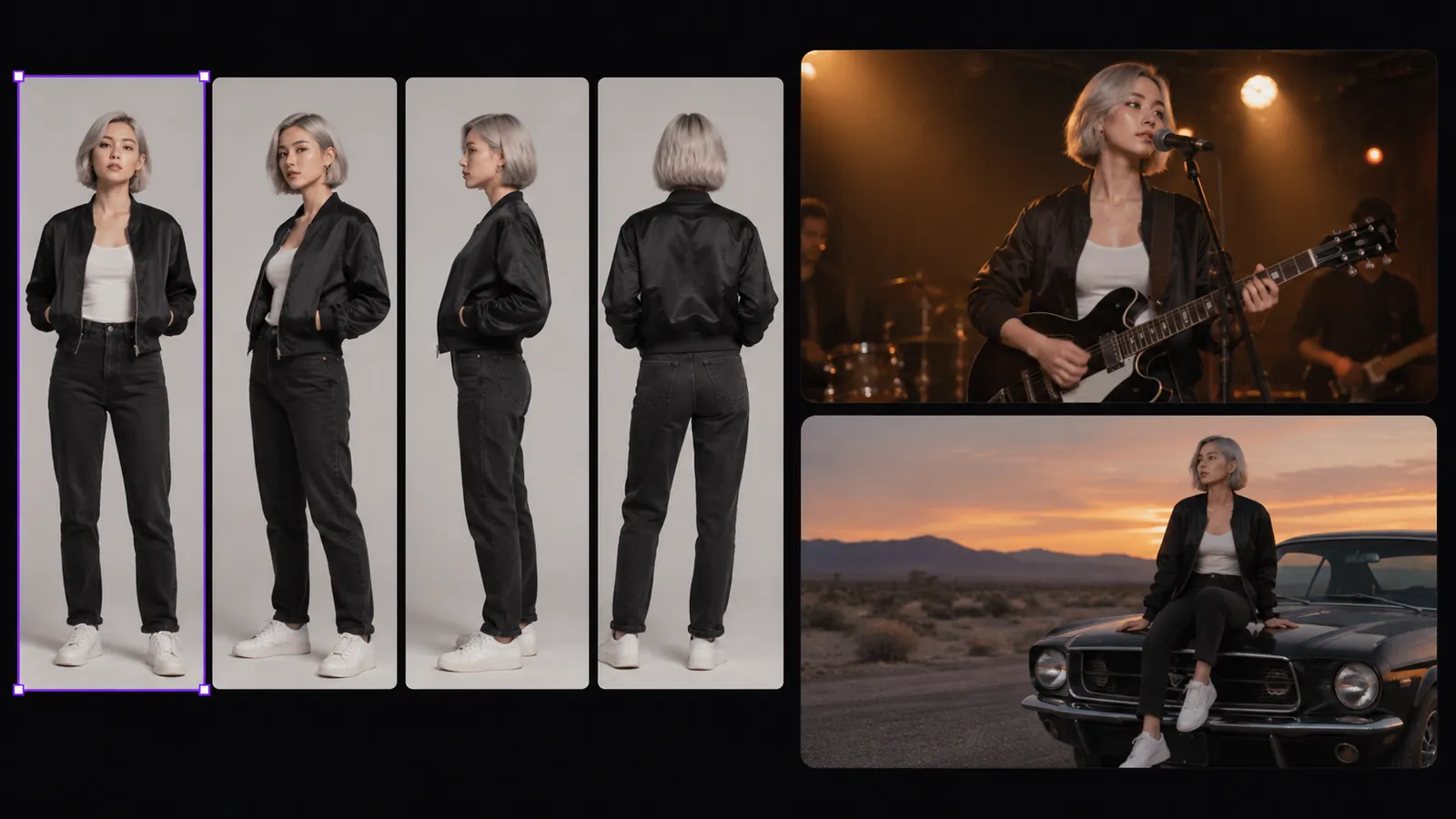
Reuse Your Artist Across Shots
Start from one artist image. Create a turnaround sheet or multi-angle grid, split it into panels, and reuse them as references in later shots. References guide the look, so check each clip. Link shots with last and first frames.
Keep your artist references close, from verse to chorus.
Build a Character ReferenceRetake One Shot, Keep the Rest
Regenerate a single video node when one shot misses the mood. Compare takes in History and set the best one as main. To change a person, background, color, or action in a finished clip, use AI video editing.
Another take for one shot. The rest stays as it is.
Refine a Shot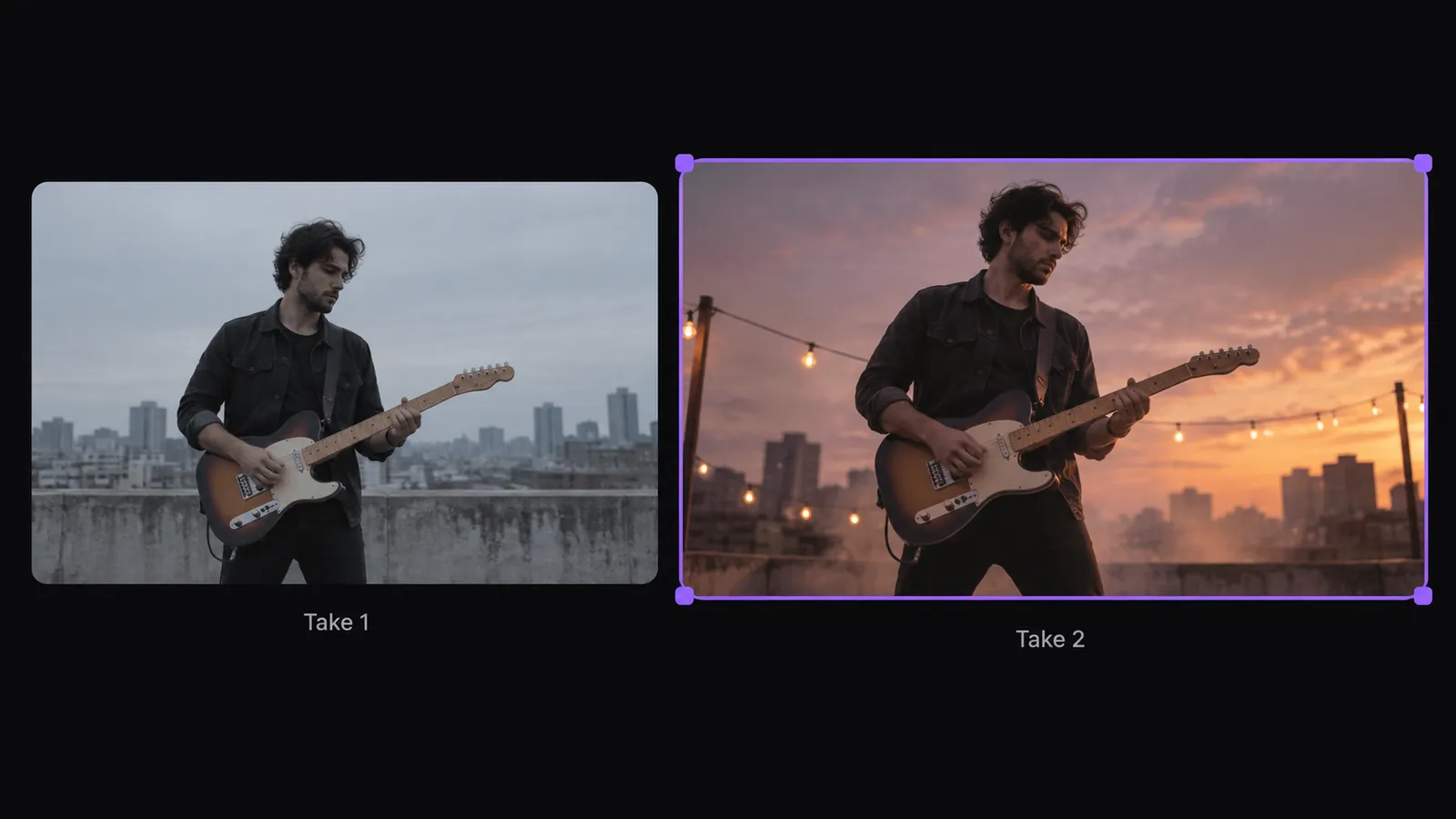
How to Make an AI Music Video
Write Your Storyboard
Break your song into shots and write a prompt for each on Zeemo Canvas. Add album art or an artist photo as a reference.
Generate Each Shot
Connect your prompt and references to a video node. Choose a model, aspect ratio, and duration, then generate the shot.
Review and Cut to Your Track
Retake any shot that needs work, download the clips, and cut them to your song in your editor. Explore more models in our AI video generator.
Explore More AI Tools on Zeemo
Every tool runs on the same visual canvas. Same workflow, switch anytime.
Frequently Asked
Questions
An AI music video generator creates the visuals for a song. On Zeemo, you write each shot as a prompt, add image references, and generate clips on a video node. You then edit the clips to your track.
Zeemo generates visuals from your prompts, not from the audio itself. It does not cut to the beat or build a video from a full song. Write shots that follow your song's sections, then cut the clips to the track in your editor.
Yes, with video models that support multi-shot generation. Write each shot in order, with its scene, action, and camera move, to get several cuts in one clip. With other models, write one prompt per shot and generate them separately.
Start from one artist image, create a turnaround sheet or multi-angle grid, and split it into reference panels. Reuse those panels in later shots. References guide appearance, so check each clip for changes in the artist's details.
You build a music video shot by shot. Each video node creates one clip, and clip length depends on the model you choose. Zeemo Canvas does not join clips, so download them and assemble the full video in your editor.
Zeemo uses credits. Check the pricing page for current plans and credit details before you generate. Available generation settings depend on the video model you select, so review those settings for the shot you want to create.
Put Your Song on Screen
Write your first shots, bring in your cover art, and generate the visuals for your next music video on Zeemo.