AI Anime Video Generator
Start with a scene idea or an anime image. Describe the look, action, and camera movement, then generate an anime clip on Zeemo Canvas. Reuse anime character references and refine each shot as you go.
Generate Anime Video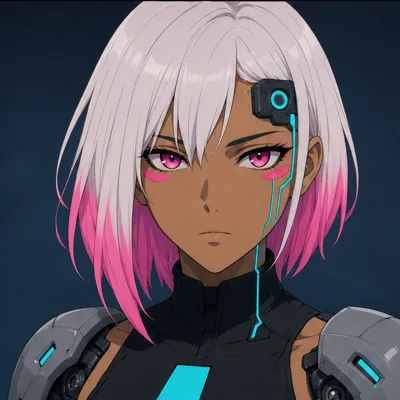
See What an AI Anime Video Generator Can Create
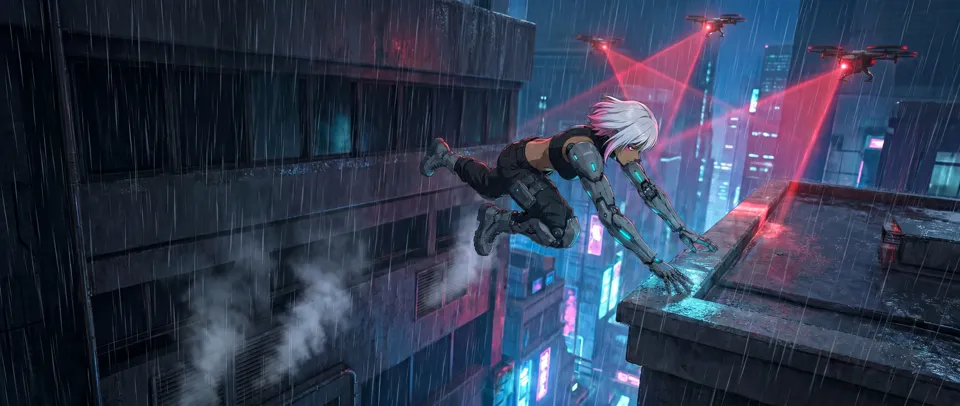
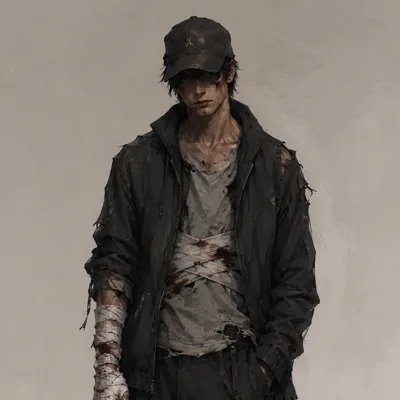
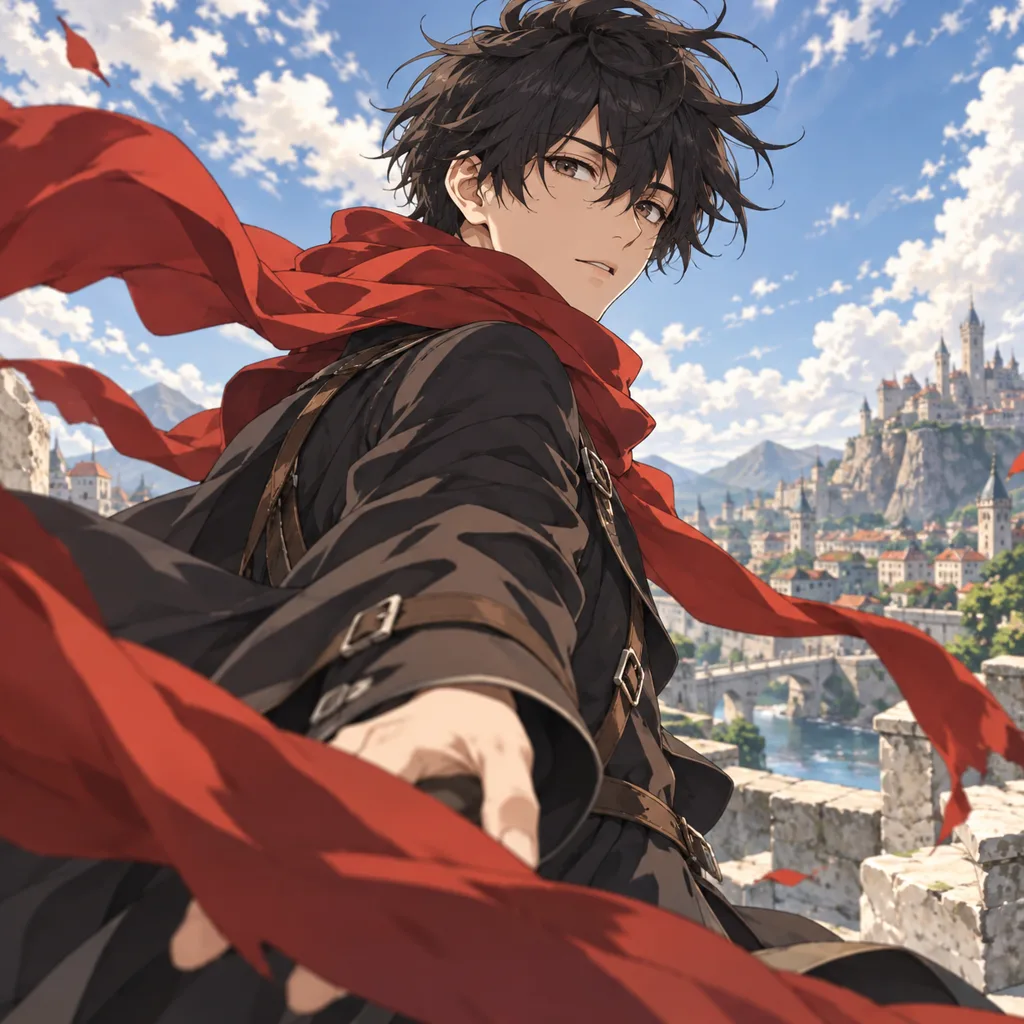
From anime character moments to fantasy scenes, see what an AI anime generator can bring into motion.
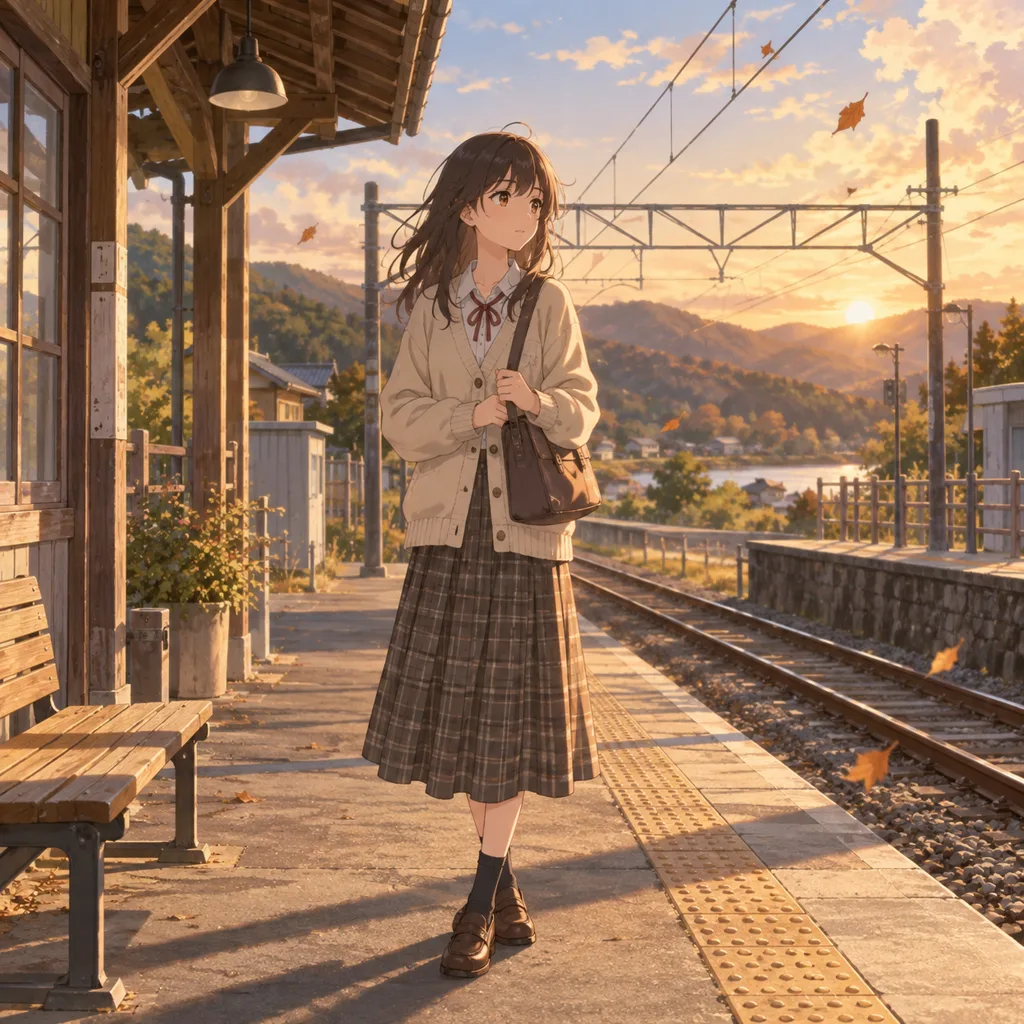
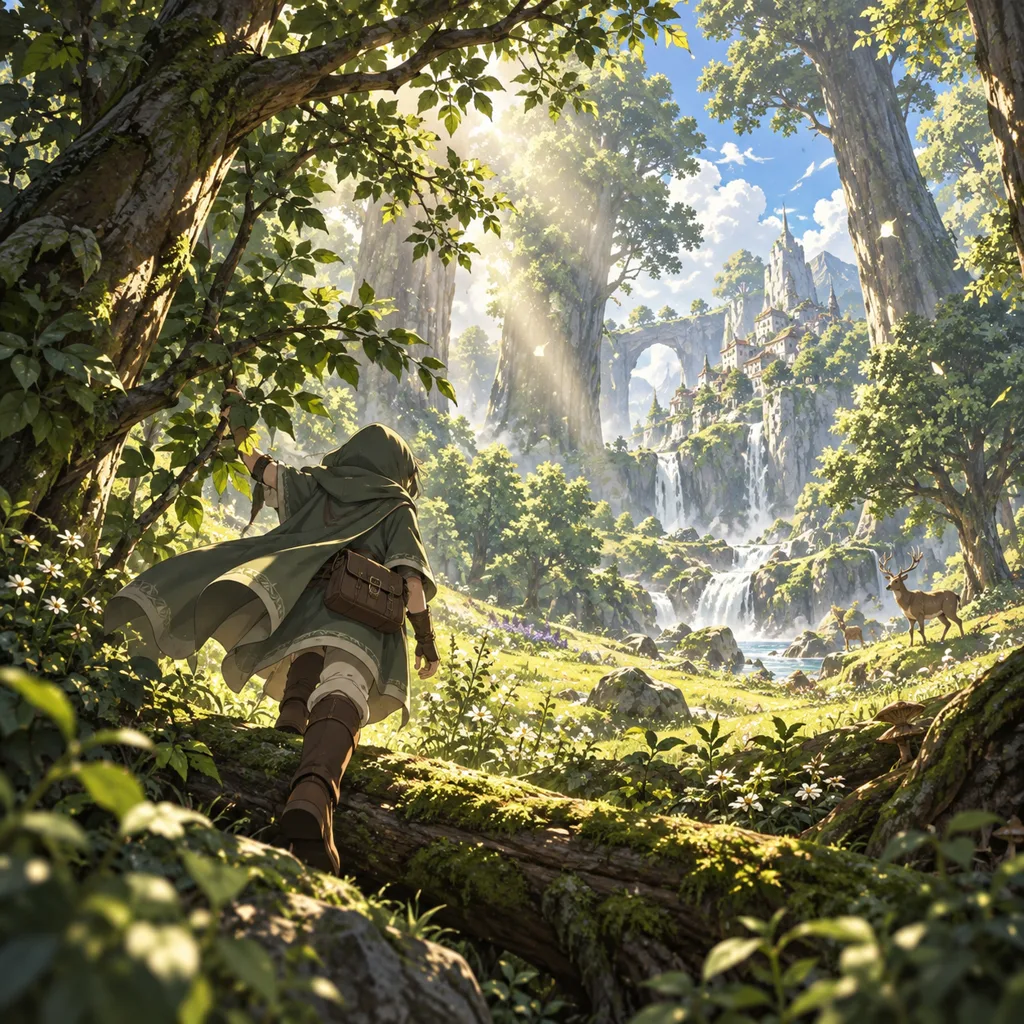
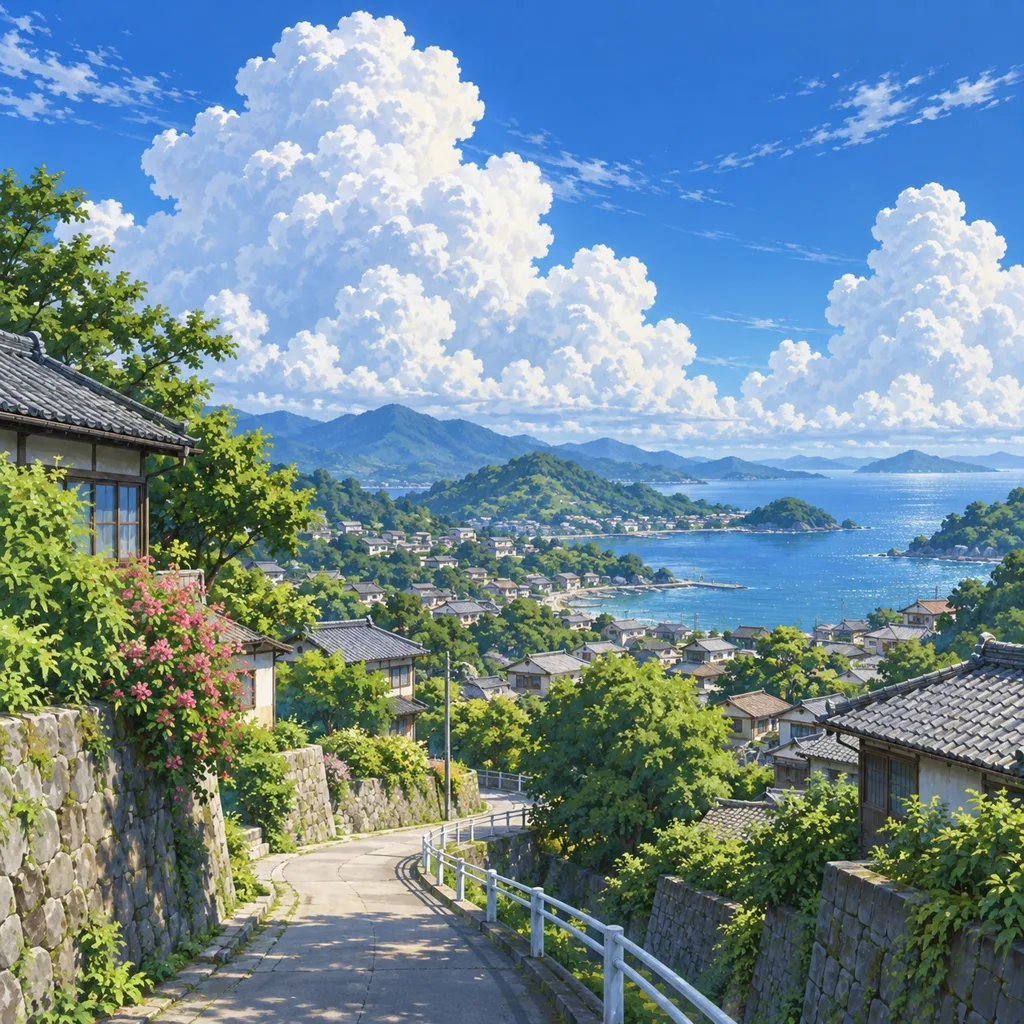
Direct Your Anime Scene, One Shot at a Time
Describe the visual style, bring in an image, and guide each shot with references. Keep the workflow on one canvas.
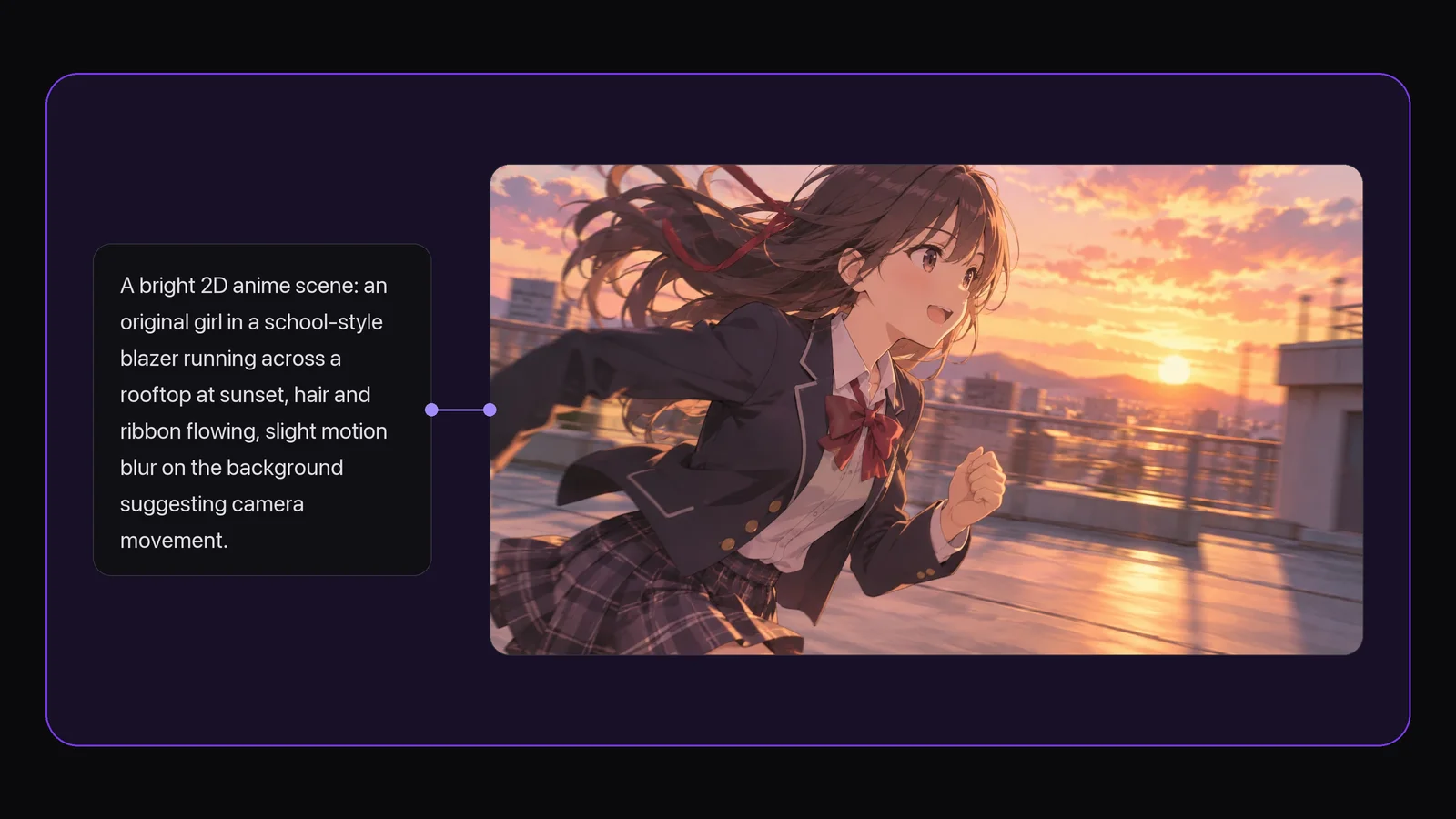
Turn a Scene Idea into Anime Motion
Describe an anime scene in your prompt: the setting, lighting, character action, and camera movement. Add a style reference image when words need support. Connect your inputs to a video node and choose a model to generate the shot.
Set the scene. Describe the action. Guide the camera.
Create from TextStart from a Photo or Anime Image
Already have an anime drawing? Use it as the starting image and describe what should move. Starting from a photo? Use our AI image generator as an anime character generator first, then connect the result to a video node.
Shape the anime image first. Then bring it into motion.
Animate an Image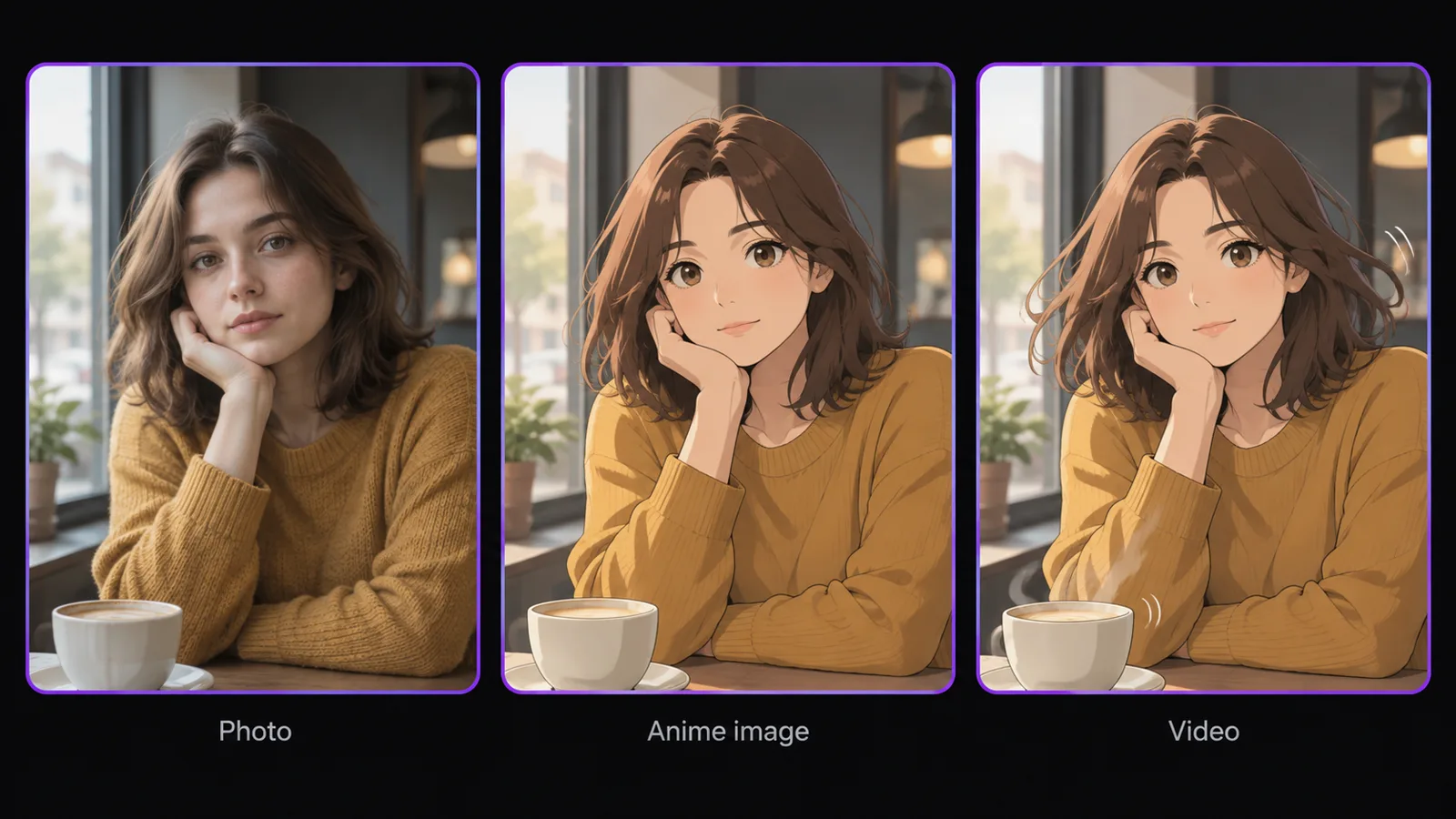
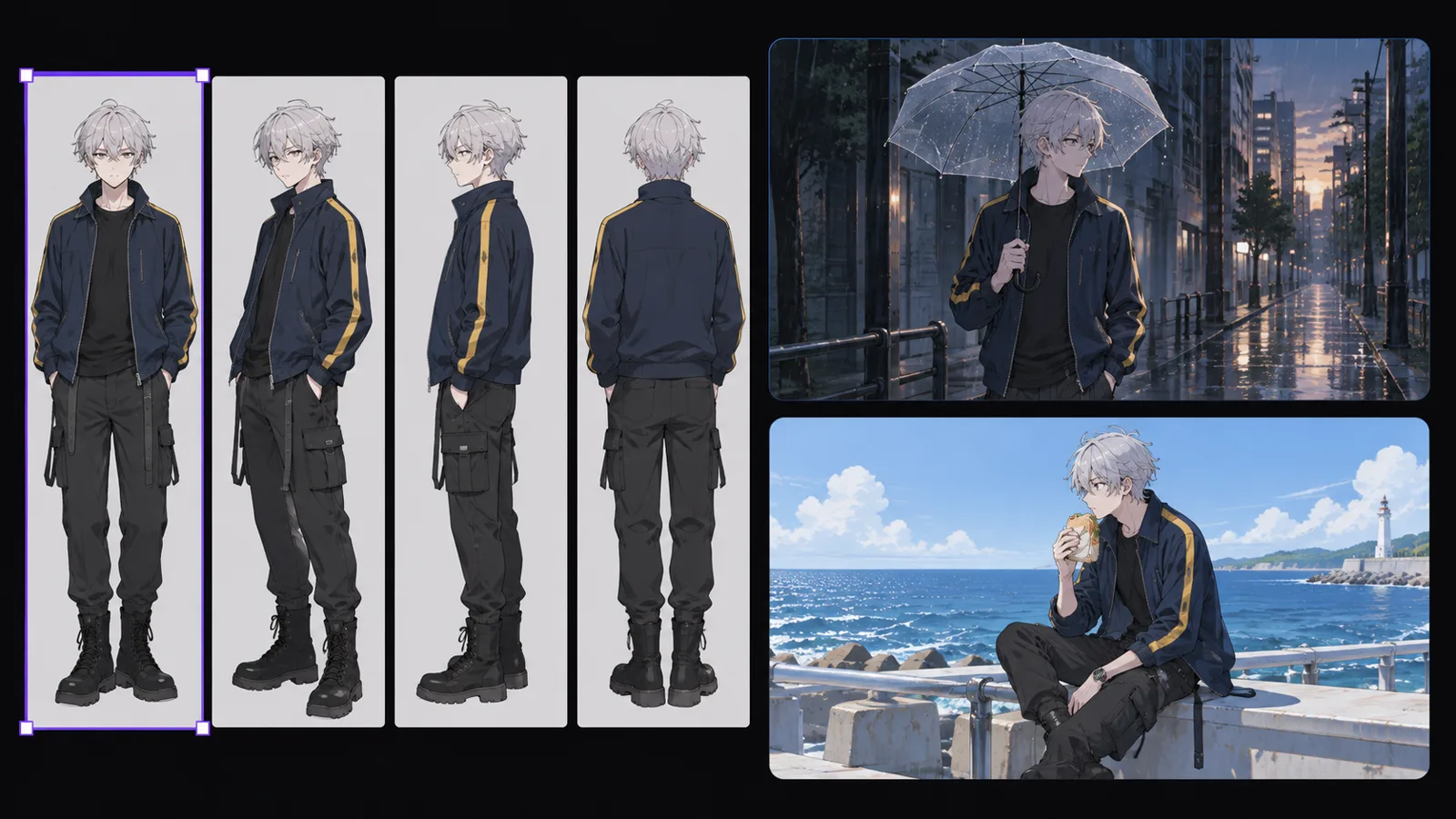
Reuse Your Anime Character Across Shots
Build a character reference from one image. Create a turnaround sheet or multi-angle grid, split it into panels, and reuse them as references in later shots. For connected scenes, use one clip's last frame as the next clip's first frame.
Keep your character references close, from one shot to the next.
Build a Character ReferenceRefine a Shot Without Restarting the Scene
Regenerate an individual video node when a shot needs another take. Compare versions in History and set your preferred result as main. To change a character, background, color, or action in an existing clip, use AI video editing.
Try another take. Compare the versions. Choose what works.
Refine Your Anime Clip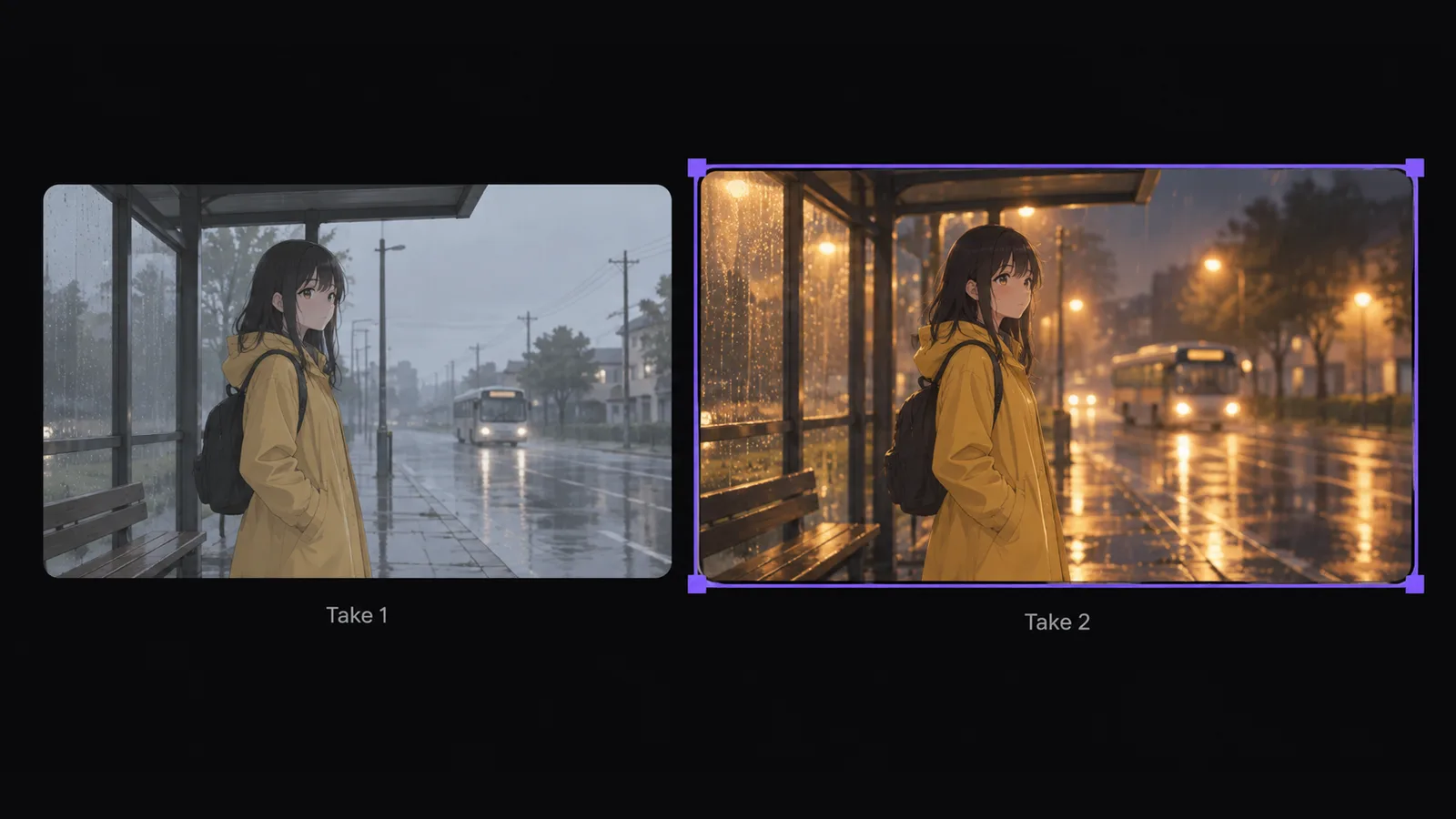
How to Generate Anime Videos with AI
Add Your Scene or Image
Write a scene prompt on Zeemo Canvas, or upload an anime reference image. Describe the character, setting, and action you want to see.
Connect and Generate
Connect your inputs to a video node. Choose a model and aspect ratio, then describe the anime look, motion, and camera before generating.
Review and Download
Preview the result, regenerate any shot that needs changes, and compare versions in History. Download each clip, or explore more models in our AI video generator.
Explore More AI Tools on Zeemo
Every tool runs on the same visual canvas. Same workflow, switch anytime.
Frequently Asked
Questions
An AI anime video generator creates anime-style clips from text or images. On Zeemo, you describe a scene, connect references to a video node, and generate individual shots. Prompts and reference images guide the look rather than a dedicated anime preset.
Yes. Describe the scene, anime look, action, and camera movement in your prompt. Connect a text node to a video node, choose a model, and generate. You can add a reference image to give the visual style more direction.
Start by using your photo as a reference to generate an anime image. Once the image has the look you want, connect it to a video node and describe the movement. Review the result and adjust the references or prompt as needed.
Start from one character image, create a turnaround sheet or multi-angle grid, and split it into reference panels. Reuse those panels in later shots. References help guide appearance, but you should check each generated clip for changes in the character's details.
Yes. Create voiceover, music, or sound effects as audio nodes and connect them to the video node. Use @ references in the prompt to explain each audio input's role. Some video models also generate sound when their audio option is enabled.
Zeemo uses credits. Check the pricing page for current plans and credit details before you generate. Available generation settings depend on the video model you select, so review those settings for the shot you want to create.
Bring Your Anime Scene to Life
Write a scene or start from an image. Direct the motion, reuse your character references, and create your next anime clip on Zeemo.