AI Video to Video
Turn a clip you already have into a new video. Change its style, background, or subject, connect it as a reference for a new generation, or move your own character with its motion, all on Zeemo Canvas.
Transform a videoVideo to Video AI for Ads, Social, and Film
Reuse footage you already have. Refresh a product ad, remix a social clip, or change the mood of a film scene.
From Existing Footage to a New Video
Start with a clip you already have. Restyle it, change what is in it, use it as a reference, or hand its motion to your character.
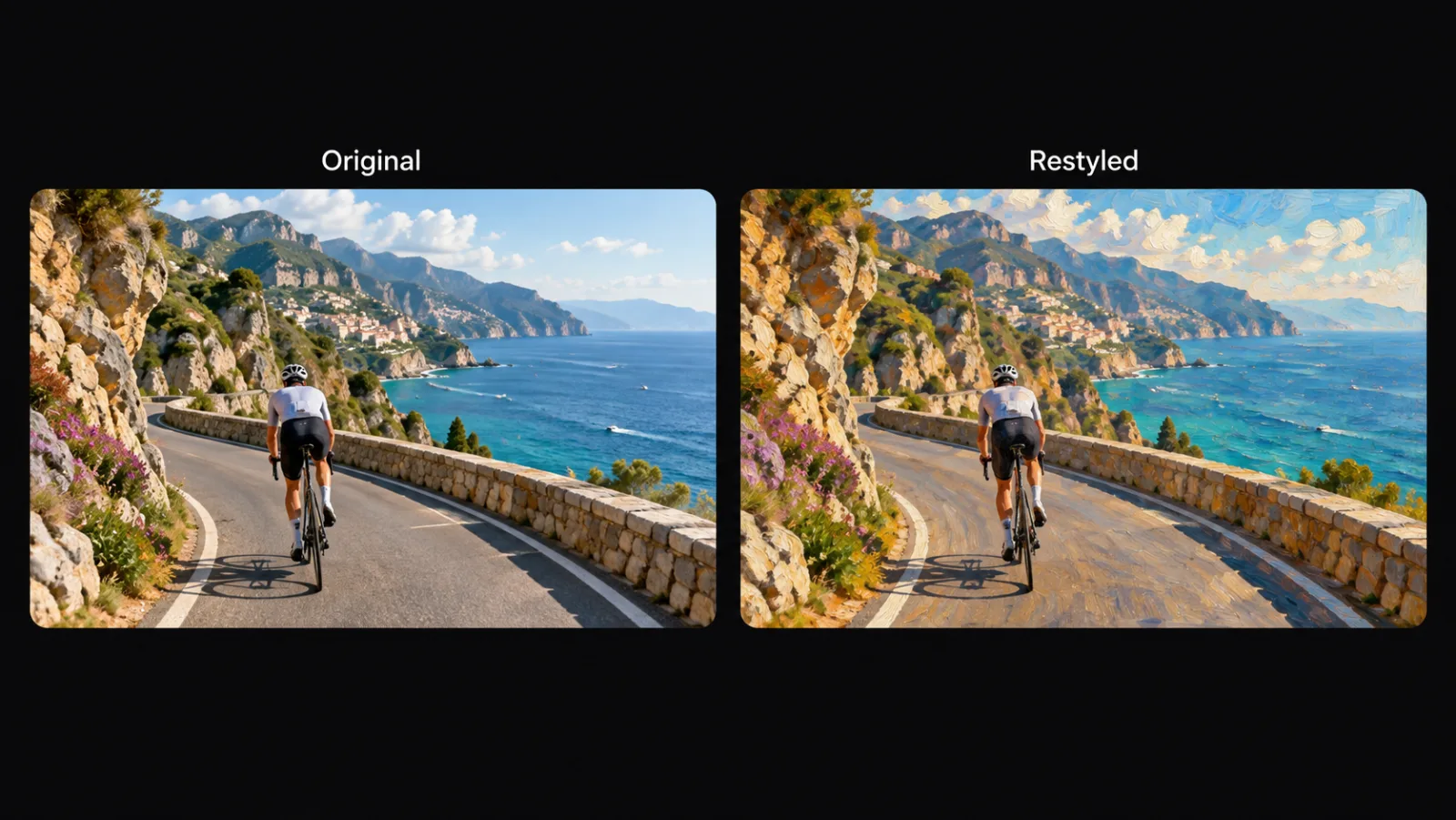
Change the Look of Any Video
Upload a clip or use one made on the canvas, then describe the look. Video Edit applies AI video style transfer to the section you select, so it can become a painting, a night scene, or a fresh grade.
Same footage. A whole new look.
Restyle a videoSwap the Scene, Subject, or Action
Describe what should change and Video Edit regenerates it: a new background, a different person or object, or a new action. Keep the original audio or regenerate it, and choose the resolution and frame rate of the result.
Change what is in the shot. Keep the clip.
Edit a video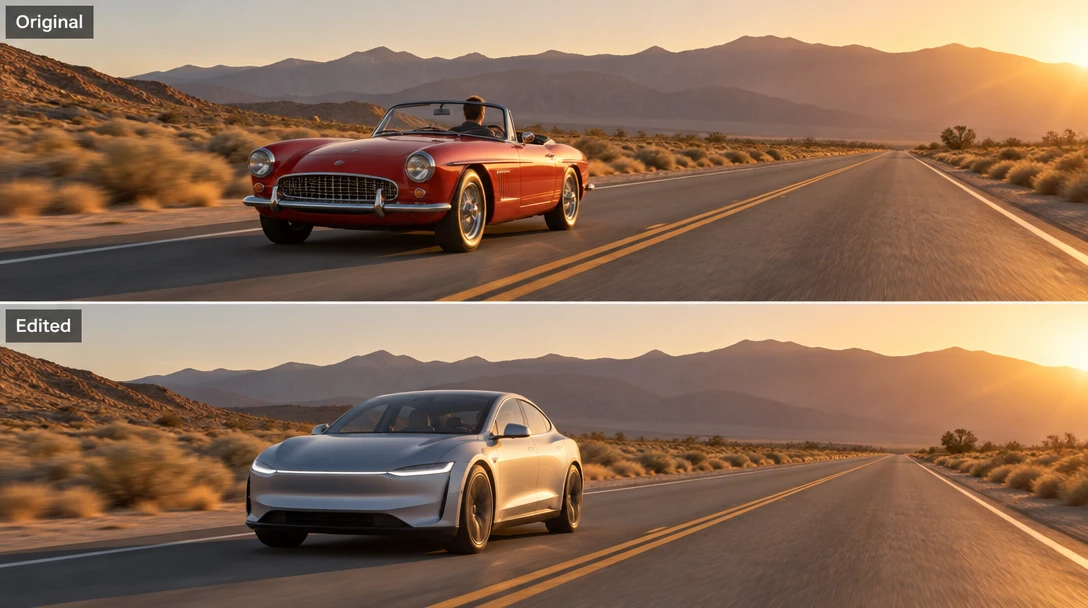
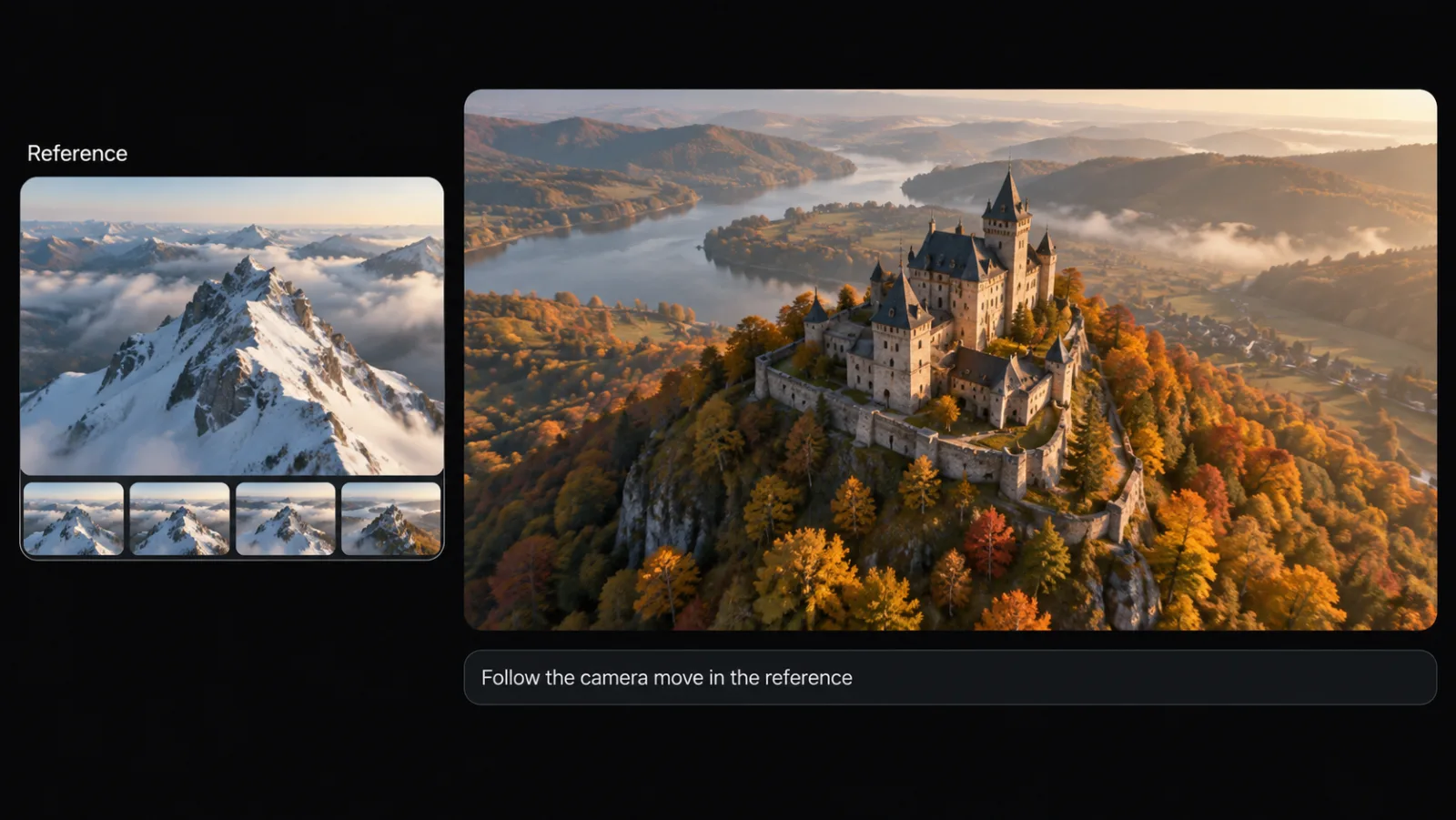
Use a Video as Reference
Connect a clip to a video node as a reference and use @ to say what it is for, like the movement or framing to follow. Add image or audio references to the same node when you need more control.
Point to the clip. Say what to borrow.
Add a referenceTransfer Motion to Your Character
Motion Control takes two inputs: a motion video and your character. Drop in the clip whose movement you want, add your character, and the result shows your character performing that motion.
Their moves, performed by your own character.
Transfer motion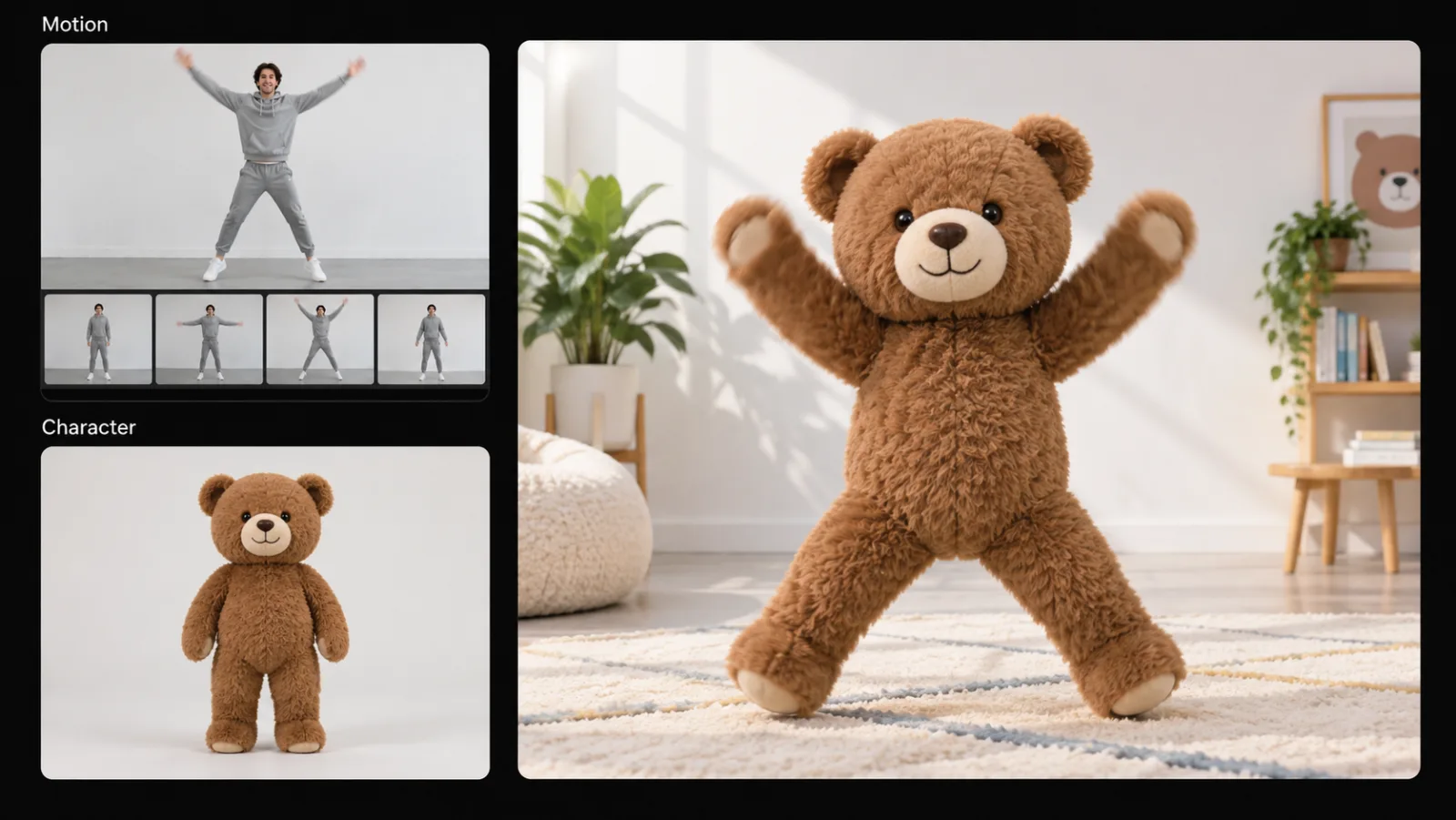
How to Transform a Video with AI on Zeemo
Add Your Video
Drag your clip onto Zeemo AI Canvas or use one generated there. It becomes a video node you can edit or connect.
Pick a Transformation
Open Video Edit to restyle or change the clip, connect it to a video node as a reference, or add your character to Motion Control.
Generate and Refine
Results become new nodes; the original stays. Regenerate any node, keep the best with Set as main. Need a precise fix? Try the AI video editor.
Explore More AI Tools on Zeemo
Every tool runs on the same visual canvas. Same workflow, switch anytime.
Frequently Asked
Questions
Video to video AI takes an existing clip and generates a new version of it. You can change its look, reuse its motion, or treat it as a reference for a new shot. On Zeemo, all of this happens on one canvas.
Drag your clip onto Zeemo Canvas. Open Video Edit and describe the change, or connect the clip to a video node as a reference, then generate. Each result is a new node, so you can compare versions and keep the one you like.
Video Edit can change people, objects, the background, color, motion, and style in uploaded or AI-generated clips. The shortest section you can edit is 4 seconds. You can keep the original audio or regenerate it, and choose resolution and frame rate.
Yes. Motion Control has two inputs: a motion video and your character. Add the clip whose movement you want, add your character, and generate. You can design the character on the canvas first and reuse it in later shots.
Yes. Editing works on a copy, and every result appears as a new node, so your original clip stays on the canvas. For targeted fixes such as recoloring a single object, see the AI video editor.
Zeemo uses credits. See the plans page for current options.
Ready to Transform Your Footage?
Bring a clip you already have. Describe the change. Generate a new version with the video to video AI generator on Zeemo Canvas.