AI Image to Video
Turn a photo, product shot, or illustration into video. Add a prompt, choose your model, aspect ratio, and duration, and generate on Zeemo Canvas. Start from one image or several.
Animate an image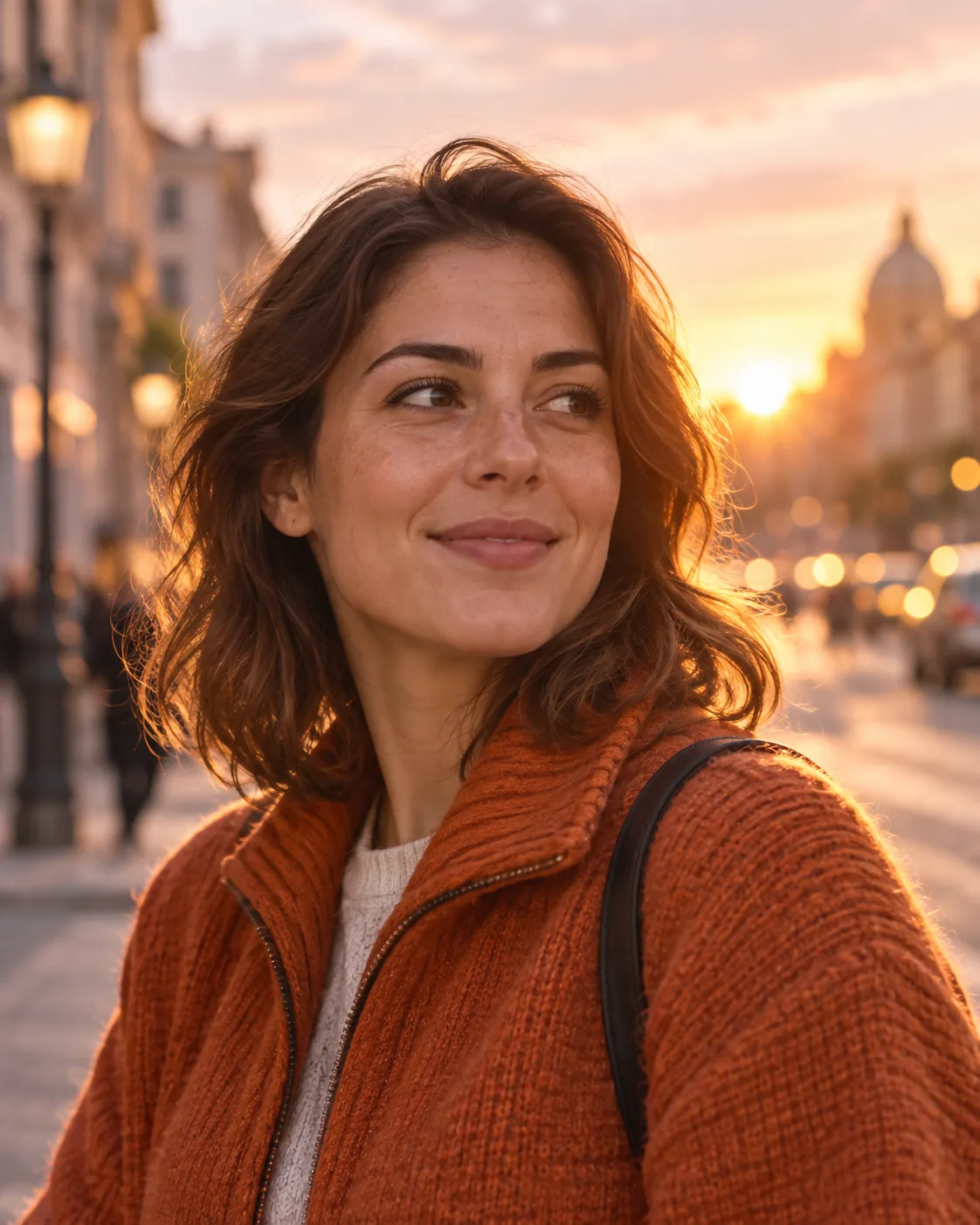
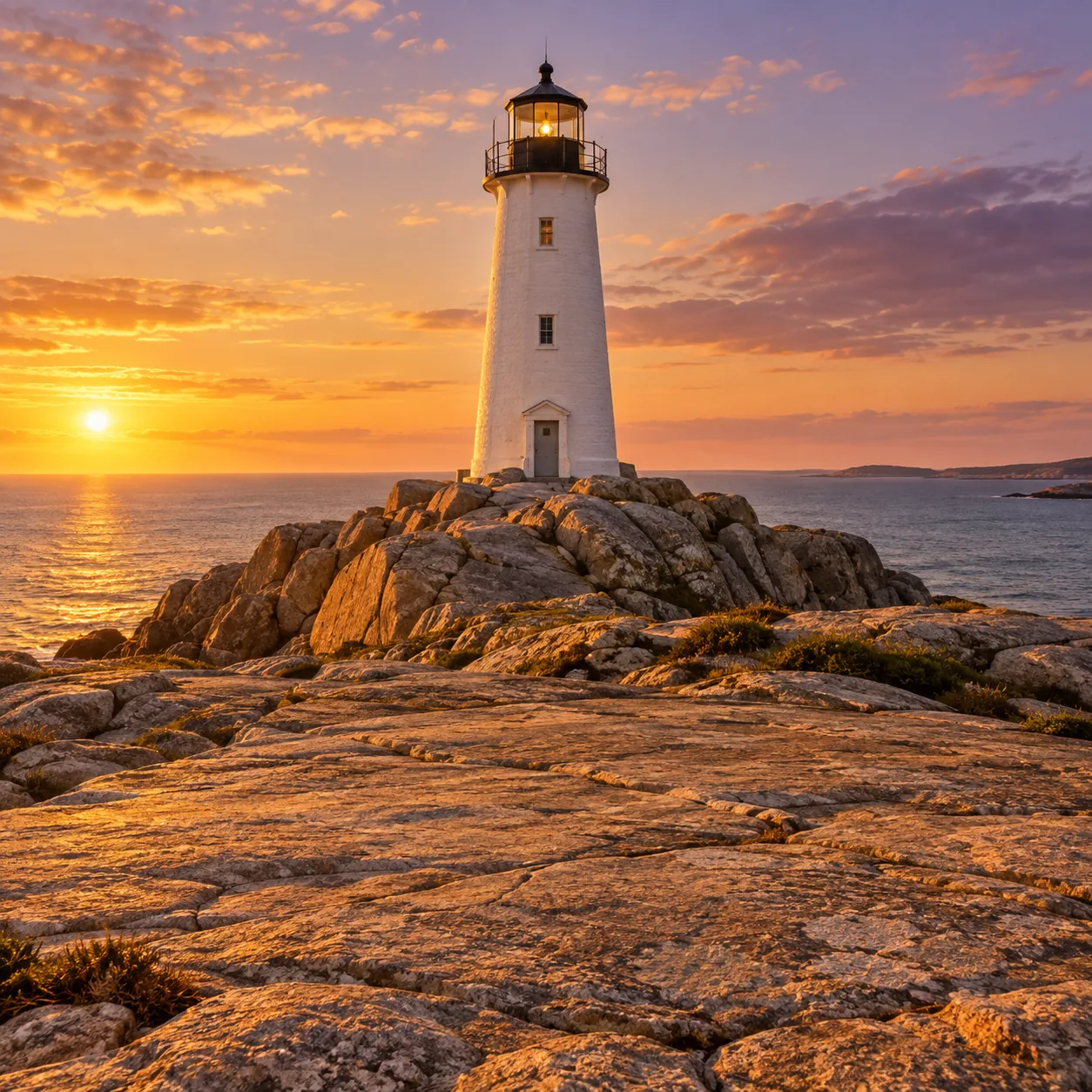
See what one image can become
Each clip starts from one image and one prompt. Pick a starting point, or bring your own.
From Still Image to Moving Scene
Start with a single image. Add a prompt, references, or both, and shape how the scene moves.
Animate Any Image
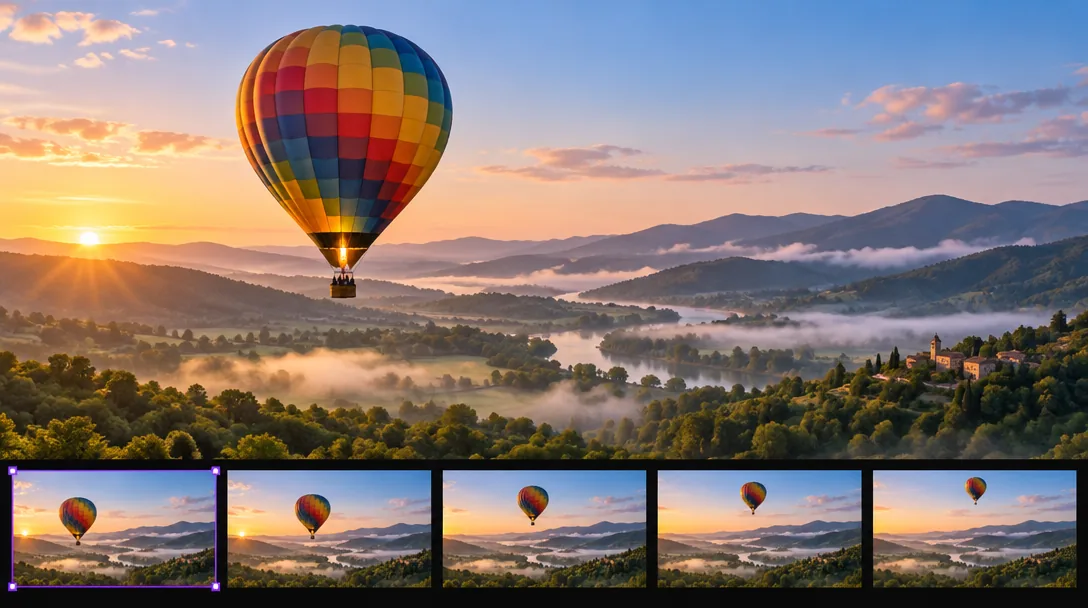
Upload a product shot, a portrait, a landscape, or an illustration and use it as the starting point of a video. The video node turns the still into motion, so the image you already have becomes a clip.
One image in. One video out.
Animate a photoDirect the Motion with Prompts
Describe what should move and how the camera behaves. Need more control? Connect image, video, or audio references to the node and use @ to say what each one is for. Multiple images work too.
Say it in a prompt. Point to it with @.
Add a prompt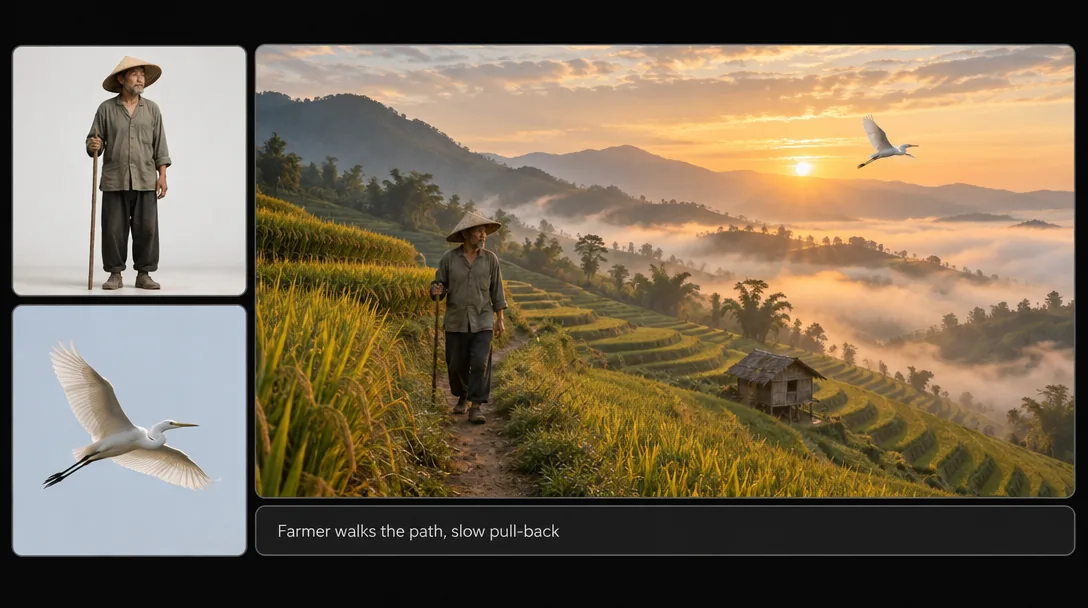
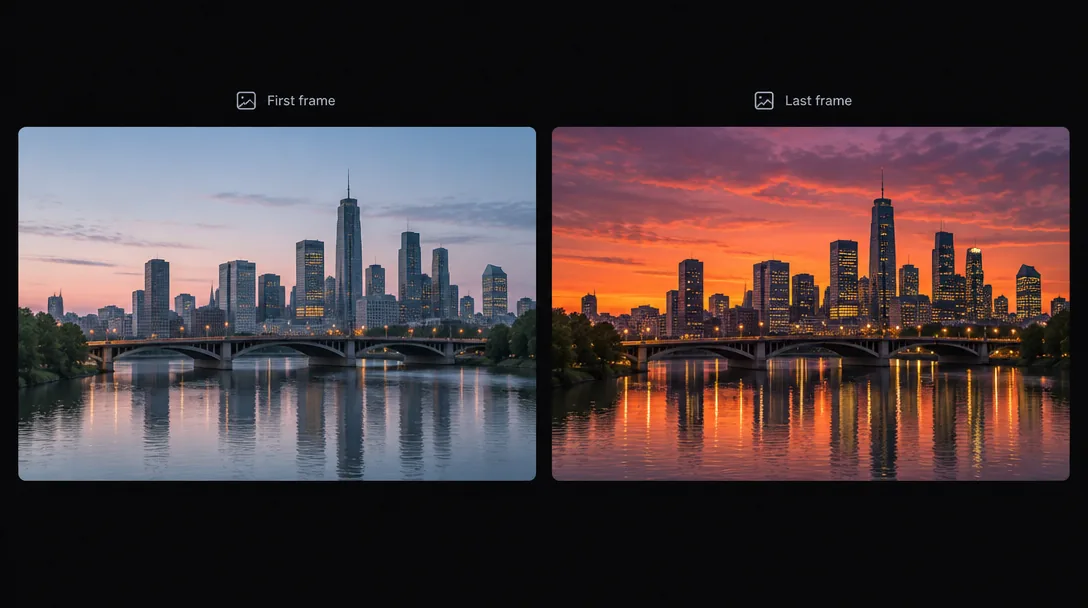
Set the Start and End Frame
Choose where the video begins and where it ends. A first frame and a last frame let you shape the shot instead of leaving the ending open.
Pick the opening. Pick the finish.
Set your framesHow to Turn an Image into a Video with Zeemo
Add Your Image
Drag your photo onto Zeemo AI Canvas. It becomes an image node you can connect to a video node.
Set Up the Video
Pick a model, aspect ratio, resolution, and duration, and turn audio on or off. Choose 9:16, 1:1, or 16:9 to match your platform.
Generate and Refine
Generate the video, then regenerate only the node you want to change. Past results stay in History, and Set as main picks the one you keep. Prefer to start from text? Try the AI video generator.
Explore More AI Tools on Zeemo
Every tool runs on the same visual canvas. Same workflow, switch anytime.
Frequently Asked
Questions
Image to video AI turns a still image into a short video. You give the model a picture and, usually, a prompt that describes the motion, and it generates the frames. On Zeemo this happens in a video node on the canvas.
Open Zeemo Canvas and drag your photo onto it. Connect it to a video node, write a prompt, choose the model, aspect ratio, resolution, and duration, then generate. You can regenerate a single node without redoing the rest.
Yes. Describe what should move and how the camera behaves in your prompt. You can also connect image, video, or audio references and use @ to explain what each one is for. For tighter control, set a first frame and a last frame.
You choose the model, aspect ratio, resolution, and duration, and you can switch audio on or off. The maximum resolution depends on the model, up to 4K.
Yes. The same video node also creates video from text. For text-first workflows and multi-model pipelines, see the AI video generator.
Zeemo uses credits. See the plans page for current options.
Ready to Bring Your Images to Life?
Pick an image. Add a prompt. Generate your first video on Zeemo Canvas.