GPT Image 2.6
Faster Images. Finer Control.
Generate polished images faster with Flare, or reach for Sunburst when detail matters. Start from text or a reference, then mark the area you want changed.
What's New in GPT Image 2.6
Faster image generation with Flare and Sunburst, plus more control over every result: transparent backgrounds, reference images, image markup, and complexity control.
GPT Image 2.6 Flare: Fast Drafts, Cleaner Layouts
GPT Image 2.6 generates images 50% faster than before, and Flare can return an image in as little as six seconds at low quality. It also lays out posters and product imagery more cleanly, so early drafts already look close to usable.
Explore more directions before you pick one.
Try Flare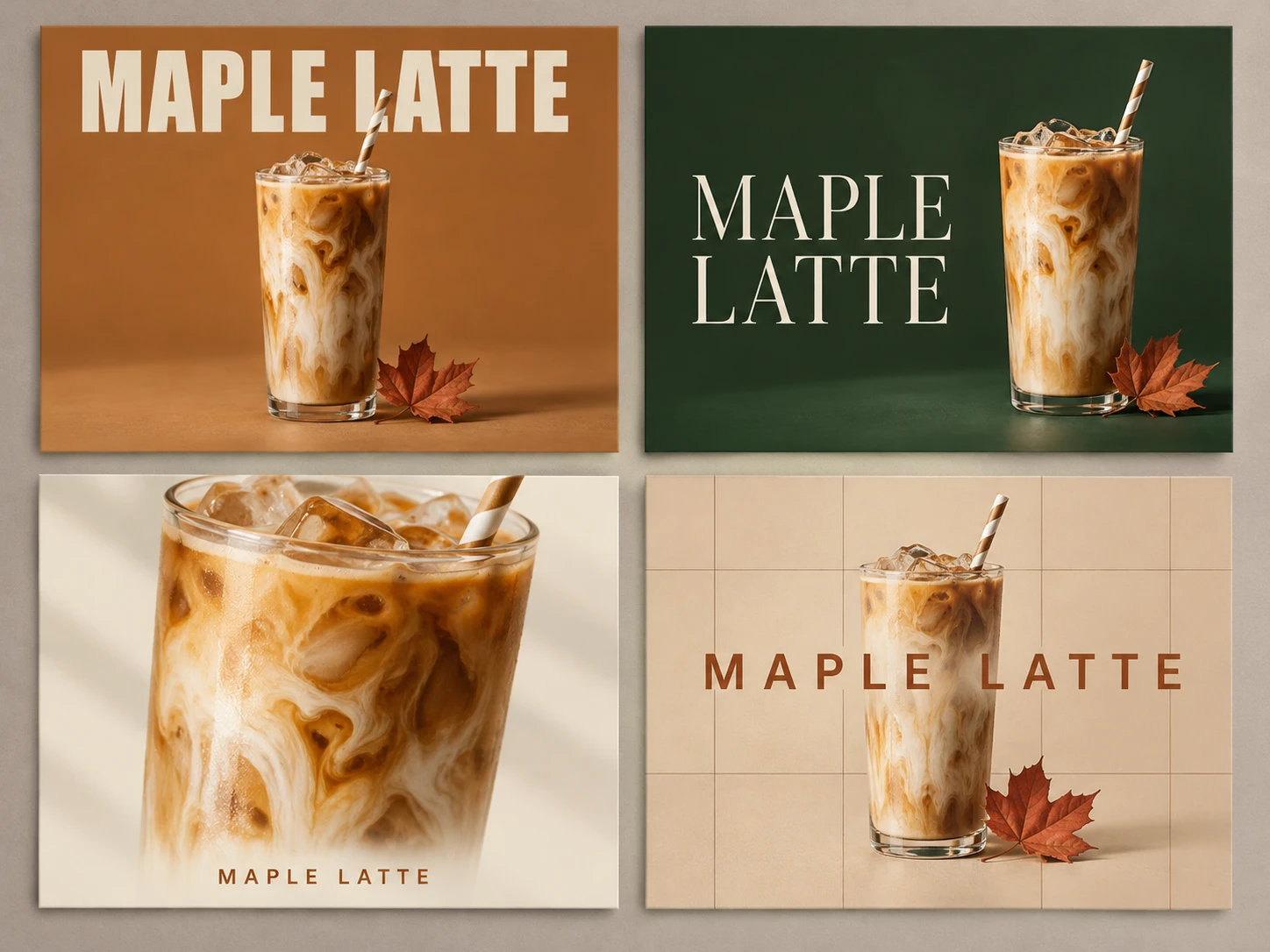
GPT Image 2.6 Sunburst: More Detail, Steadier Edits
Sunburst is built for detailed visual work. At medium or high quality it renders finer detail and keeps images more consistent from one edit to the next, so a product, character, or layout stays recognizable while you refine it.
Fast layouts on Flare. Finished detail on Sunburst.
Try Sunburst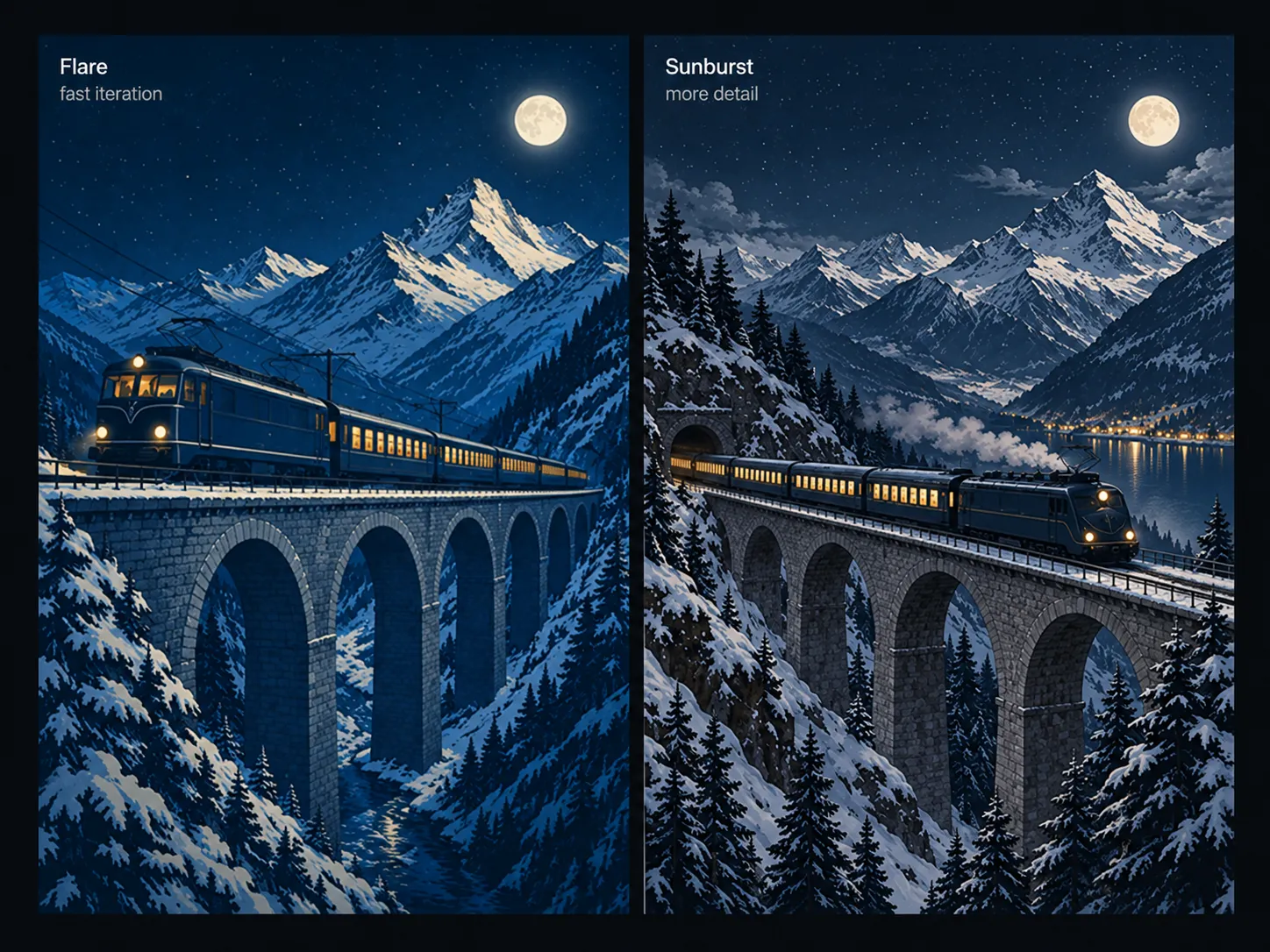
Transparent Backgrounds, No Masking
Generate products, logos, and characters on a transparent background, ready to drop onto any layout without cutting them out by hand. Start from a text prompt, or upload a reference so the cutout matches the product you already have.
One cutout for every banner, listing, and slide.
Make a cutout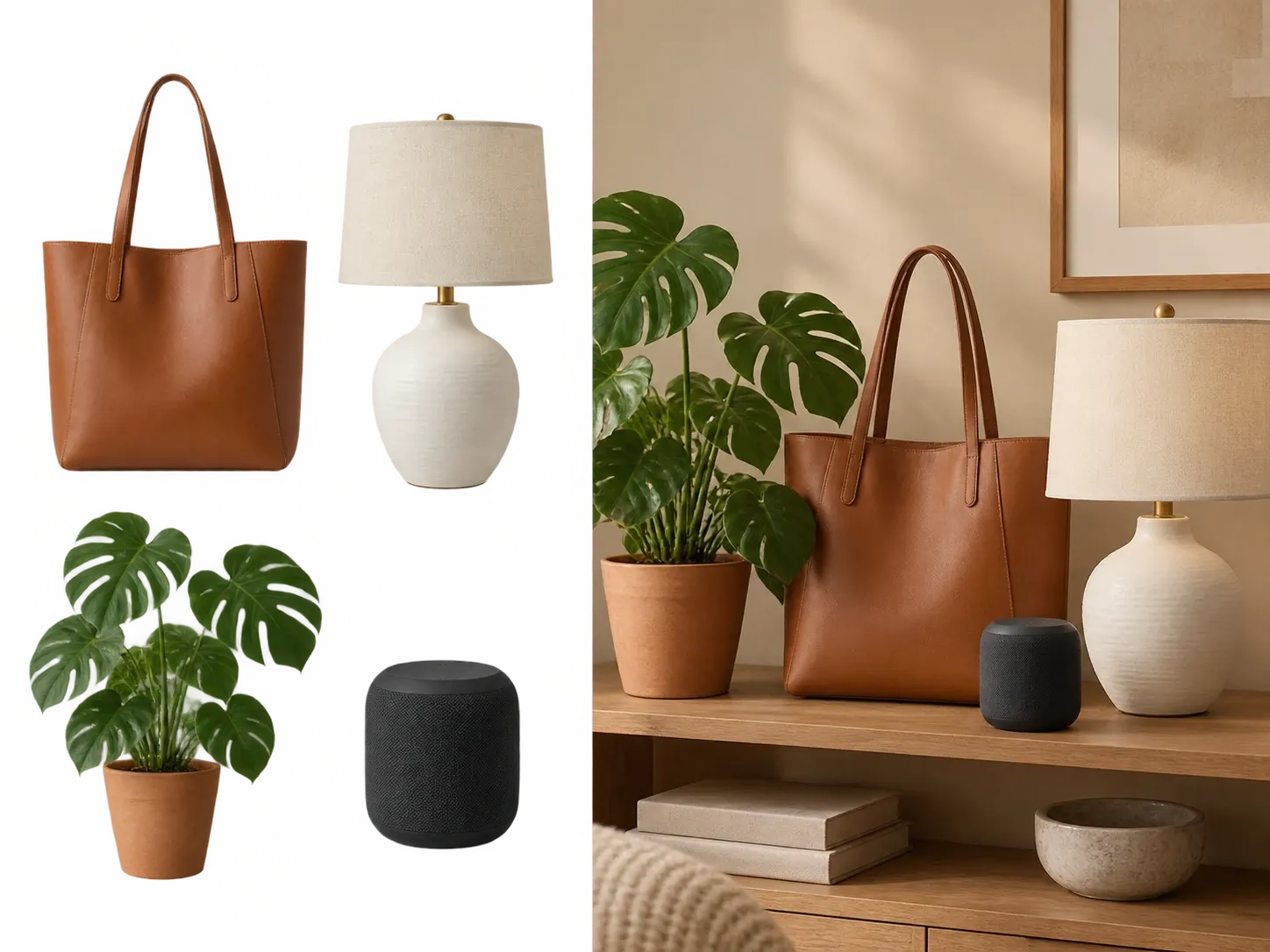
Mark the Spot. Edit That Area.
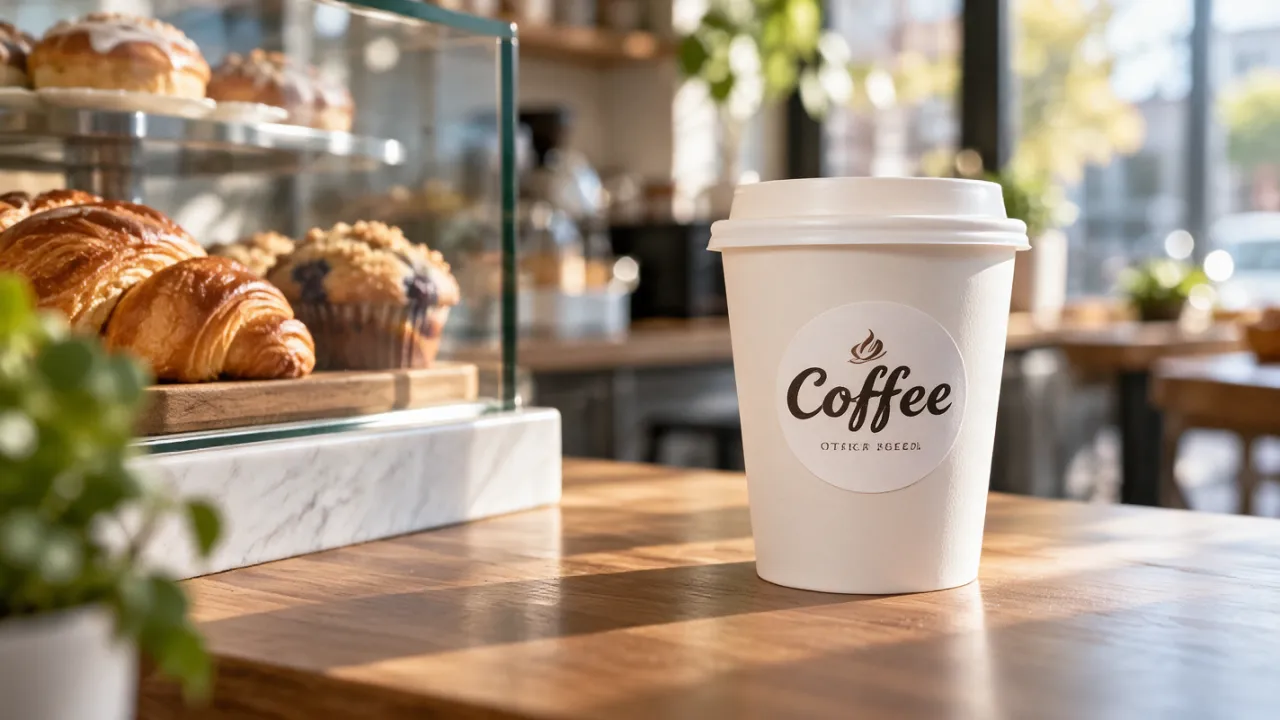
Instead of describing where a change should go, draw on the image. Image markup lets you circle a label, highlight a background, or point at an object, so the model knows which area to rework.
Less explaining. Fewer edits in the wrong place.
Try a markup edit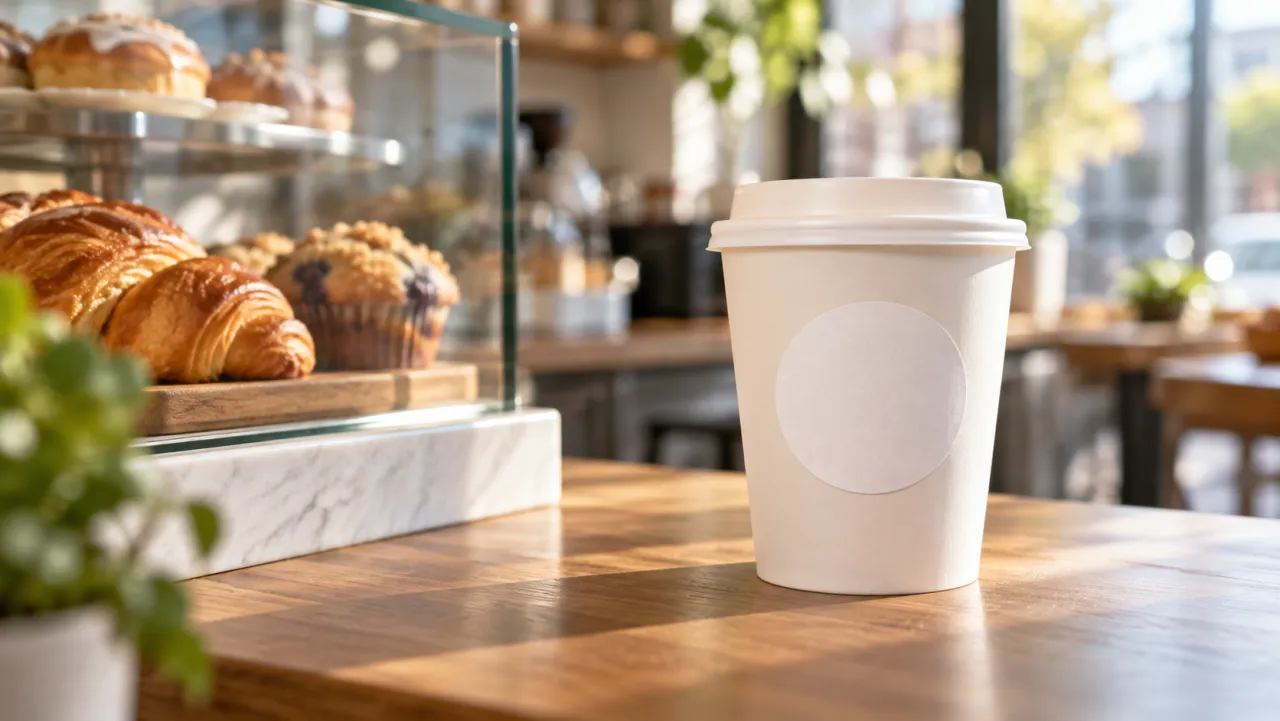
Match the Planning to the Prompt
Complexity sets how much planning GPT Image 2.6 does before it renders. Use low for quick edits; switch to medium or high when a scene has many elements or constraints. Quality still controls visual detail.
Quick edits stay quick. Complex scenes get more planning.
Adjust complexity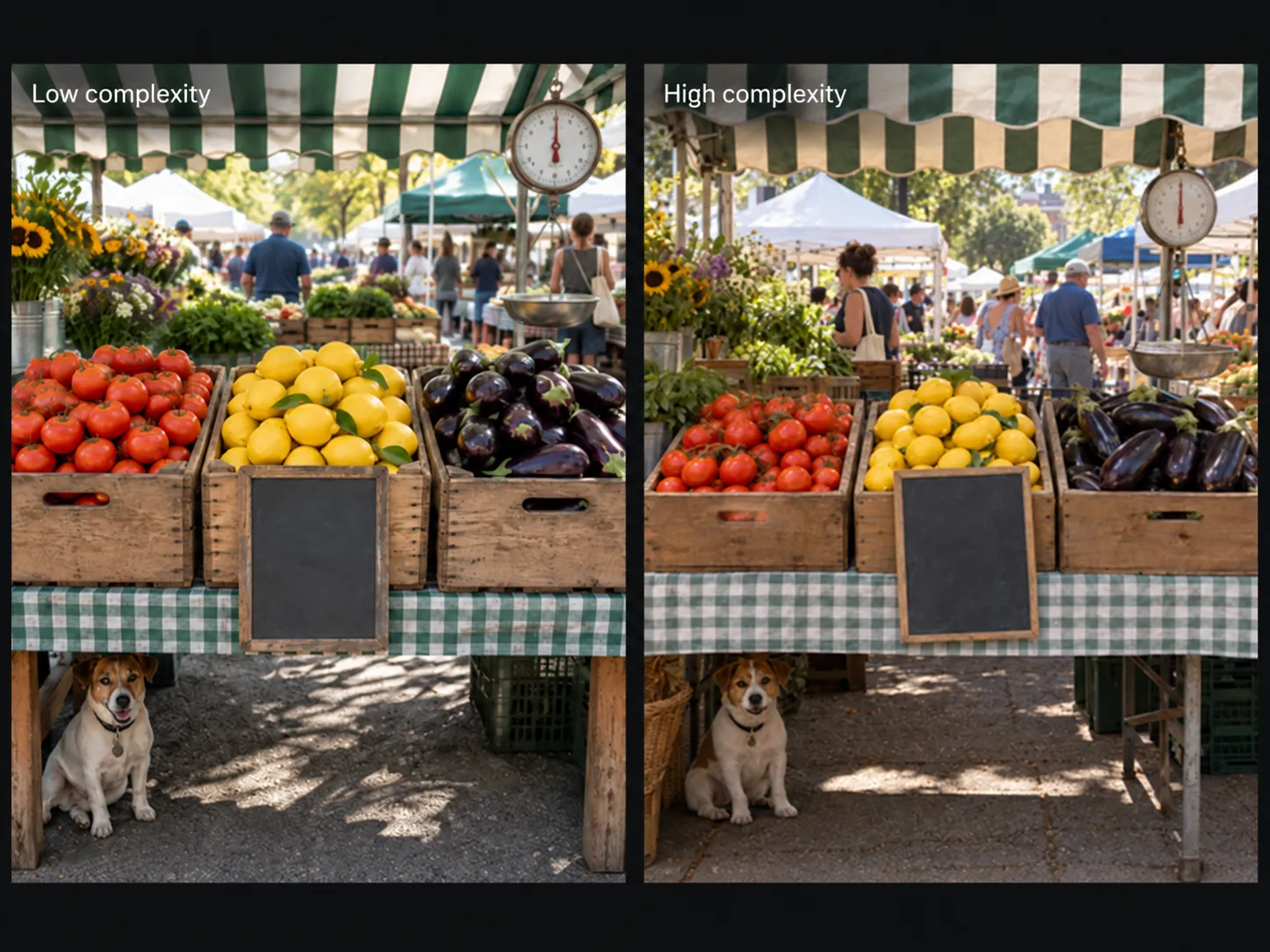
What GPT Image 2.6 Is Built For
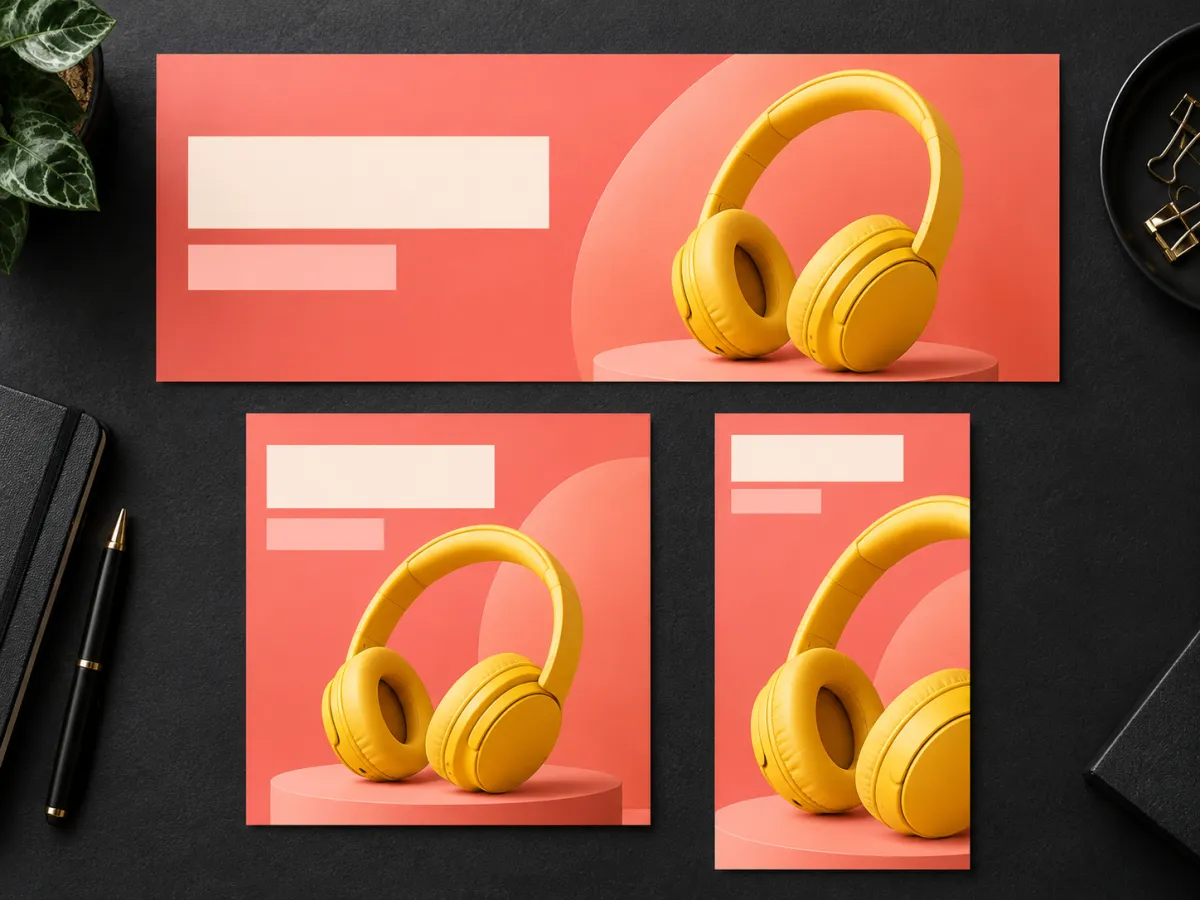
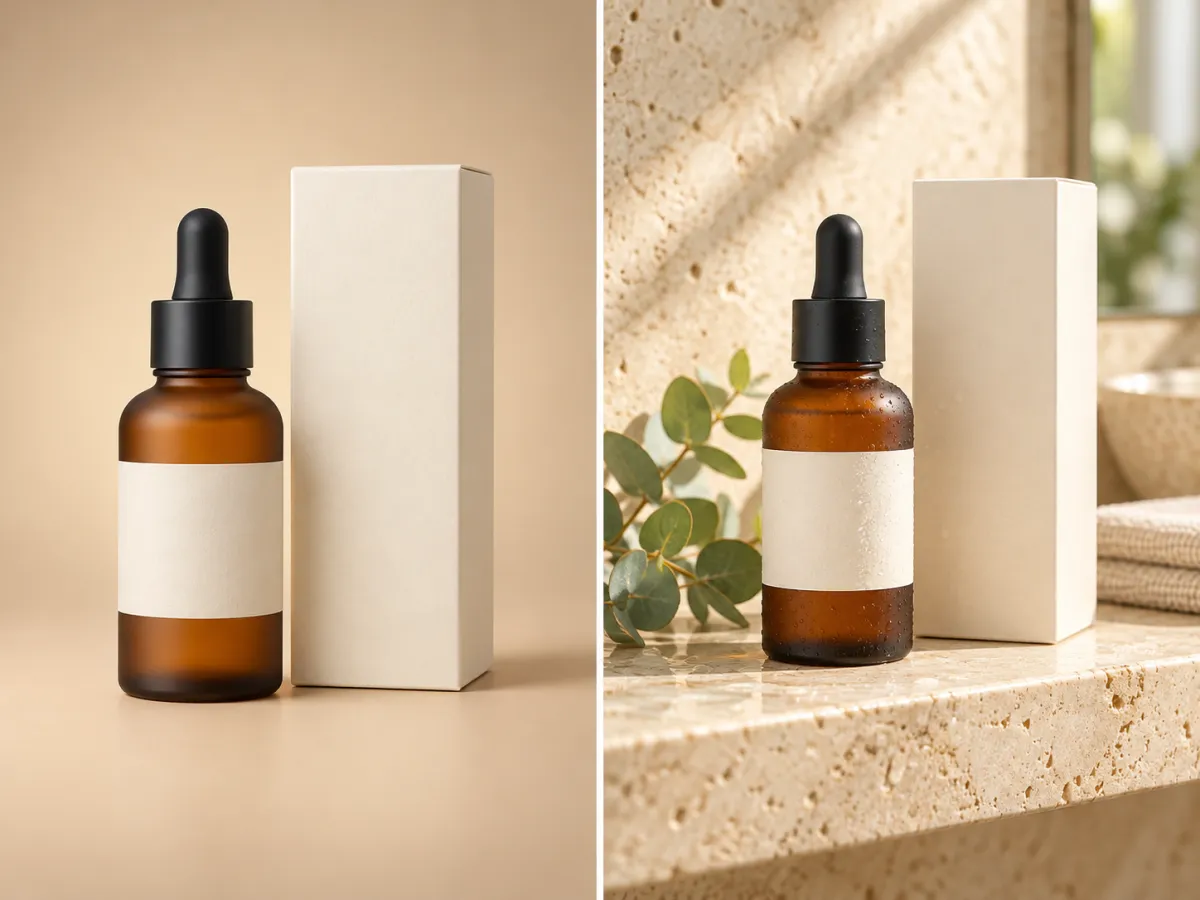
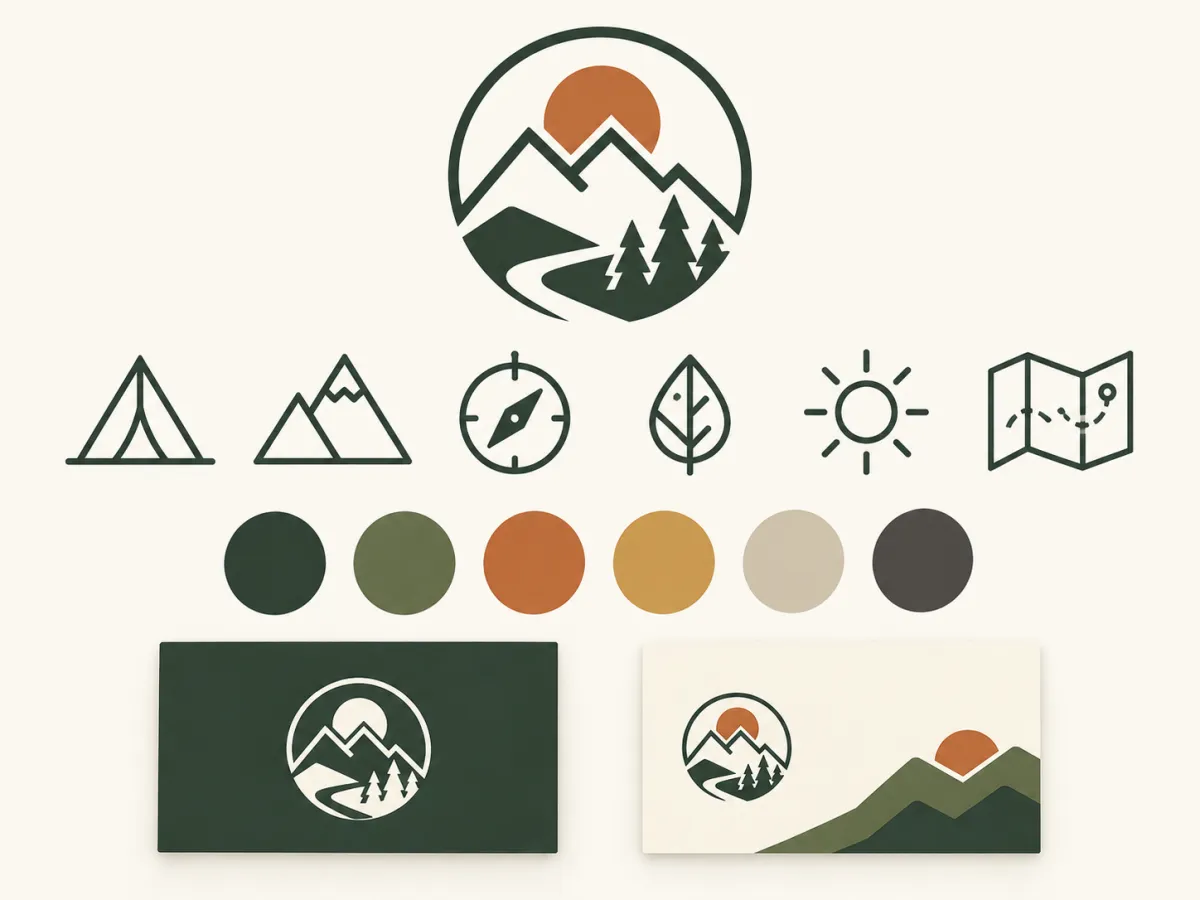
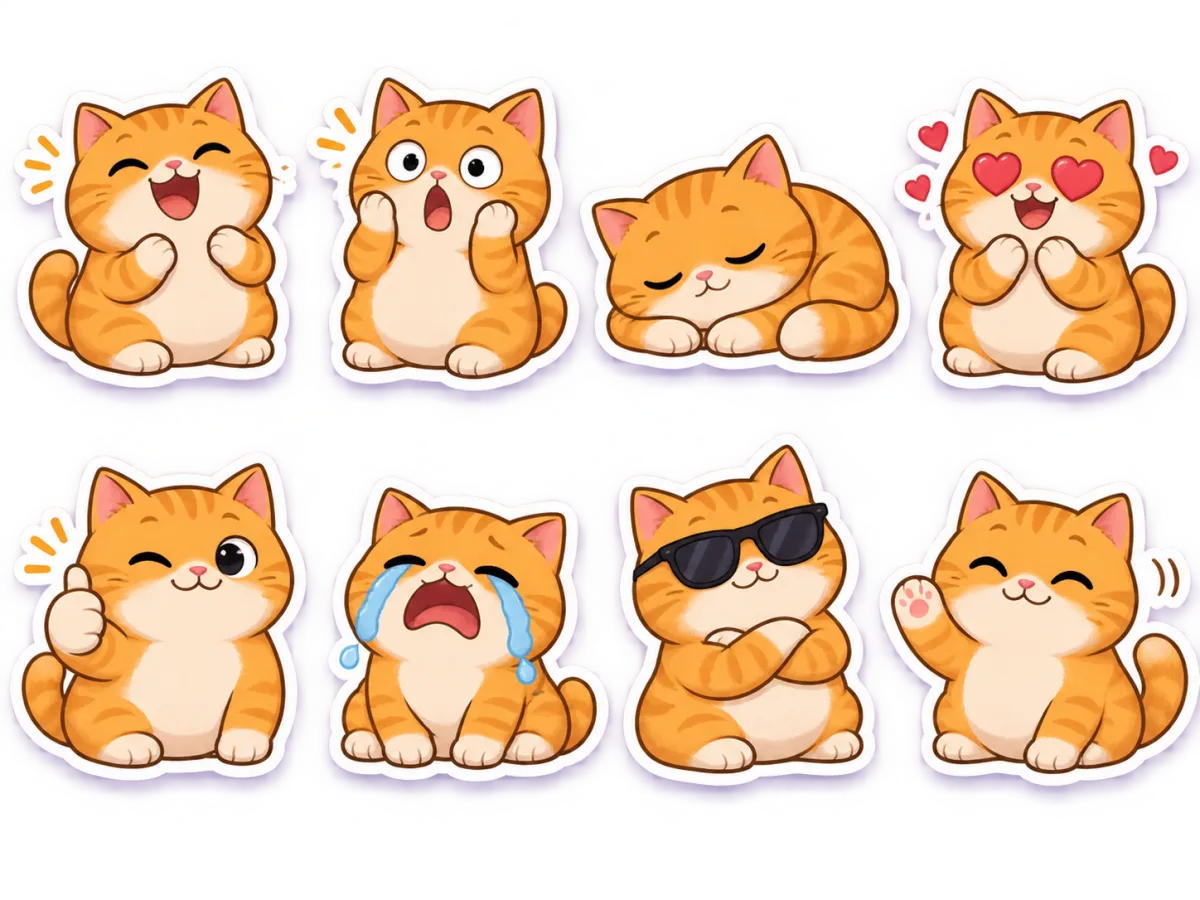
Campaign visuals, product shots, brand assets, and social graphics — fast drafts on Flare, finished detail on Sunburst.
How to Use GPT Image 2.6 on Zeemo
Open the AI Canvas
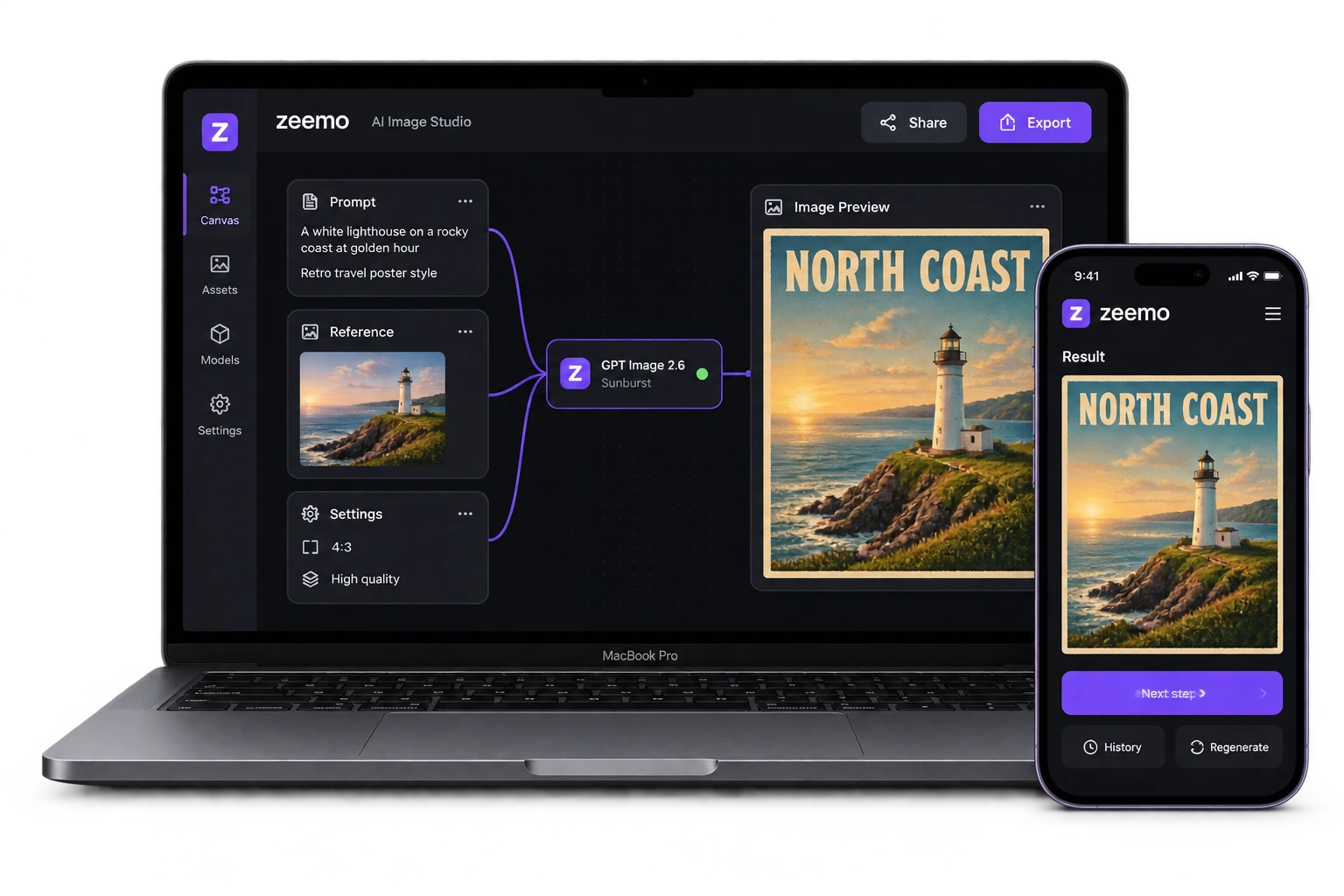
Open Zeemo AI Canvas, create an image node and select GPT Image 2.6 Flare or Sunburst.
Write Your Prompt, Add References
Describe what you want. Generate from text alone, or add reference images to guide the result.
Generate, Review, Export
Generate, review the result, and export it for your project.
Frequently Asked
Questions
GPT Image 2.6 generates images 50% faster than before and adds complexity control. Flare lays out posters and product imagery more cleanly, and at medium or high quality Sunburst keeps images more consistent from one edit to the next. Comparing versions? See the GPT Image 2.5 page.
Use Flare when speed matters: concept rounds, social batches, and layout-heavy visuals like posters and product imagery, where its layout quality has improved. Use Sunburst for detailed visual work, and set quality to medium or high when edits need to stay consistent. Both are in the same AI Canvas, so you can switch per job.
Yes. Upload a product shot, portrait, or sketch, then describe what you want. GPT Image 2.6 uses the reference to guide the subject, style, and composition of the new image.
Yes. Generate with a transparent background to get clean cutouts of products, logos, or characters that you can place on any layout.
It sets how much planning GPT Image 2.6 does before it renders: low, medium, or high. Low suits most edits and is faster; medium or high suits scenes with many elements or constraints. Visual detail is set separately by the quality setting.
Generating with GPT Image 2.6 uses Zeemo credits. See current plans and credit options on the pricing page.
Yes. Open Zeemo AI Canvas in your browser, create an image node and select GPT Image 2.6 Flare or Sunburst. No API key or setup is required.