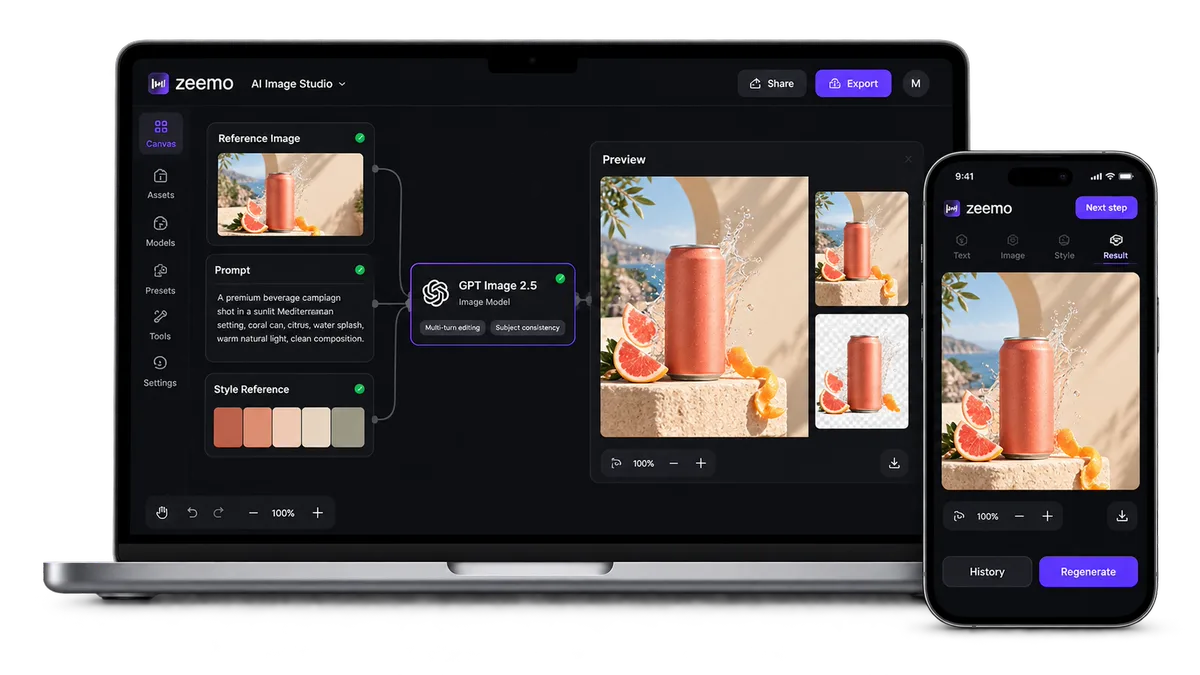
GPT Image 2.5
Every Revision, True to the Original.
Multi-turn editing with stronger subject consistency. Flare for speed. Sunburst for precision. Custom sizes up to 4K.
GPT Image 2.5 Makes Multi-Turn Edits More Consistent
Multi-turn editing is useful when one asset needs several targeted revisions. Change the background, adjust the lighting, or update a label while keeping more of the original composition intact.
Change One Thing. Preserve More of the Rest.
Image 2.5 follows editing instructions more reliably across turns. Ask for a lighting change, and the model is more likely to preserve the subject, composition, and brand treatment around it.
Refine the image in steps while keeping earlier decisions more consistent.
Start editing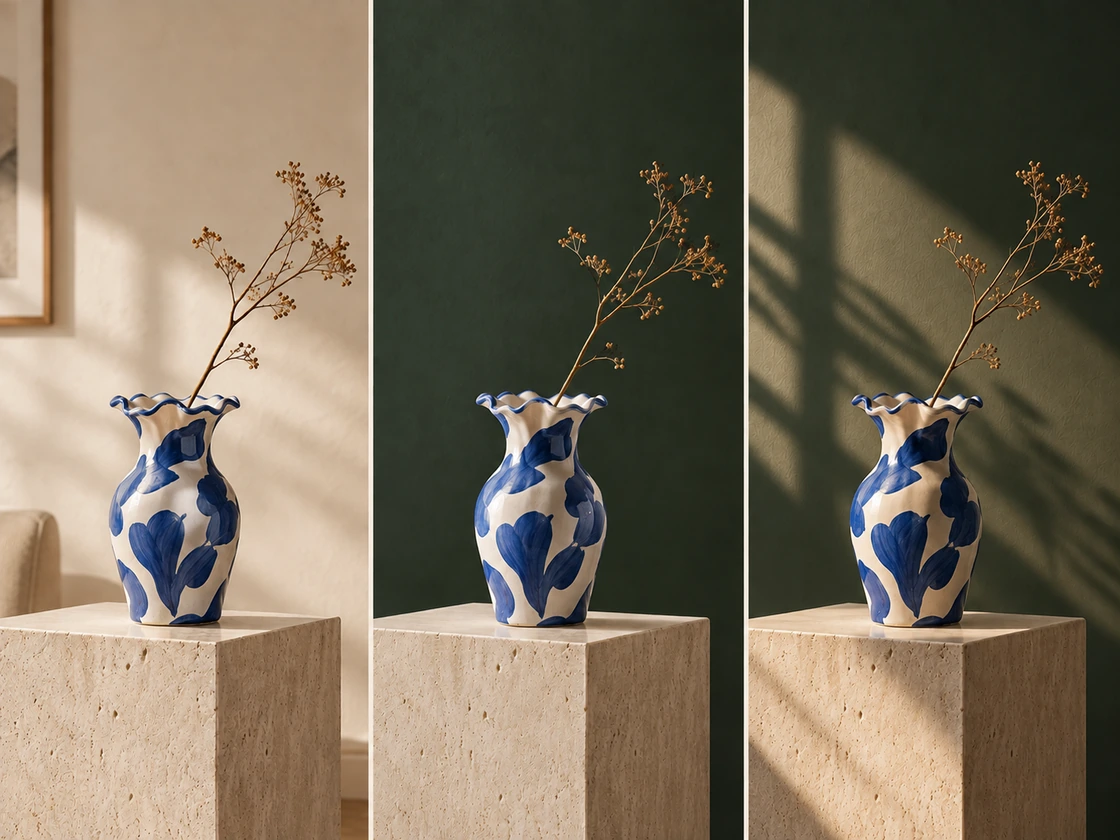
Keep References More Recognizable
Give it a product shot or a portrait. GPT Image 2.5 is better at preserving recognizable subjects as they move into a new setting, composition, or visual style — from facial features to product proportions and distinctive details.
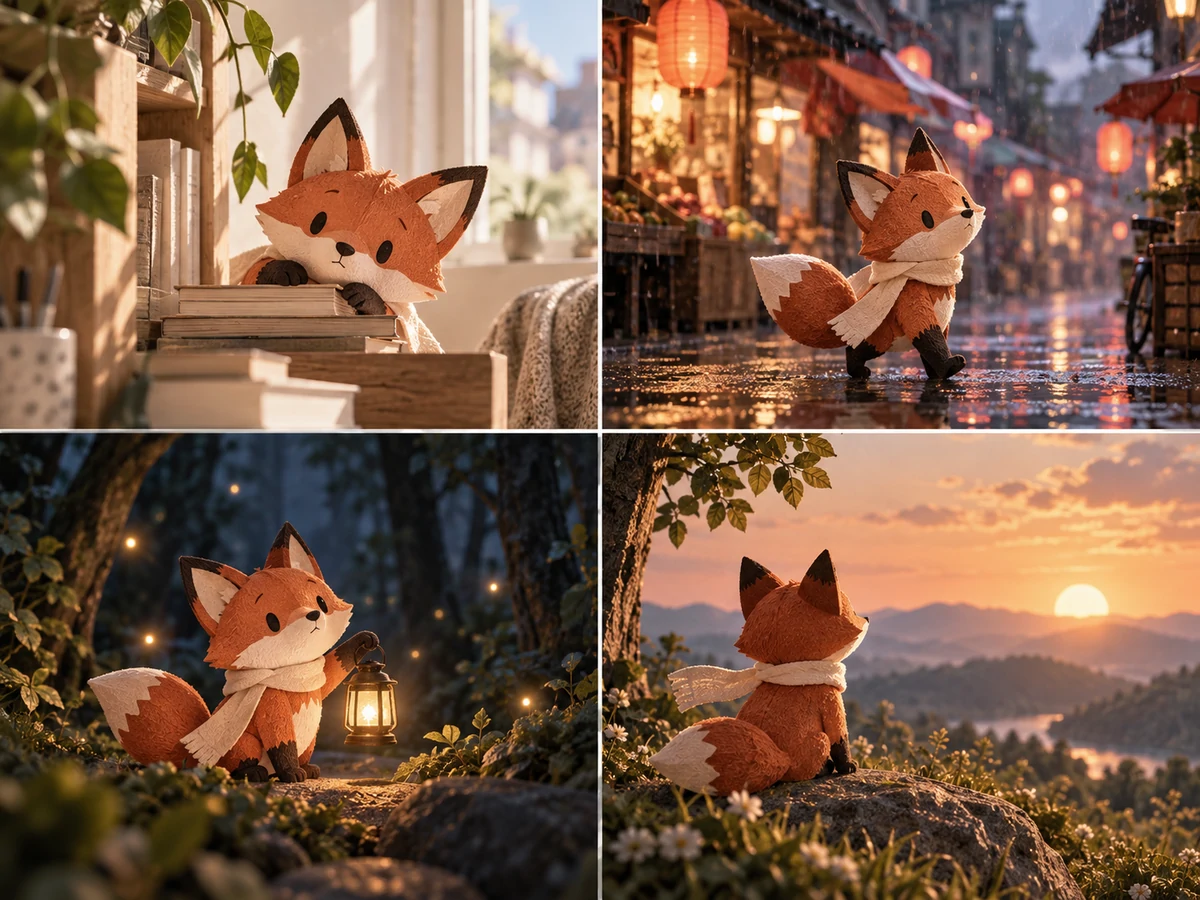
Change the scene or style without losing the subject that anchors it.
Try with a reference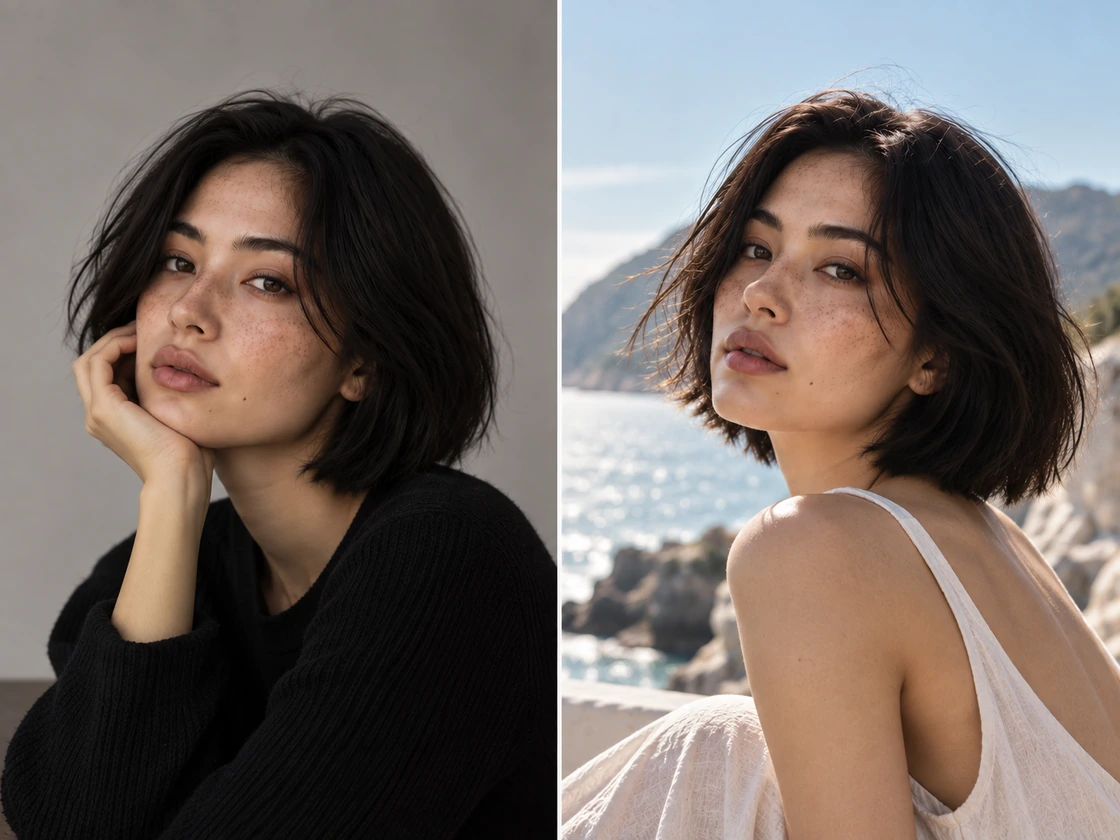
Follow Complex Prompts More Accurately
GPT Image 2.5 is better at turning complex visual instructions into coherent results. Real-world details come out more accurate, complex layouts hold together, and the style you ask for carries through — instead of drifting as the brief gets more specific.
More detail in the prompt. Less drift in the image.
Try a detailed brief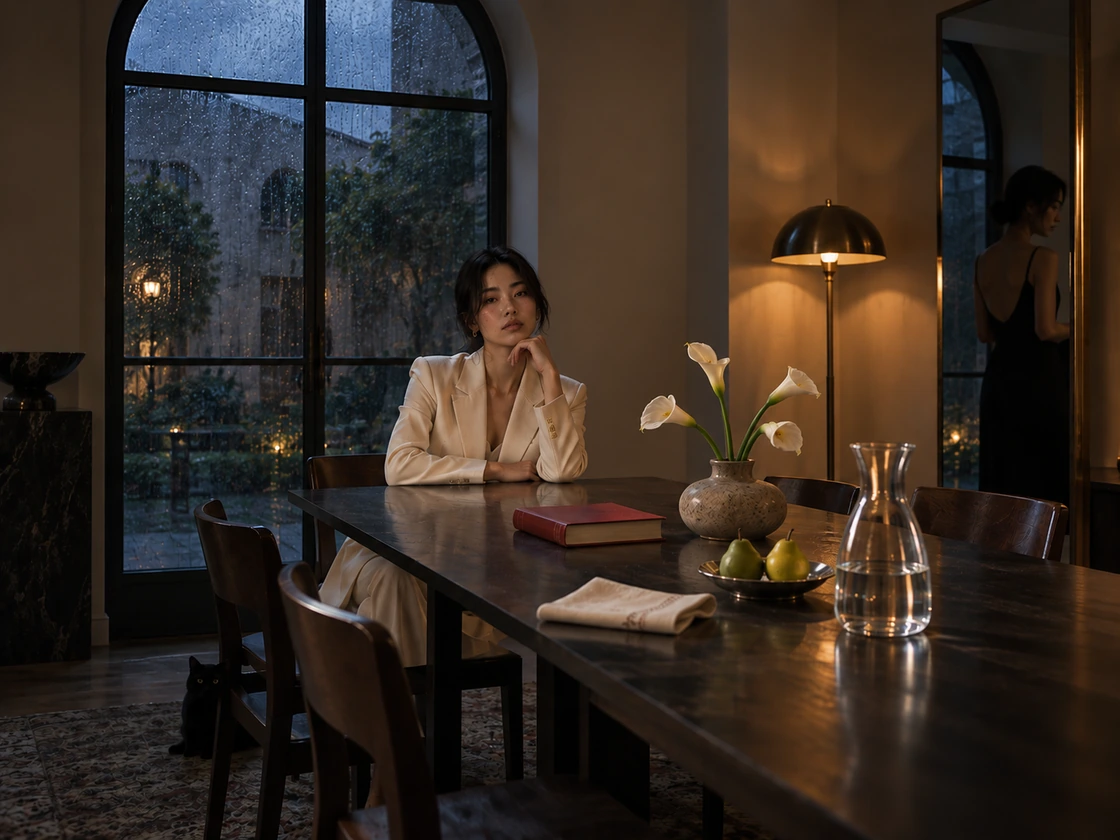
GPT Image 2.5 Sunburst vs Flare: Pick Per Job
GPT Image 2.5 Flare is the fast tier — OpenAI's default for most applications, delivering higher image quality than GPT Image 2 with up to 50% lower latency. Sunburst is the precision tier for detailed edits, with longer generation times.
Explore ideas quickly with Flare. Refine the strongest one with Sunburst.
Compare both on one prompt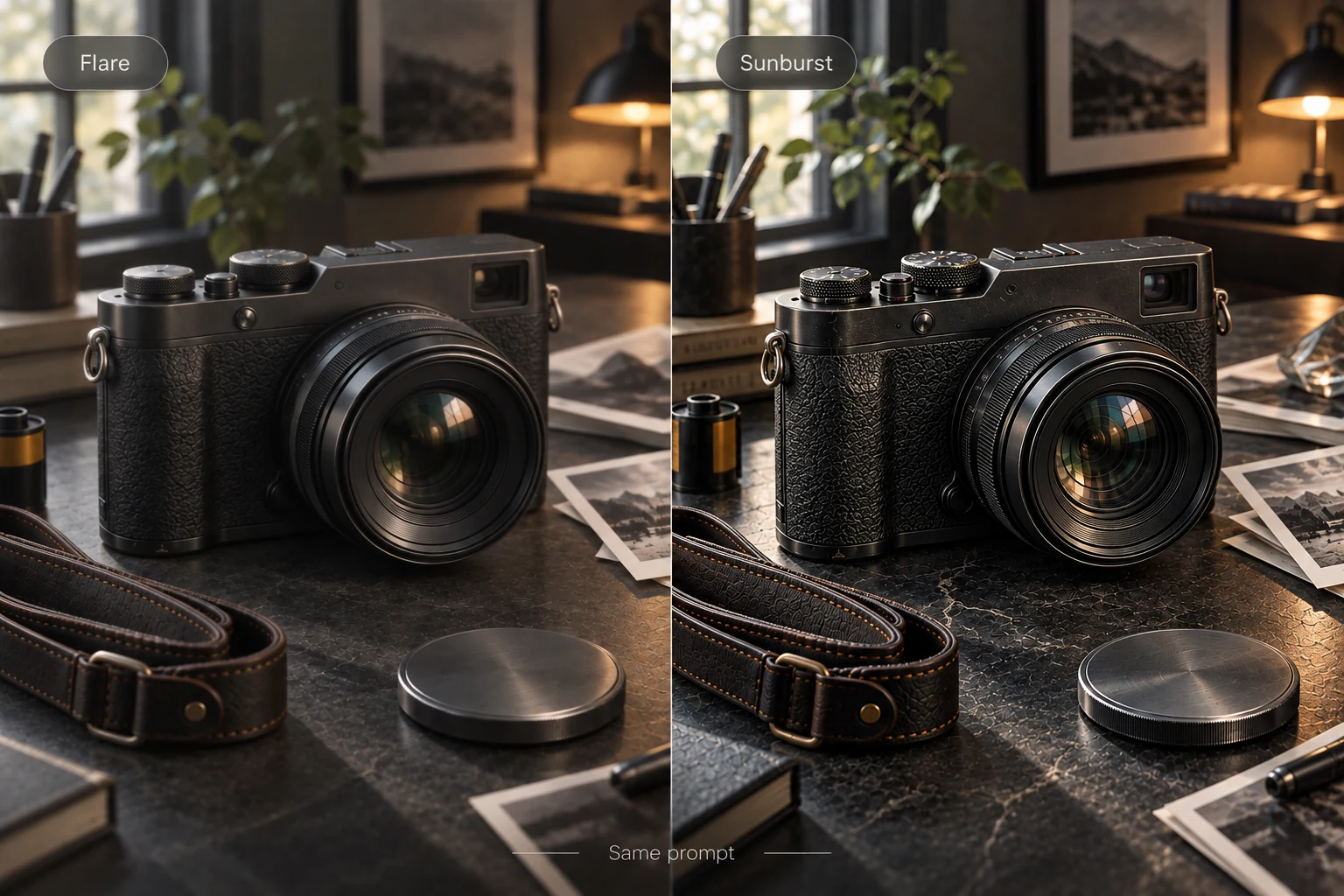
Set the Output Before You Generate
Choose from five quality levels, 13 aspect ratios from 21:9 to 9:21, batches of 1 to 10 images, and 1080P, 2K, or 4K resolution. Set the output for the job before the first image is generated.
Need a clean cutout? Generate with a transparent background.
Set your output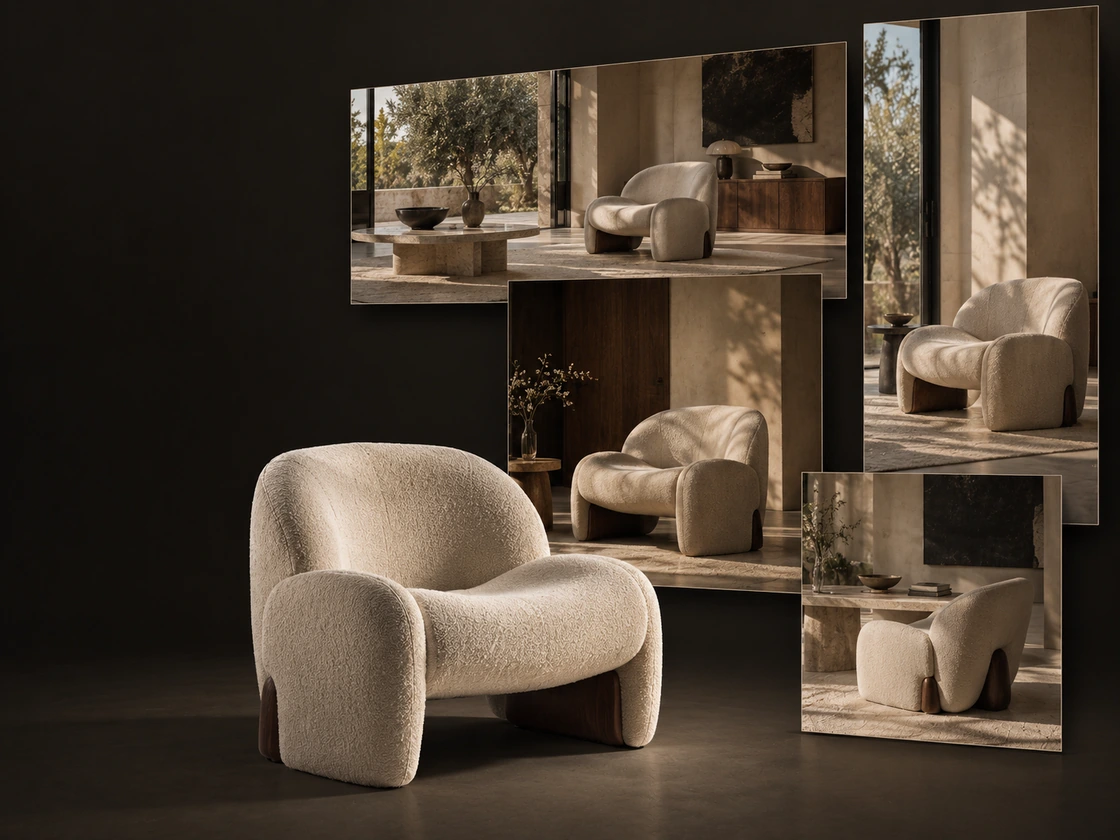
What GPT Image 2.5 Is Built For
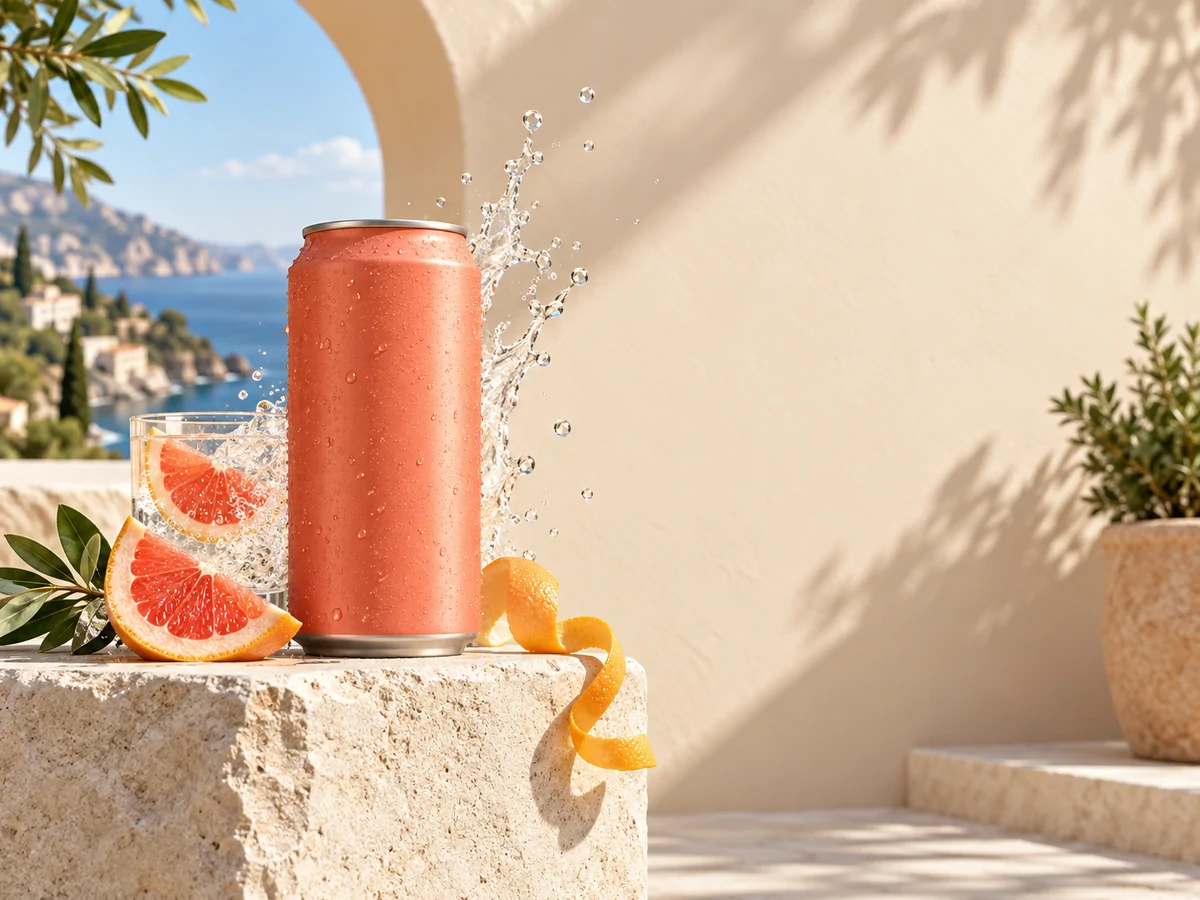
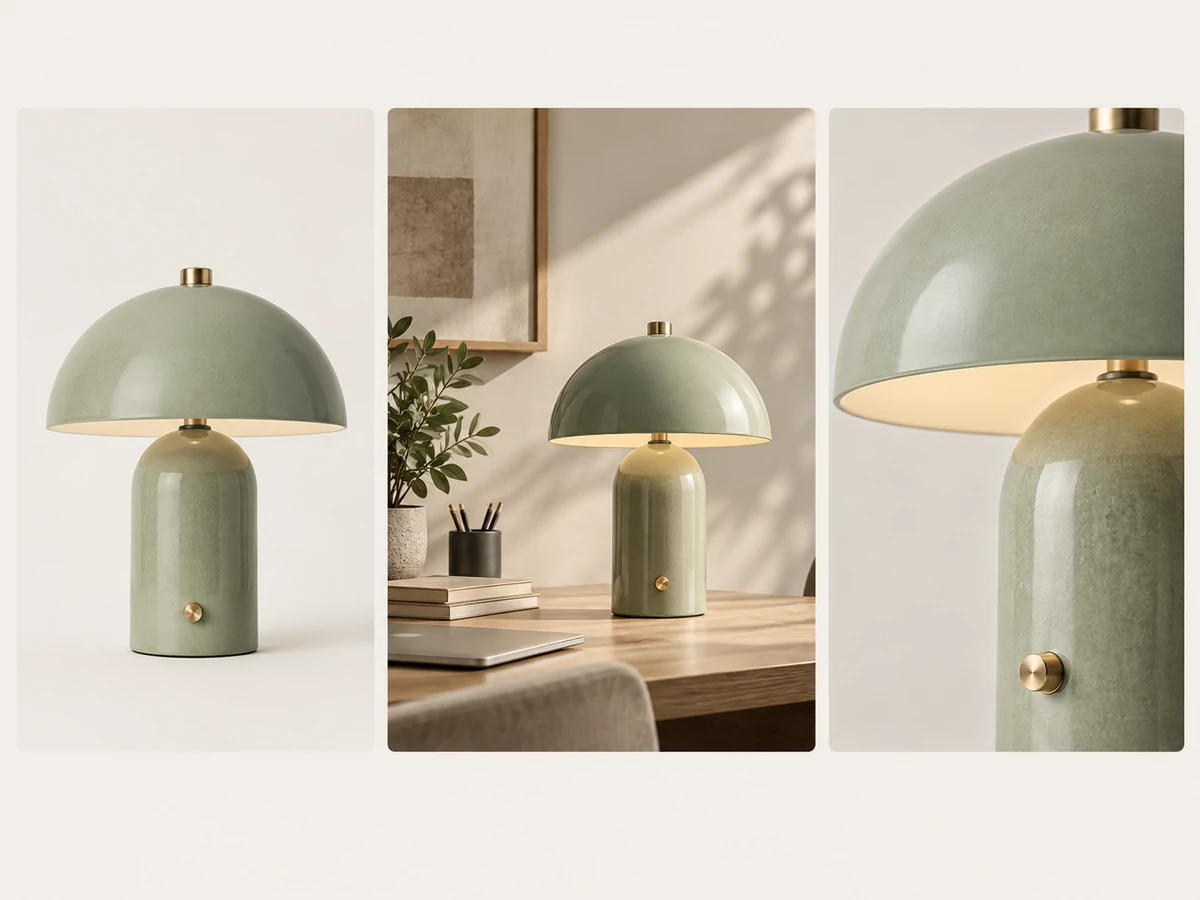
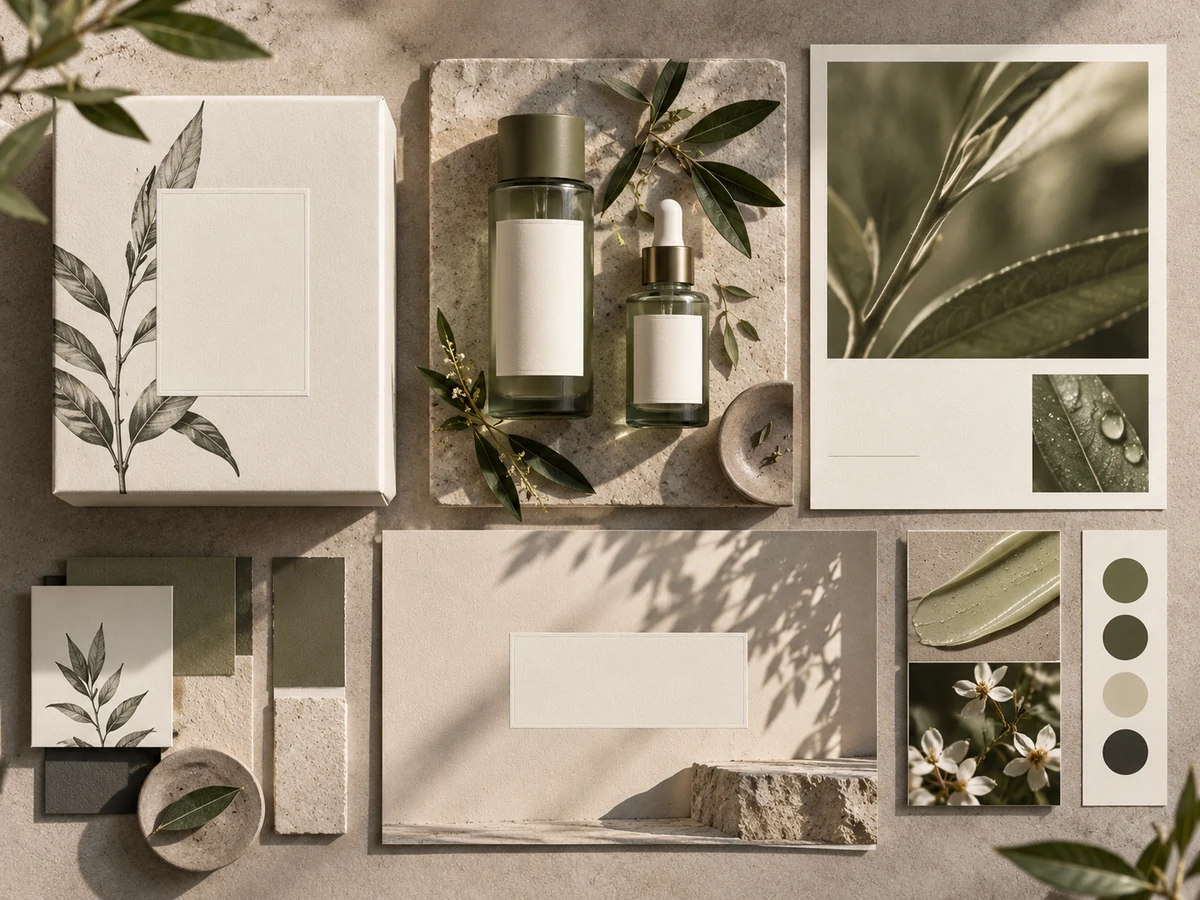
Campaigns, product photography, brand assets, social content — create the first image, then keep refining it without losing the work you already approved.
How to Use GPT Image 2.5 on Zeemo
Open the AI Canvas
Start a project in Zeemo's AI Canvas and select GPT Image 2.5 from the model picker.
Add References, Write Your Prompt
Drop in up to 16 product shots, portraits, or brand references, then describe the image you want to create.
Generate, Refine, Export
Choose the generation settings that fit your project, then refine one element at a time.
Frequently Asked
Questions
GPT Image 2.5 is better at limiting edits to the requested area, preserving reference subjects, and maintaining earlier changes across multiple turns. It also produces more natural lighting and richer textures. Flare delivers higher image quality than GPT Image 2 with up to 50% lower latency; both new tiers add xhigh and max quality levels and support transparent backgrounds. GPT Image 2 stays available on Zeemo if a project is already built around it.
Flare when you need volume and speed — concept rounds, layout tests, social batches. Sunburst when one image has to be right — product finals, campaign deliverables, anything with intricate detail. Both are on the same canvas, so the choice is per job.
Zeemo runs on credits, and both tiers are available on the platform. See current options on the pricing page.
Yes — up to 16 per generation. Upload product shots, character references, or brand assets, and use them to guide the subject into a new setting, composition, or style.
Zeemo offers 1080P, 2K, and 4K output, five quality levels from low to max, 13 preset aspect ratios from 21:9 to 9:21, and batches of 1 to 10 images.
Yes. Open Zeemo's AI Canvas in your browser, select GPT Image 2.5, and choose Flare or Sunburst. Both tiers are available online without setting up an API connection.
Yes. Choose any batch size from 1 to 10 images before you generate, so you can compare several results from the same prompt in one run.